Relay Desktop Streamer — User Guide
1. Getting started
Relay Desktop Streamer captures one monitor of a Windows PC, with its sound, and sends it over the network as a live video stream. The stream is standard MPEG-TS over UDP, to a multicast group or to one address, so anything that can open such a stream can show it: Relay Player, VLC, IPTV set-top boxes and digital signage players. It can also serve the same picture as HLS, which lets a phone, tablet or any web browser watch with nothing installed.
Relay Desktop Streamer is freeware, published by Relay Video Lab and provided with no warranty of any kind. It runs on 64-bit Windows 10 and Windows 11. No account, licence key or internet connection is required to run it.
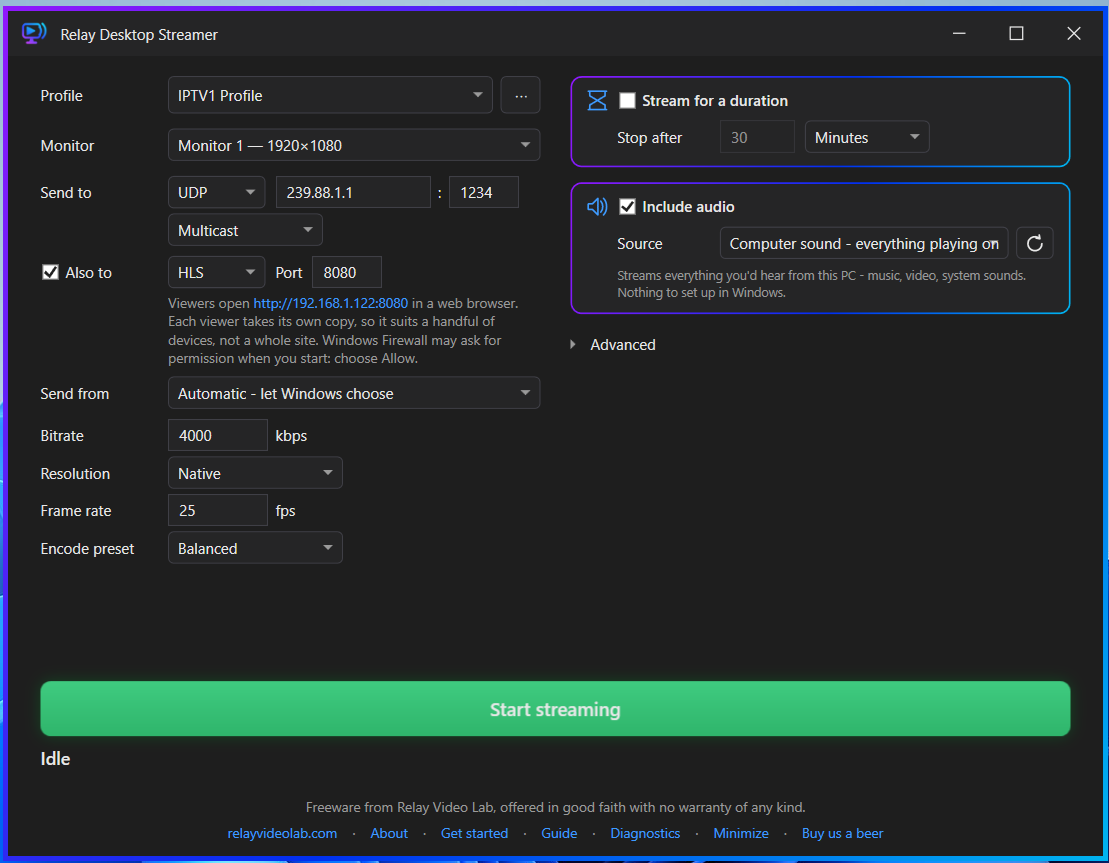
The main window
Everything is on one screen, in two columns, with the Start button underneath.
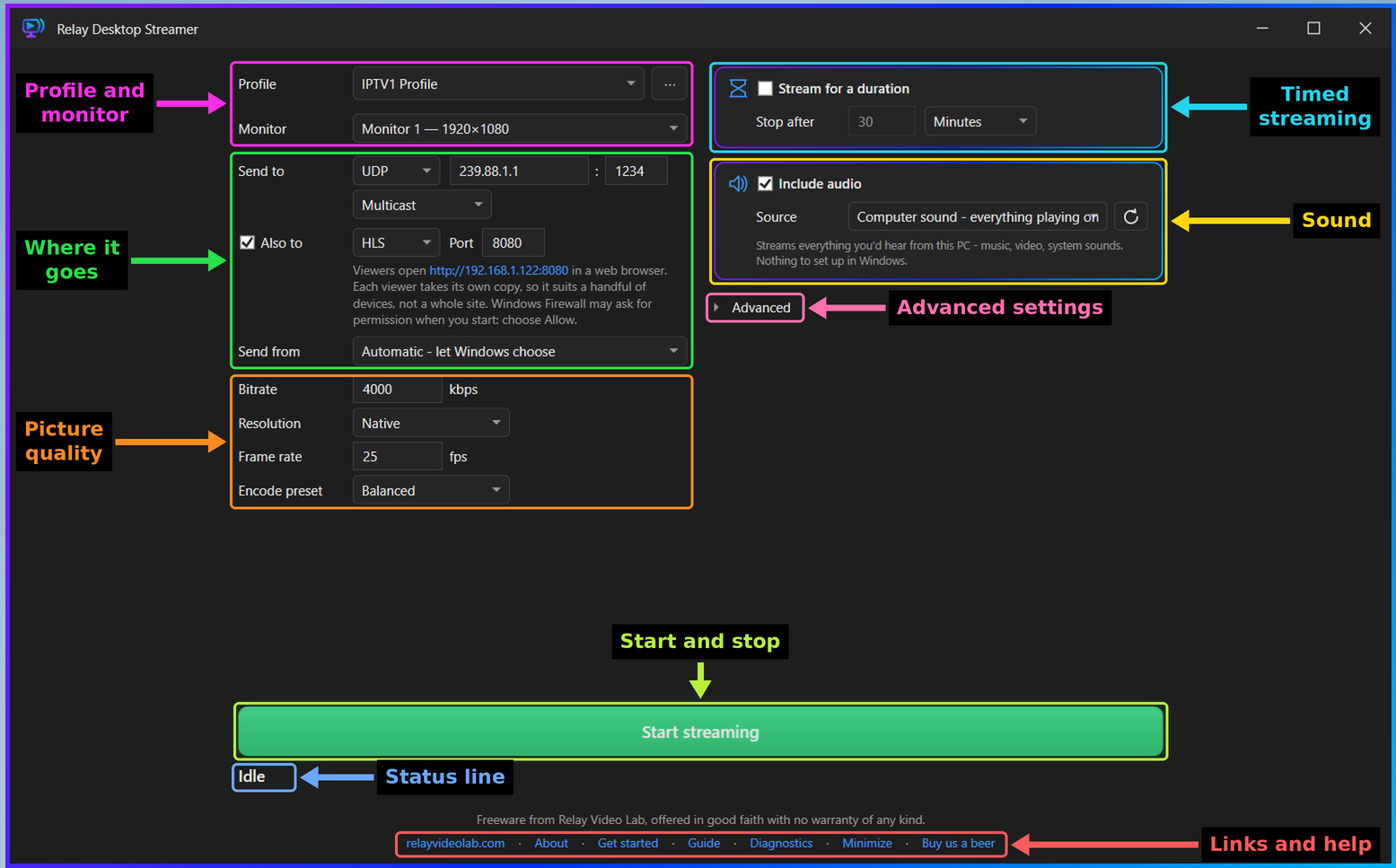
| Area | Purpose |
|---|---|
| Profile and monitor | Profile selects a saved set of settings. Monitor selects which screen is streamed. See 3. Profiles. |
| Where it goes | Send to, the optional Also to, and Send from. See 4. Where the stream goes and 5. HLS. |
| Picture quality | Bitrate, Resolution, Frame rate and Encode preset. See 6. Picture quality. |
| Timed streaming | Stream for a duration stops the stream by itself after a set time. See 8.1. |
| Sound | Include audio and its Source. See 7. Sound. |
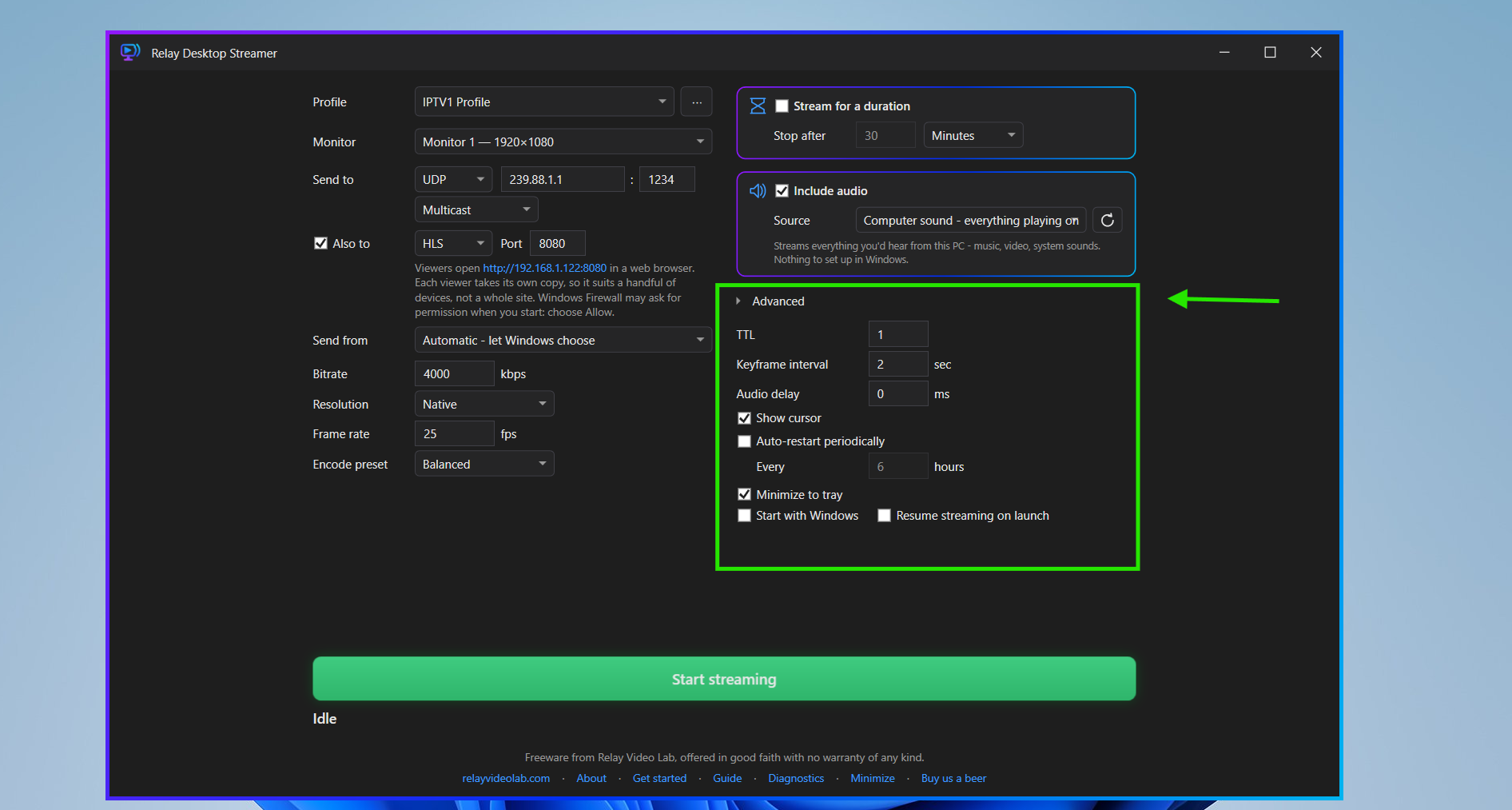
| Advanced settings | Click Advanced to open it. Holds TTL, Keyframe interval, Audio delay, Show cursor, Auto-restart periodically, Minimize to tray, Start with Windows and Resume streaming on launch. |
| Start and stop | One button. It reads Start streaming when idle and Stop streaming while a stream is running. |
| Status line | Shows Idle, Starting…, or Streaming with the time elapsed or remaining. If something goes wrong, the reason appears here in plain English. |
| Links and help | About, Get started, Guide (this page), Diagnostics and Minimize. |
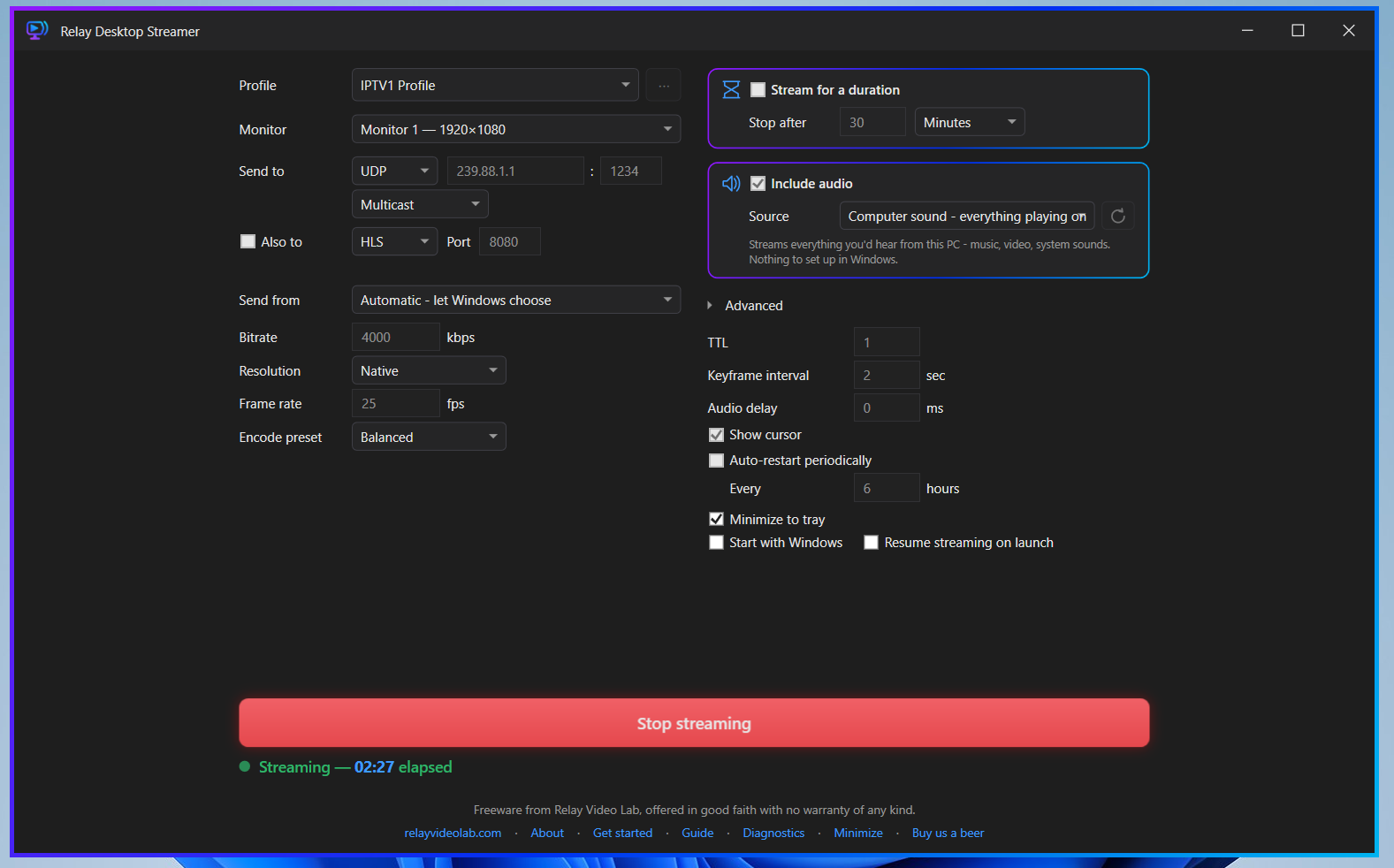
While a stream is running, the settings are locked. What the window shows is always what is being sent. Stop the stream to change them.
First launch
The first time Relay Desktop Streamer runs, it opens a Get started window with three short steps. A Don't show this again on launch checkbox is on that window, and Get started at the bottom of the main window reopens it at any time.
2. A first stream in two minutes
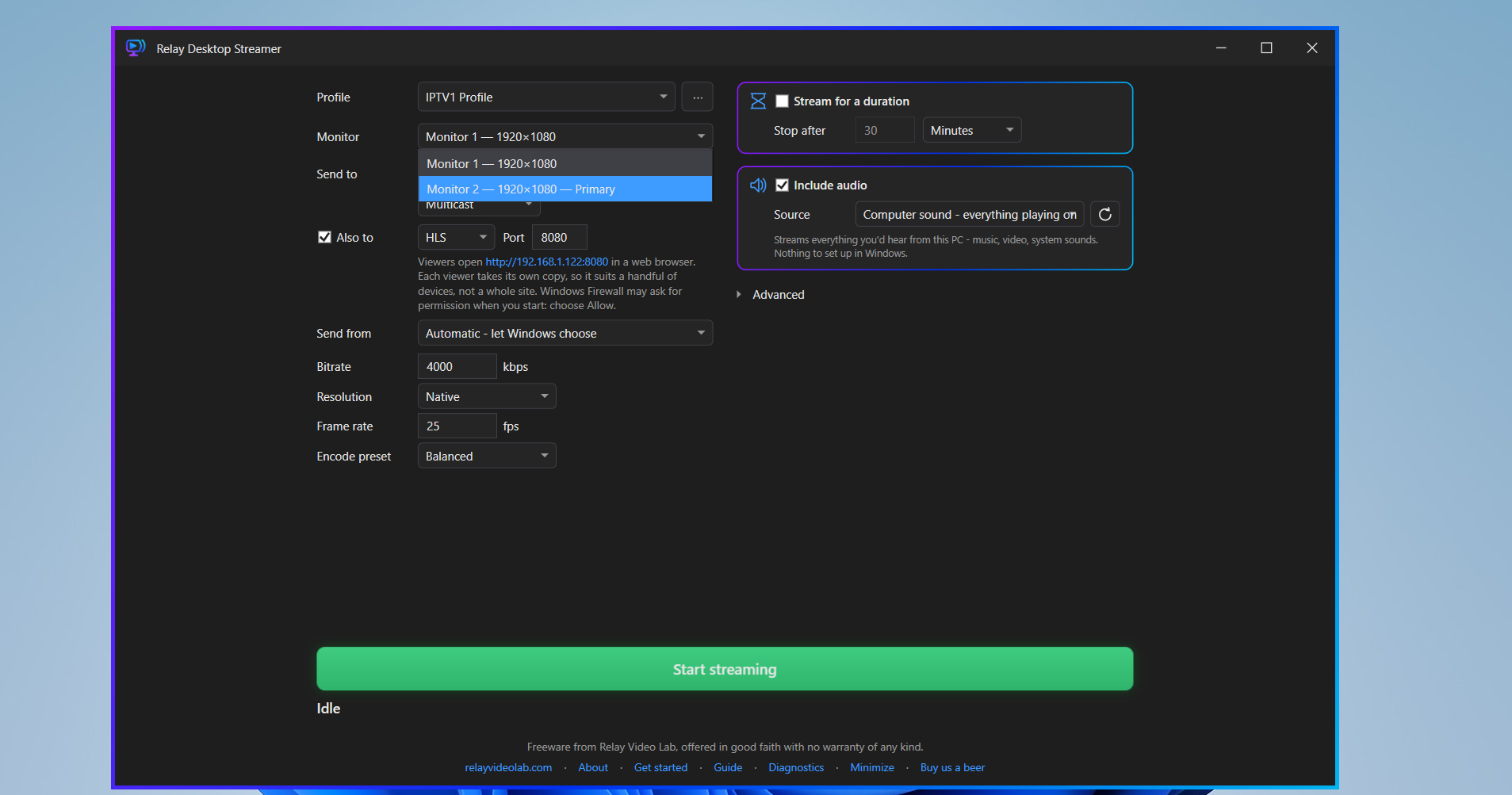
- Choose what to show. Pick the screen in Monitor. Each is listed with its size, for example
Monitor 1 — 1920×1080. Tick Include audio to send the computer's sound as well. - Set where it goes. Beside Send to, leave the type as UDP and Multicast, and enter an address and port. The default,
239.1.1.1port1234, is a sensible first choice on most networks. - Press Start streaming. The button turns into Stop streaming and the status line shows Streaming with a running clock.
- Open it on another PC. In Relay Player, add a channel of type UDP multicast with the same address and port, and play it.
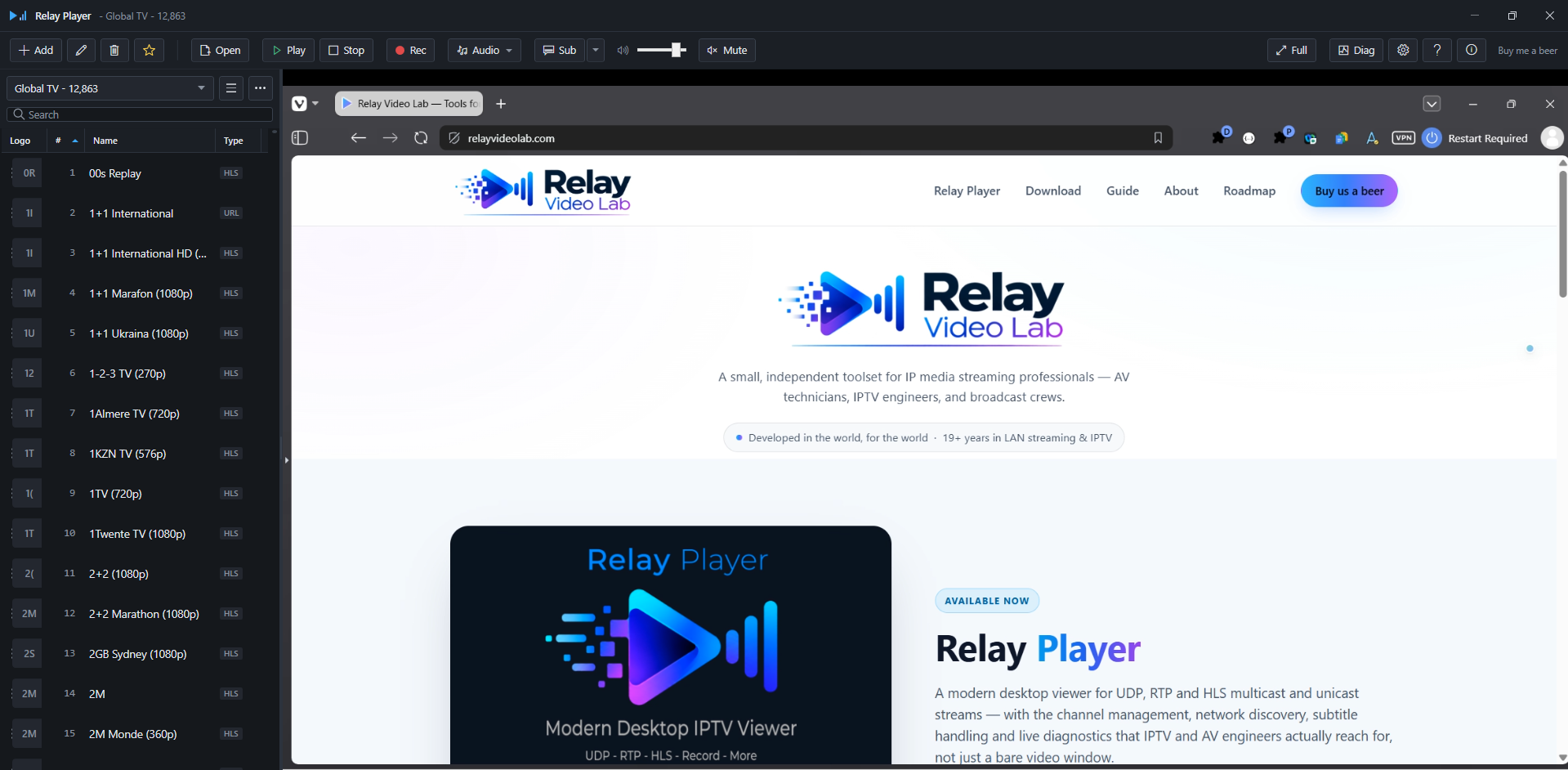
Other ways to watch, including VLC and a web browser, are in 9. Receiving the stream.
3. Profiles
A profile is a named set of every setting on the main window: the monitor, both destinations, picture quality, sound, duration and restart options. Any number can be kept, for example one per screen being fed or one per event. Switching is done from the Profile list.
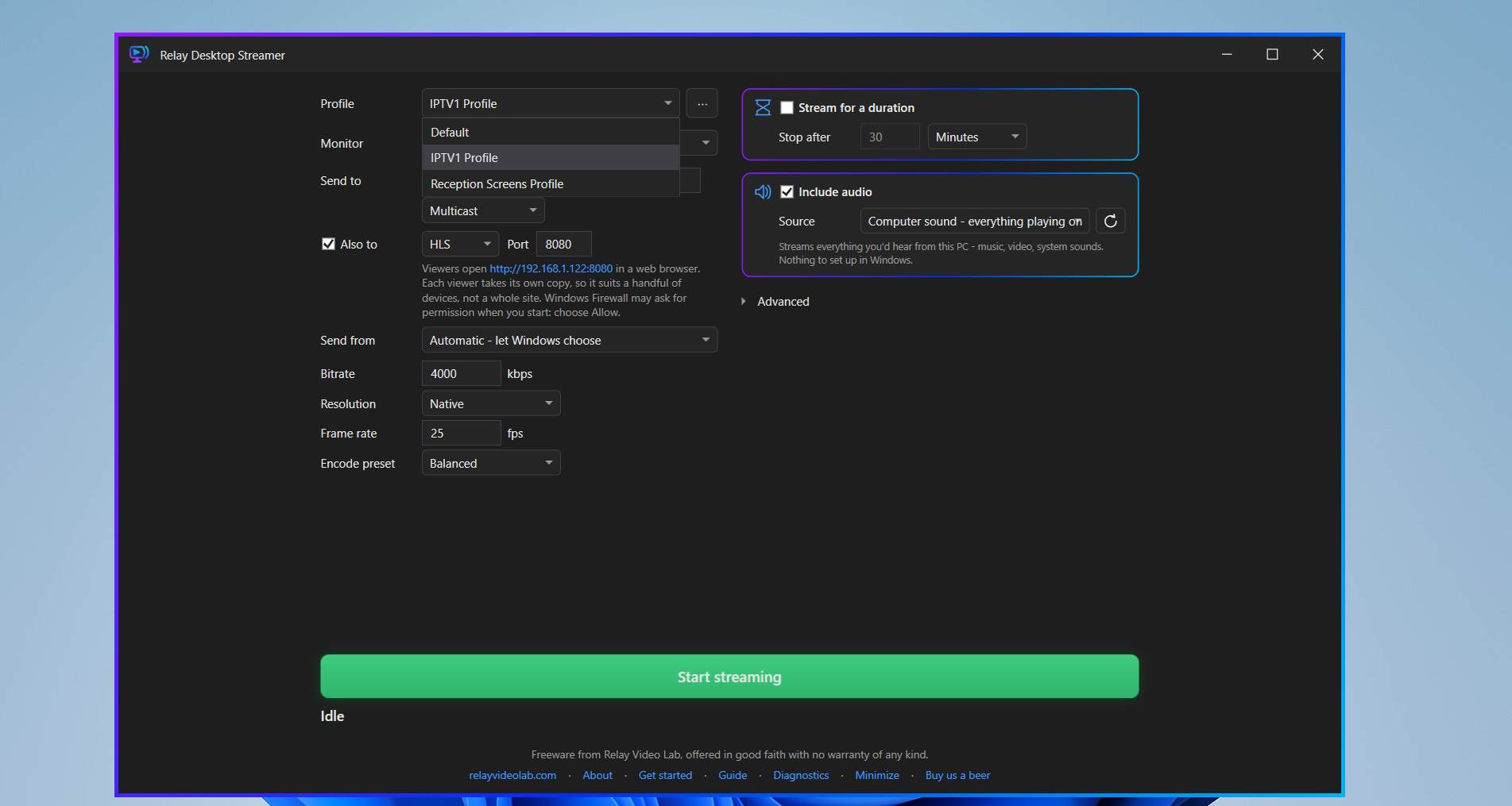
The ⋯ button beside the list opens a menu:
| Menu item | What it does |
|---|---|
| New profile… | Creates a profile with default settings and asks for its name. |
| Duplicate profile… | Copies the current profile under a new name. The quickest way to make a variation. |
| Rename profile… | Changes the current profile's name. |
| Delete profile… | Removes the current profile. |
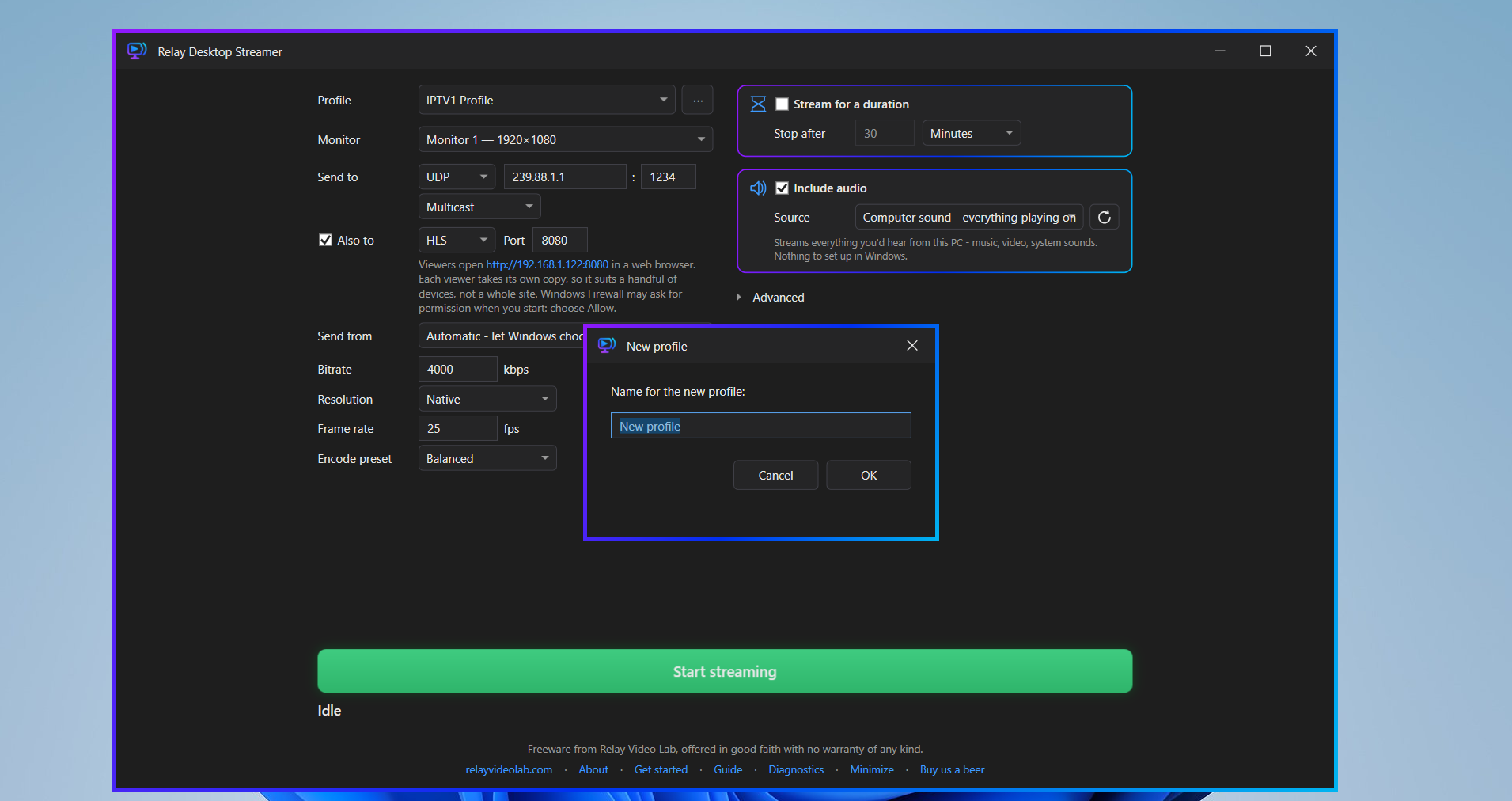
There is no Save button. Changes made on the main window are kept in the selected profile when another profile is chosen and when the application closes. The profile last used is selected at the next launch.
The monitor is part of the profile. If a profile's monitor is not connected, for example a laptop away from its dock, the profile keeps remembering it and only changes if a different monitor is picked.
4. Where the stream goes
4.1 Send to and Also to
Send to is the main destination and is always on. Also to is an optional second destination: tick its checkbox and the same stream goes to both at once. One Start streaming button starts whichever destinations are switched on.
Each destination has a type:
| Type | Use it for |
|---|---|
| UDP | The standard stream for Relay Player, VLC, IPTV set-top boxes and signage players. Start here. |
| RTP | The same stream wrapped in RTP. Only needed for a receiver that specifically requires RTP. |
| HLS | Web browsers, phones and tablets. See 5. HLS. |
The picture and sound are encoded once and copied to each destination, so a second destination costs almost no extra processor time. Both receive the same picture and quality. Only one of the two can be HLS, and the second cannot be the same address and port as the first.
If one destination fails while the other is working, for example a unicast PC that is switched off, the stream carries on to the other. The failed destination shows Stopped - couldn't send here. The other destination is still streaming. and the status line adds one destination stopped. If every destination fails, the stream stops and the status line gives the reason.
4.2 UDP and RTP
A UDP or RTP destination has an address, a port, and a choice of Multicast or Unicast.
| Choice | Meaning |
|---|---|
| Multicast | Sends to a group address that any number of receivers can tune to. One copy of the stream leaves the PC however many are watching. Use an address in the range 239.0.0.0 to 239.255.255.255, which is set aside for private use. |
| Unicast | Sends to one PC or device. Enter its IP address or its computer name. |
TTL, in Advanced, is how many network hops a multicast stream may cross. The default of 1 keeps it on the local network. Raise it only if the stream has to pass through routers that forward multicast. One TTL setting applies to both destinations.
Streams are sent as 1316-byte packets, seven 188-byte transport stream packets each, which is the usual size for IPTV and fits a normal network without fragmenting.
4.3 Send from
Send from chooses the network adapter that UDP and RTP streams leave through. Automatic - let Windows choose is the default and is right for a PC on one network.
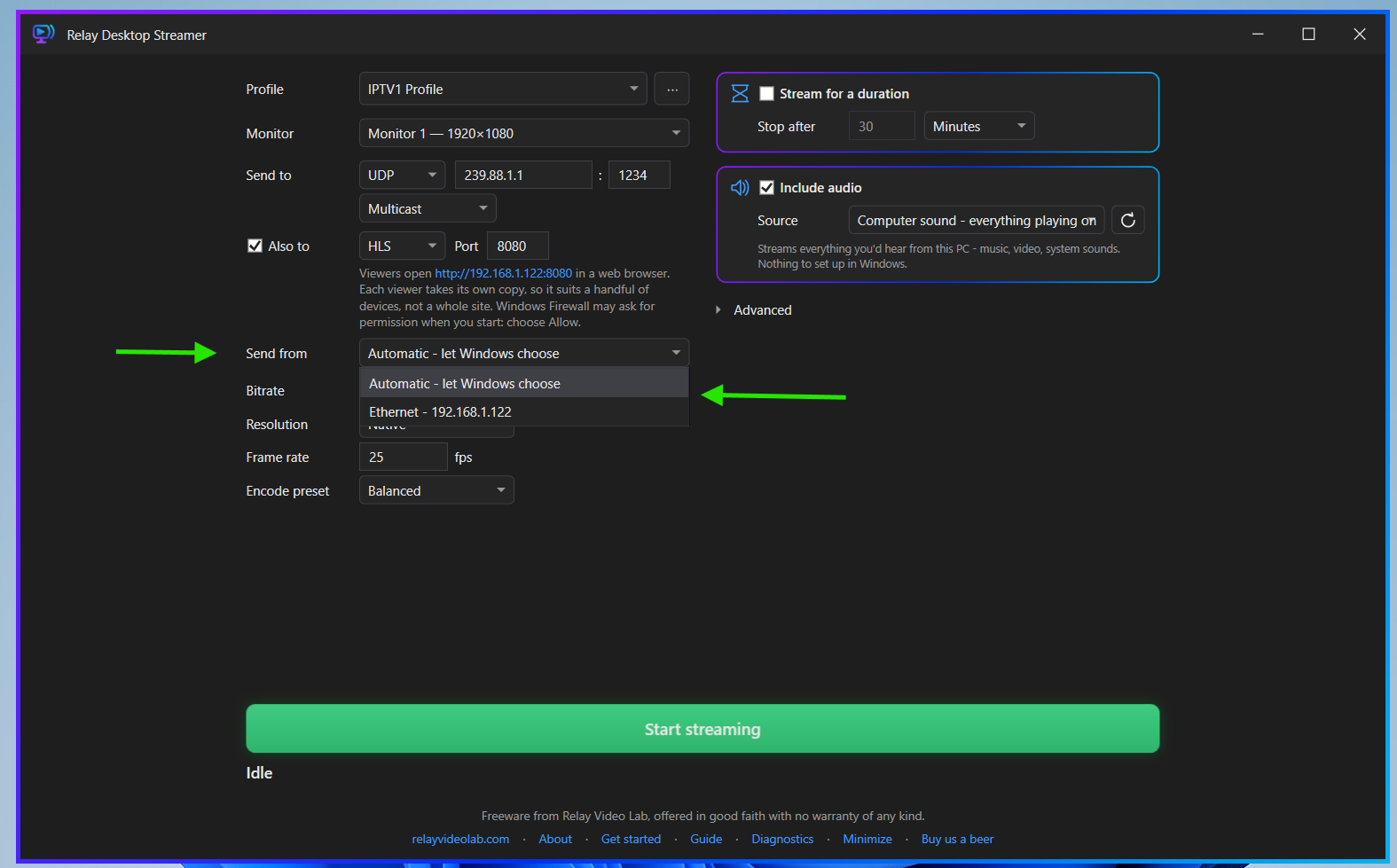
On a PC with more than one network, such as Wi-Fi and Ethernet together, a separate AV or IPTV network, or a VPN, Windows decides for itself which adapter multicast leaves from, and it is often not the one the screens are on. The stream then goes out on the wrong network and the receivers show nothing. Choosing the adapter here removes the guesswork.
The list updates by itself as adapters connect and disconnect. The profile remembers the adapter, not its address, so a changed address does not lose the setting. If the chosen adapter is not connected when a stream starts, the stream does not start and the status line names the adapter, for example "Ethernet 2" isn't connected or has no IPv4 address. Connect it, or set Send from to Automatic.
Send from does not apply to HLS, which answers on every network the PC is connected to.
4.4 Address checks
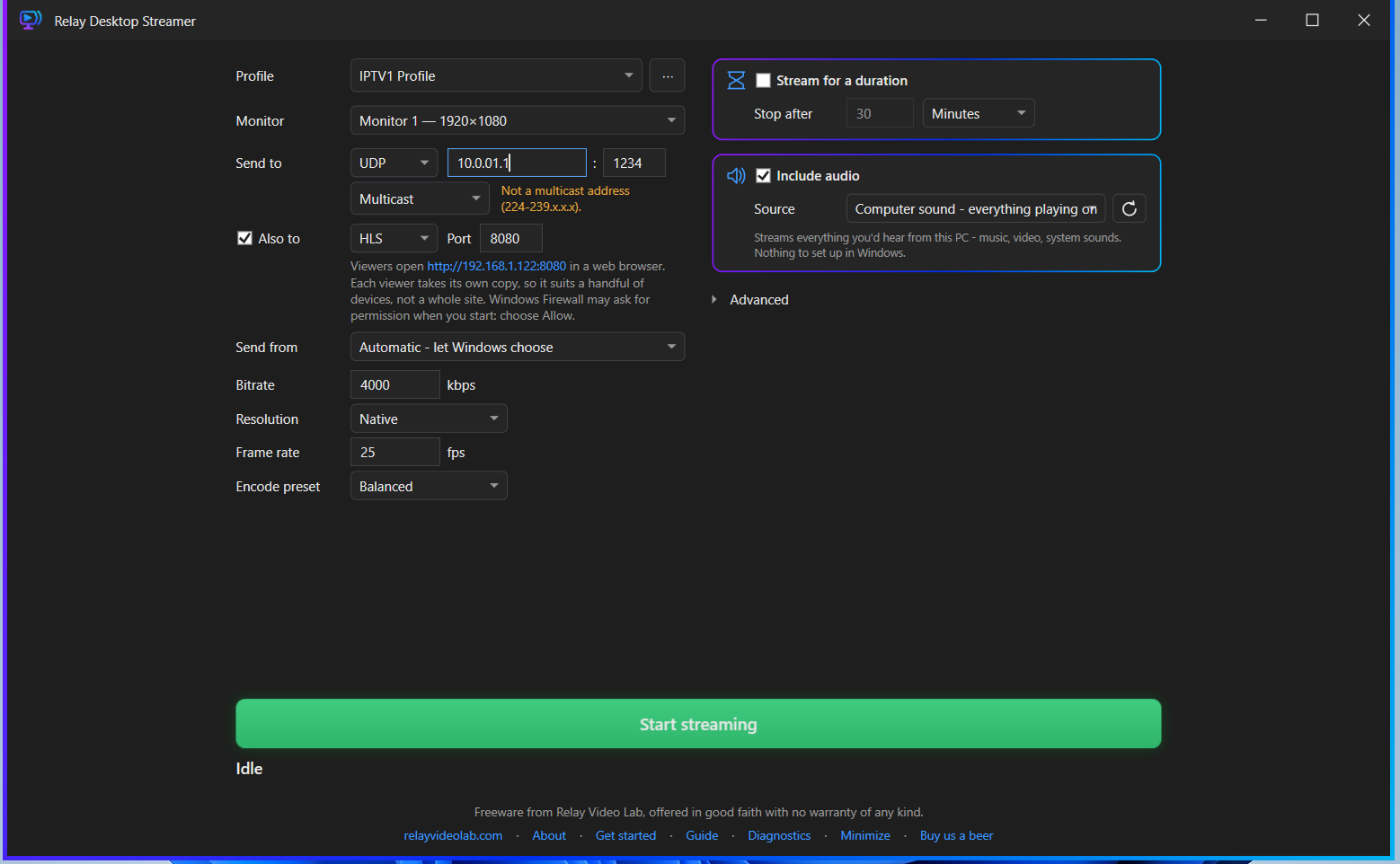
The destination fields are checked as they are typed. A message appears beside the fields, with a fuller explanation in its tooltip. Only a value that cannot work at all blocks Start. The others are warnings, because each is legitimate in some setup.
| Message | Meaning | Blocks Start |
|---|---|---|
| Enter a destination address. | The address is empty. | Yes |
| Not a valid IP address. | A multicast destination must be a numeric address. A unicast destination may be a computer name, made of letters, numbers, hyphens and dots. Shortened forms such as 10.1 are not accepted. Leading zeros are fine: 239.001.001.010 is read as 239.1.1.10. | Yes |
| Port must be between 1 and 65535. | The port is missing or out of range. | Yes |
| Same address and port as the first destination. | The second destination duplicates the first. | Yes |
| Only one destination can be HLS. | Both destinations are set to HLS. | Yes |
| Not a multicast address (224-239.x.x.x). | Multicast is selected but the address is outside the multicast range. To send to one PC, choose Unicast. | No |
| 224.0.0.x is reserved for network control. | These addresses carry the network's own control traffic and are not forwarded like ordinary multicast. Use a 239.x.x.x address. | No |
| That's a multicast address - choose Multicast. | Unicast is selected but the address is a multicast group. | No |
4.5 Pasting an address
A whole stream address can be pasted into an address box, for example udp://@239.1.1.1:1234. On leaving the box, the address is kept, the port is moved to the port box, and udp:// or rtp:// sets the type. The caption confirms with Tidied the pasted address and moved its port across.
5. HLS: watching in a web browser
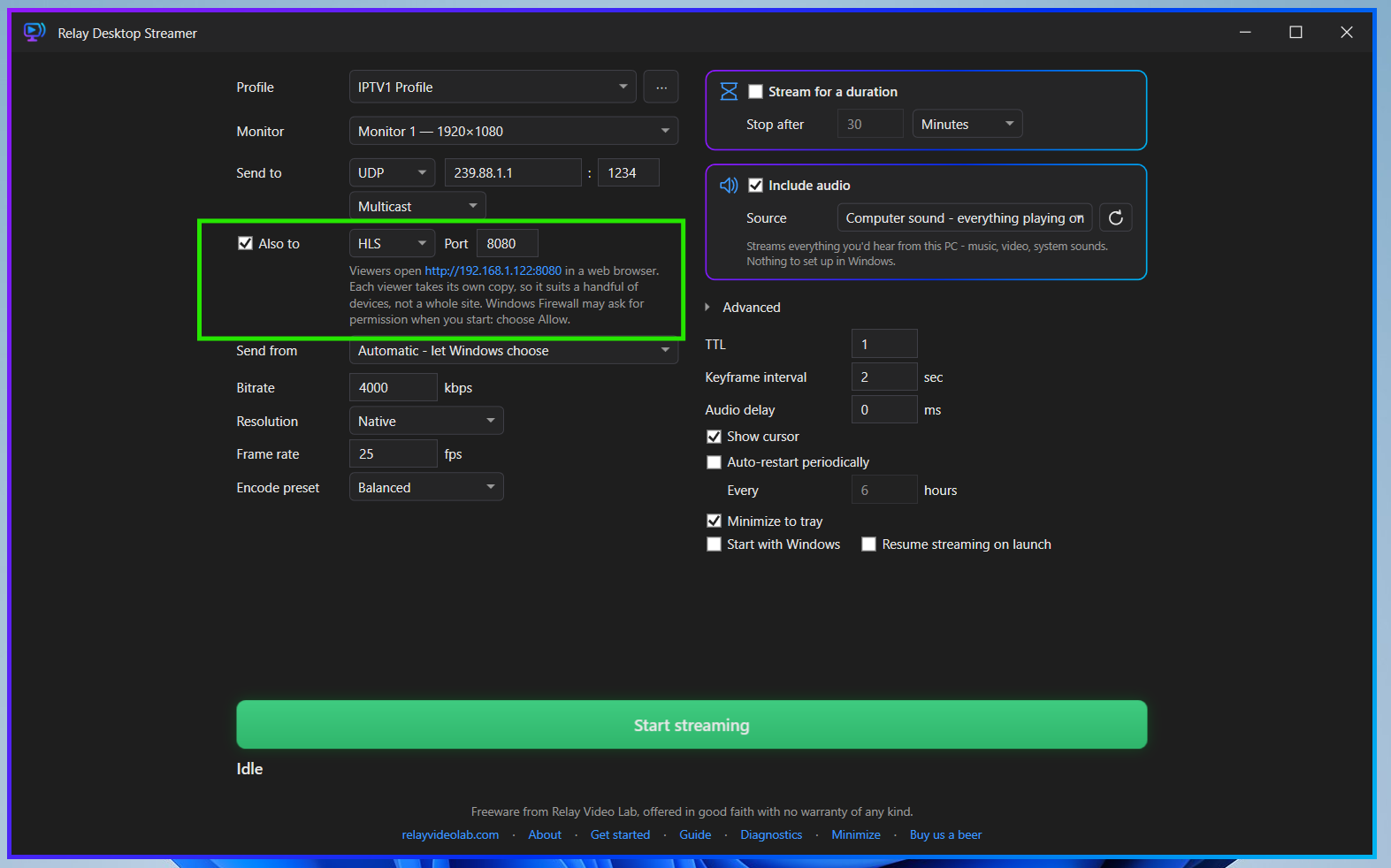
HLS lets a phone, tablet or any web browser watch the stream with nothing installed. Choose HLS as the type of either destination. Relay Desktop Streamer then serves the stream itself: there is no separate web server to set up.
Watching
The caption under the destination shows the address, for example http://192.168.1.20:8080. Viewers type that into a web browser while the stream is running. The link in the caption opens the same page on the streaming PC, which is a quick way to check it.
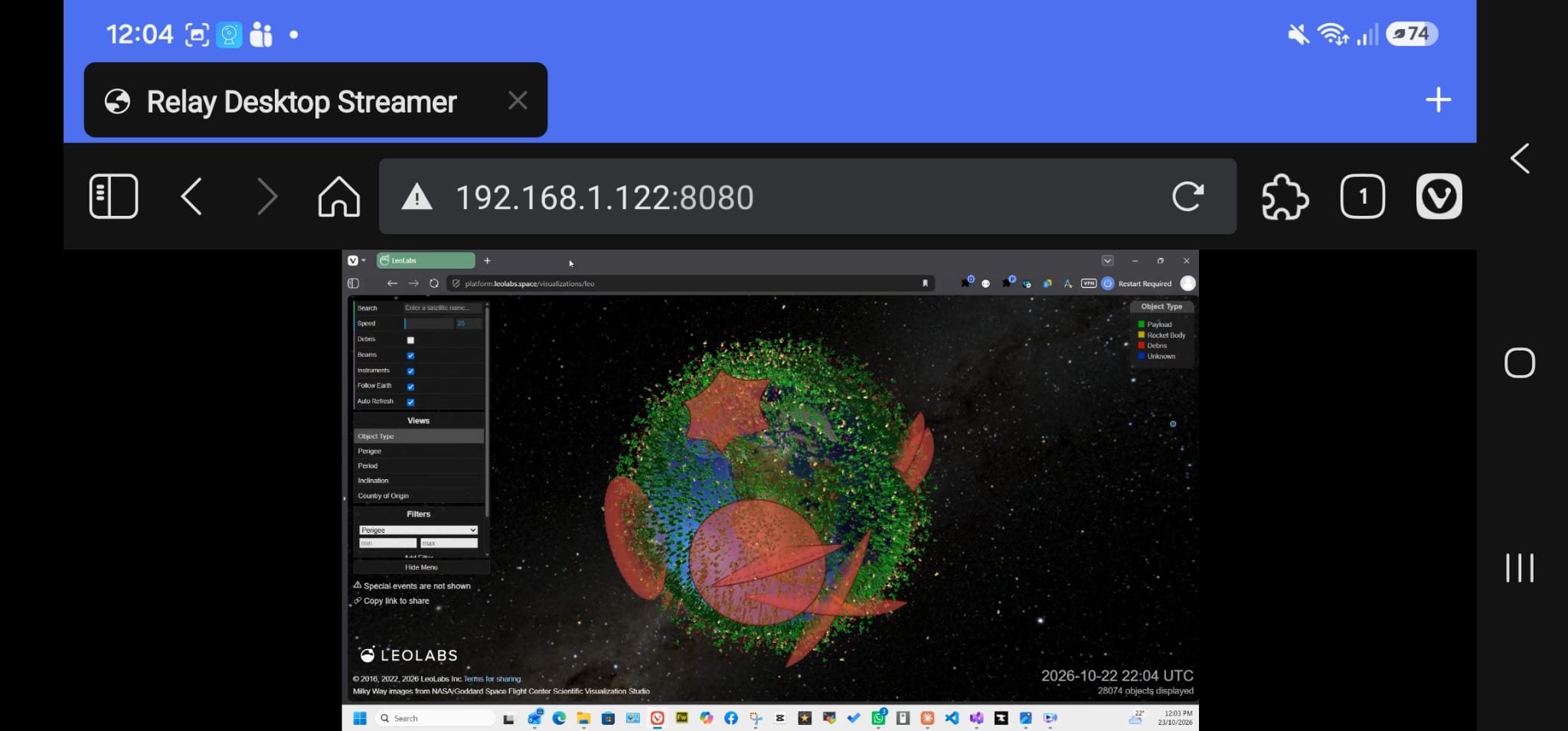
- The page starts without sound, because web browsers do not allow a page to start playing sound by itself. Press Turn sound on, or click the picture.
- The page can be opened before the stream starts. It shows Waiting for the stream… and begins playing by itself when the stream is available. It also recovers by itself if the stream is restarted.
- It plays in Chrome, Edge, Firefox and Safari, on computers, phones and tablets.
- A player that opens HLS directly, such as Relay Player or VLC, can use the same address with
/stream.m3u8on the end, for examplehttp://192.168.1.20:8080/stream.m3u8.
How many viewers
HLS suits a handful of devices, not a whole site. Unlike multicast, every device watching pulls its own copy of the stream from the streaming PC. Ten viewers at 4,000 kbps can be up to 40 Mbit/s leaving that PC. For screens across a building, use multicast UDP, where one copy reaches any number of receivers.
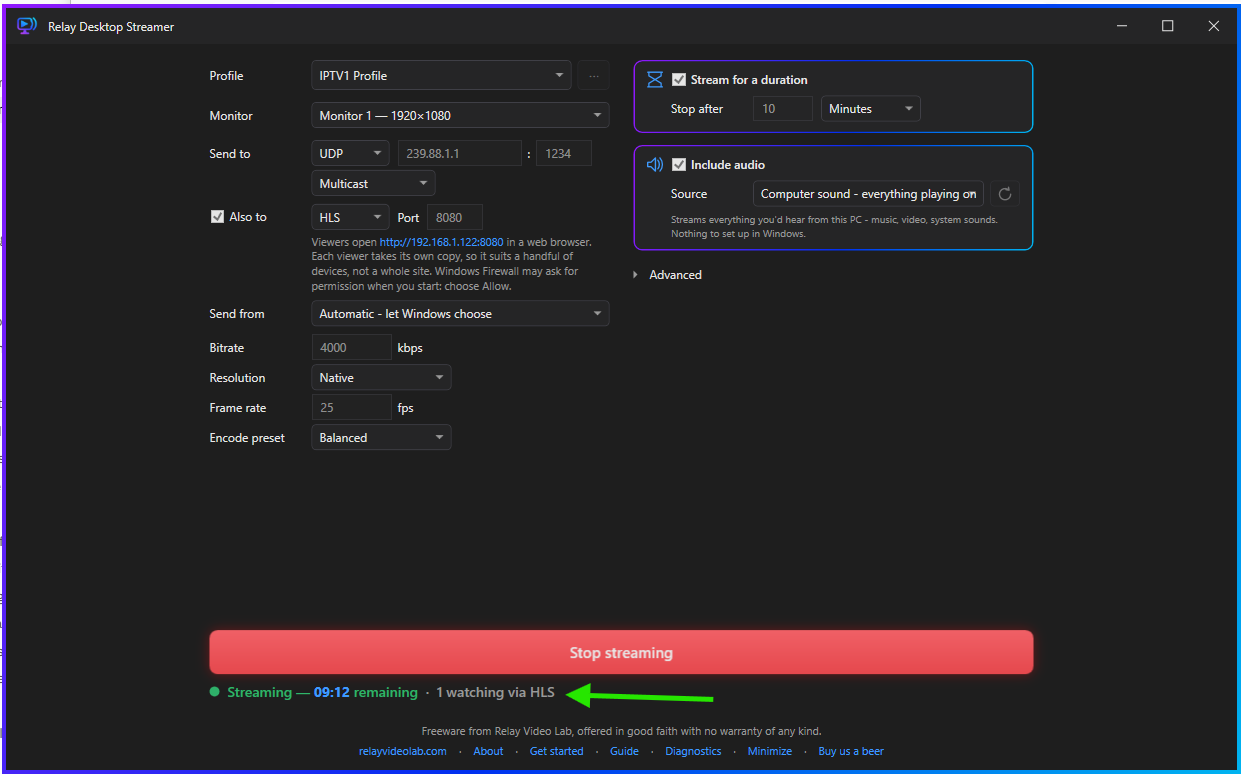
While streaming, the status line shows how many devices are watching, for example 3 watching via HLS, and Diagnostics shows the count with the total bitrate it adds up to.
Windows Firewall
The first time an HLS stream is started, Windows asks Do you want to allow public and private networks to access this app? Choose Allow. If it is cancelled, the stream still runs but other devices cannot connect to it.
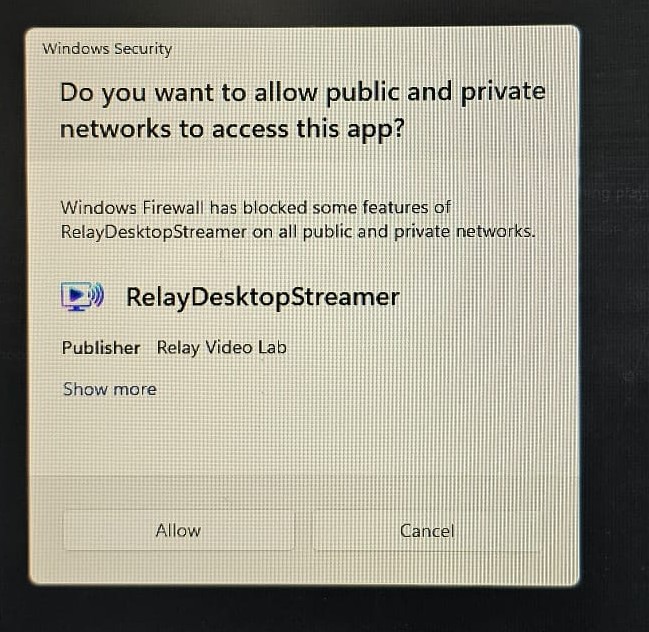
Allow lets other devices connect on both private networks, such as a home or work network, and public ones, such as a café's Wi-Fi. On a laptop that travels, limit it to private networks: in Windows Security, open Firewall & network protection, choose Allow an app through firewall, then Change settings, and untick Public beside RelayDesktopStreamer. The answer can be changed there at any time.
Things to know
- Delay. HLS runs several seconds behind live, typically six to ten. That is how the format works, and it is not a fault. Use UDP where the delay matters.
- No password. Anyone on the network who has the address can watch while the stream is running. Do not use HLS for a screen that should not be seen by everyone on that network.
- Port. The default is
8080. If another program is already using it, Start reports HLS port 8080 is already being used by another program on this PC. Choose a different port. - Same network. The viewing device has to be able to reach the streaming PC. A guest Wi-Fi network that isolates devices from each other will not work.
- Open it by the PC's address. The page answers when opened by the address shown in the caption, or by the PC's computer name. Opened under any other name, it replies Open this page using this PC's address, as shown in Relay Desktop Streamer. This stops other web pages from reaching the stream through a viewer's browser.
6. Picture quality
| Setting | What it does |
|---|---|
| Bitrate | The size of the video stream, in kbps. The default is 4000. Higher gives a cleaner picture, especially with movement, and uses more network. The stream never goes above this rate. A screen that is not changing needs far less, so the rate actually sent is often well below it. |
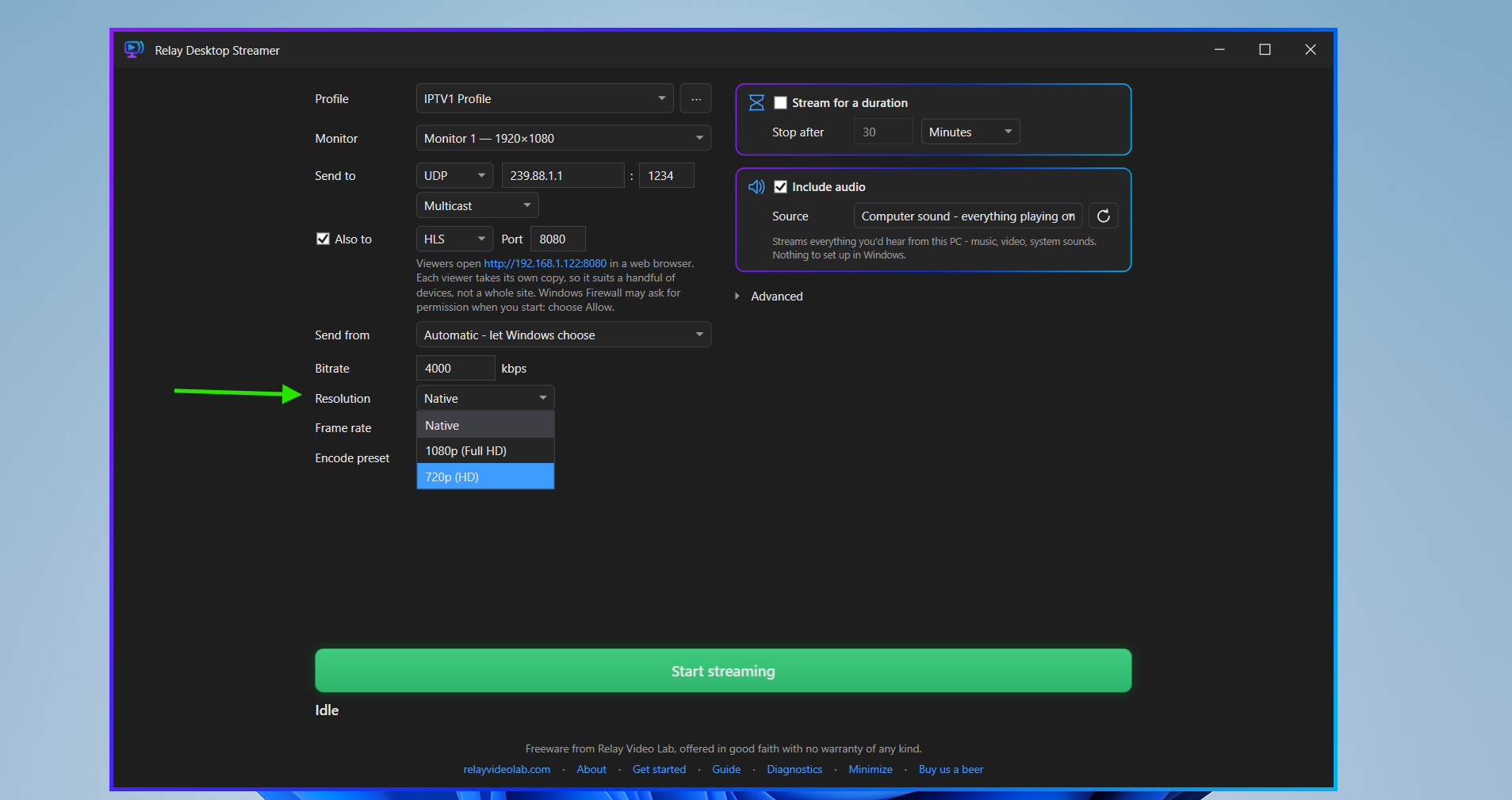
| Resolution | Native sends the monitor's own size. 1080p (Full HD) and 720p (HD) scale a larger monitor down, keeping its shape. A monitor already that size or smaller is sent as it is. |
| Frame rate | Frames per second. The default is 25. |
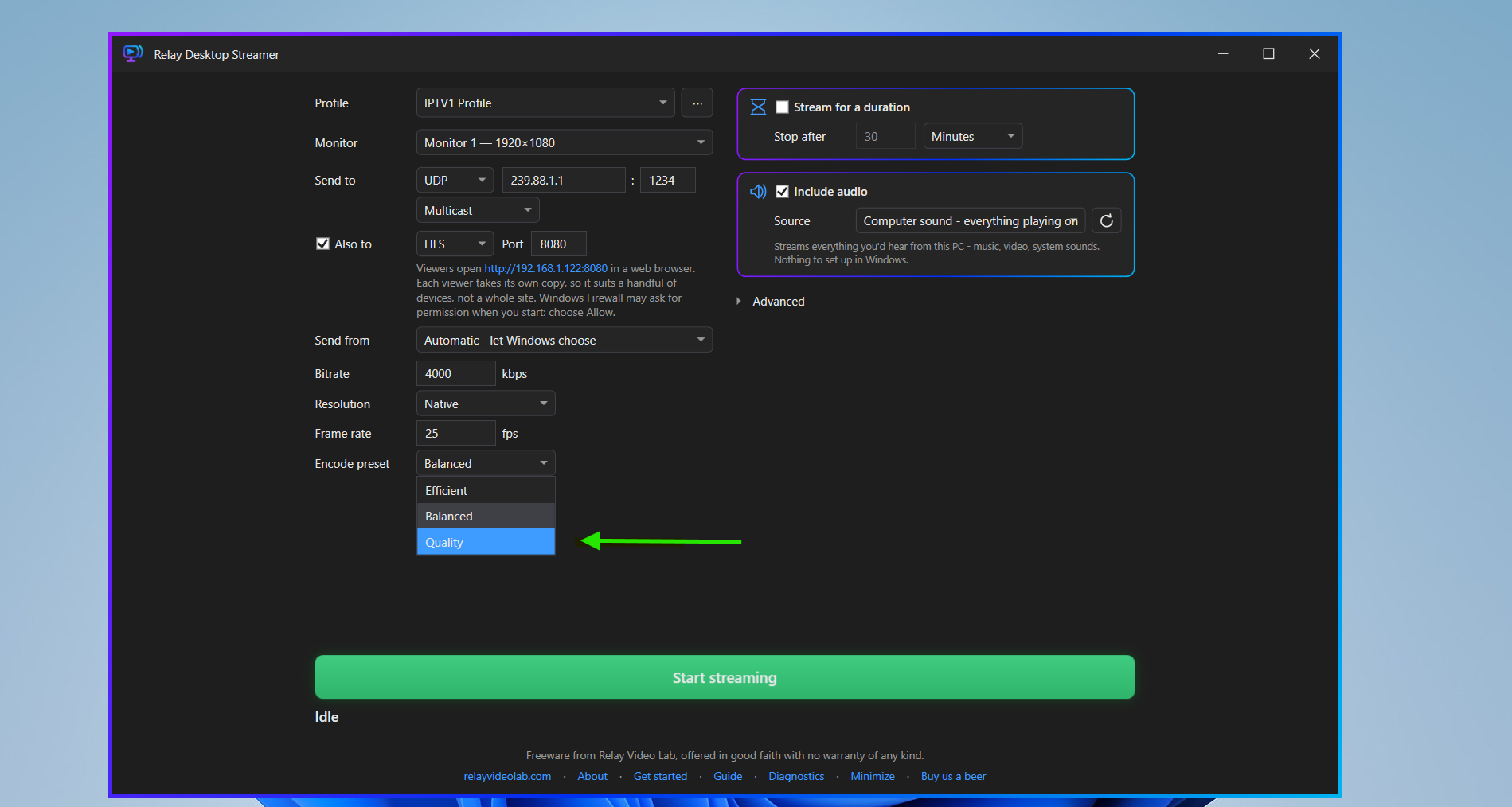
| Encode preset | How hard the processor works to compress the picture. Efficient uses the least processor time. Balanced is the default. Quality gives a cleaner picture at the same bitrate for more processor time. |
| Keyframe interval | In Advanced. Seconds between complete frames. The default is 2. A receiver joining the stream waits for the next one, so a shorter interval means a picture appears sooner, at some cost in quality. |
| Show cursor | In Advanced. Includes the mouse pointer in the stream. On by default. |
On a modest PC
Streaming a 4K or 1440p monitor at its native size is demanding. Setting Resolution to 1080p (Full HD) and Encode preset to Efficient lowers the load considerably. The Encoder speed figure in Diagnostics shows whether the PC is keeping up (12).
7. Sound
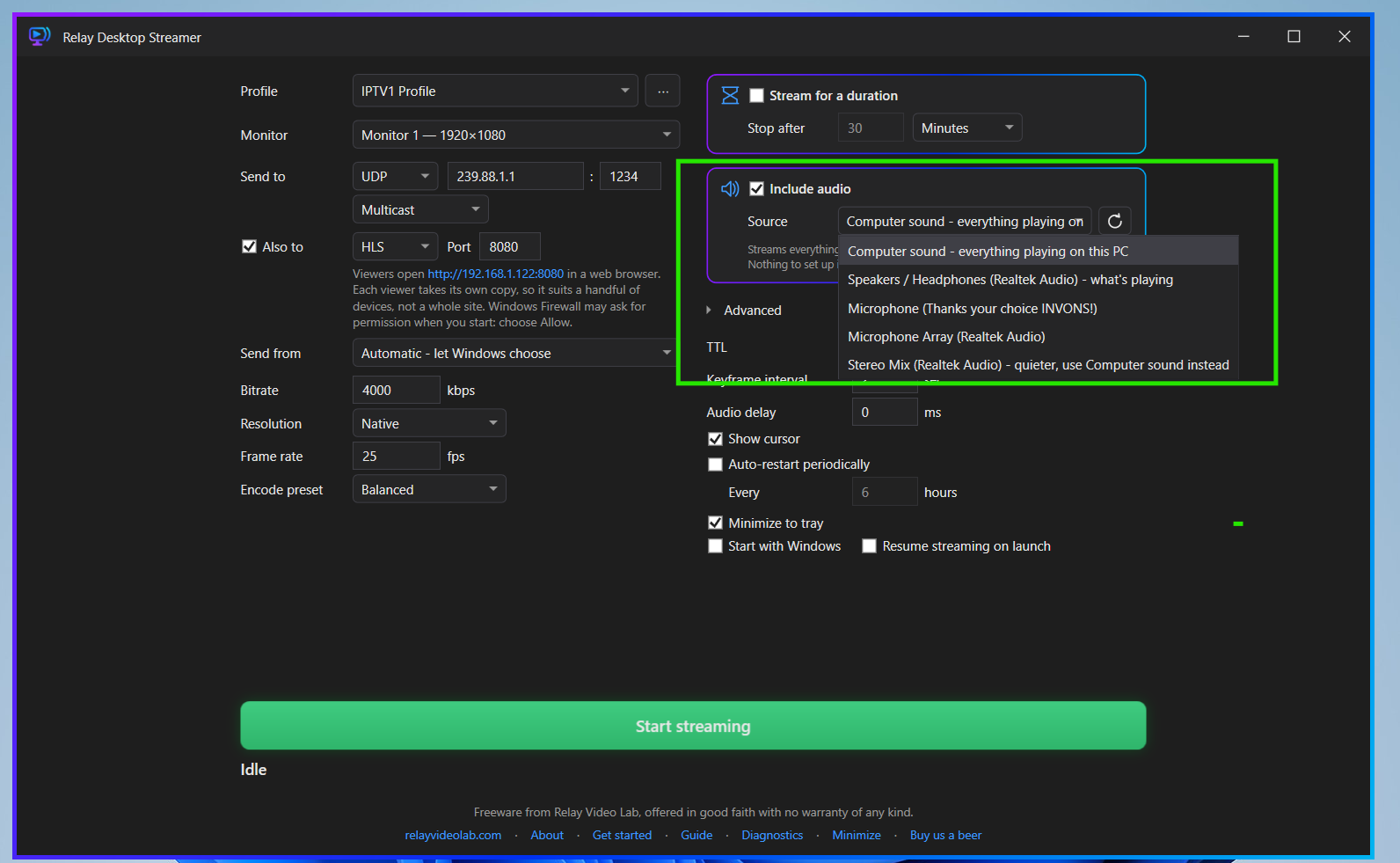
Tick Include audio to send sound with the picture, then choose a Source.
| Source | What is streamed |
|---|---|
| Computer sound - everything playing on this PC | Everything that would be heard from the PC: music, video, system sounds. Nothing has to be set up in Windows. This is the usual choice. |
| Device name - what's playing | Everything playing on one particular output: one set of speakers, headphones or an HDMI output. |
| A microphone or input | That recording device. |
| Stereo Mix - quieter, use Computer sound instead | Works, but is usually quieter, because it picks the sound up after the Windows volume control. Computer sound gives the same thing at full level. |
The refresh button beside the list re-reads the devices. Use it after plugging in headphones or a USB microphone.
- Silence is filled. When nothing is playing, the stream still carries a continuous, silent sound track, so receivers do not stall.
- If the device cannot be used. The stream carries on with a silent sound track. The audio panel says why and the status line adds no audio.
- Microphones and Windows privacy. If Windows is blocking desktop apps from using microphones, the panel says so. Turn on Let desktop apps access your microphone in Windows Settings, Privacy & security, Microphone. This does not affect Computer sound.
- Audio delay. In Advanced. If sound and picture are out of step on the receiver, enter a number of milliseconds: positive to play the sound later, negative to play it earlier. Leave it at
0unless a mismatch is visible.
8. Unattended running
These settings are for a PC that streams with nobody at it: a lobby display source, a signage feed, an event stream that has to end on time. Most are in Advanced.
8.1 Stream for a duration
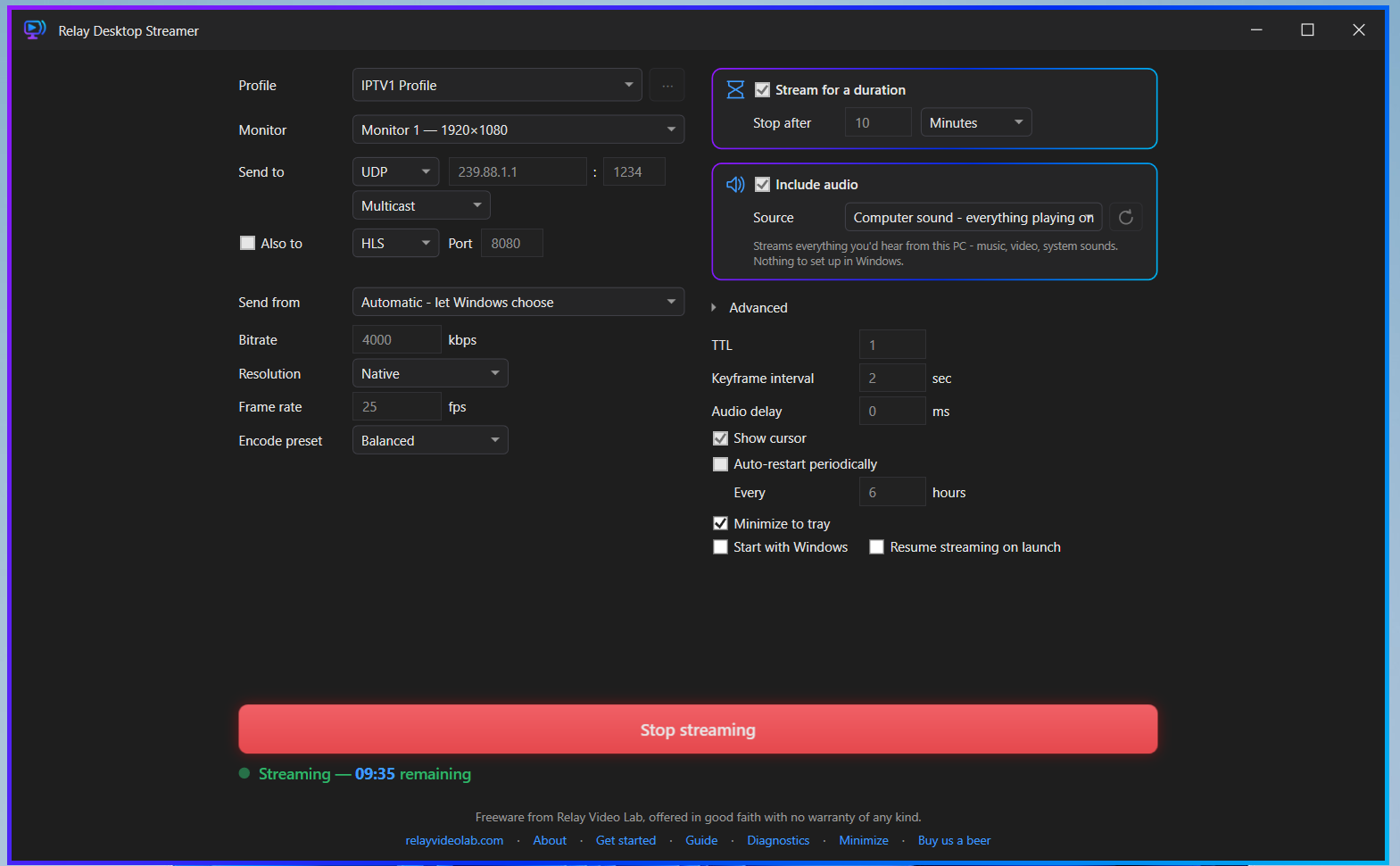
Tick Stream for a duration and set Stop after to a number of Minutes, Hours or Days. The stream stops by itself when the time is up, and the status line counts down the time remaining.
8.2 Start with Windows and resume
| Setting | What it does |
|---|---|
| Start with Windows | Opens Relay Desktop Streamer when Windows is signed in to. It starts minimised, so its window does not appear in the picture being streamed. No administrator rights are needed. |
| Resume streaming on launch | If a stream was running when the application last closed, it starts again at the next launch. |
With both ticked, a stream comes back by itself after a restart or a power cut. Three details make that dependable:
- Whether a stream is running is recorded the moment it starts, so a power cut is treated the same as a normal shutdown. A stream stopped on purpose is not resumed.
- If the network is not ready when Windows starts, the stream is tried again every 10 seconds for about a minute. The status line shows the attempts.
- If the profile's monitor is not connected, the stream is not resumed, and the status line says Didn't resume streaming: the monitor this profile uses isn't connected. Sending a different screen with nobody watching would be worse than sending nothing.
These two settings, and Minimize to tray, apply to the whole application, not to one profile.
8.3 Auto-restart periodically
Tick Auto-restart periodically and set Every to a number of hours. The stream is stopped and started again at that interval, which takes a second or two. It is a safeguard for very long runs and is off by default.
8.4 The tray icon
While the application is running it has an icon in the notification area, beside the clock. On Windows 11 it may be behind the ^ arrow.
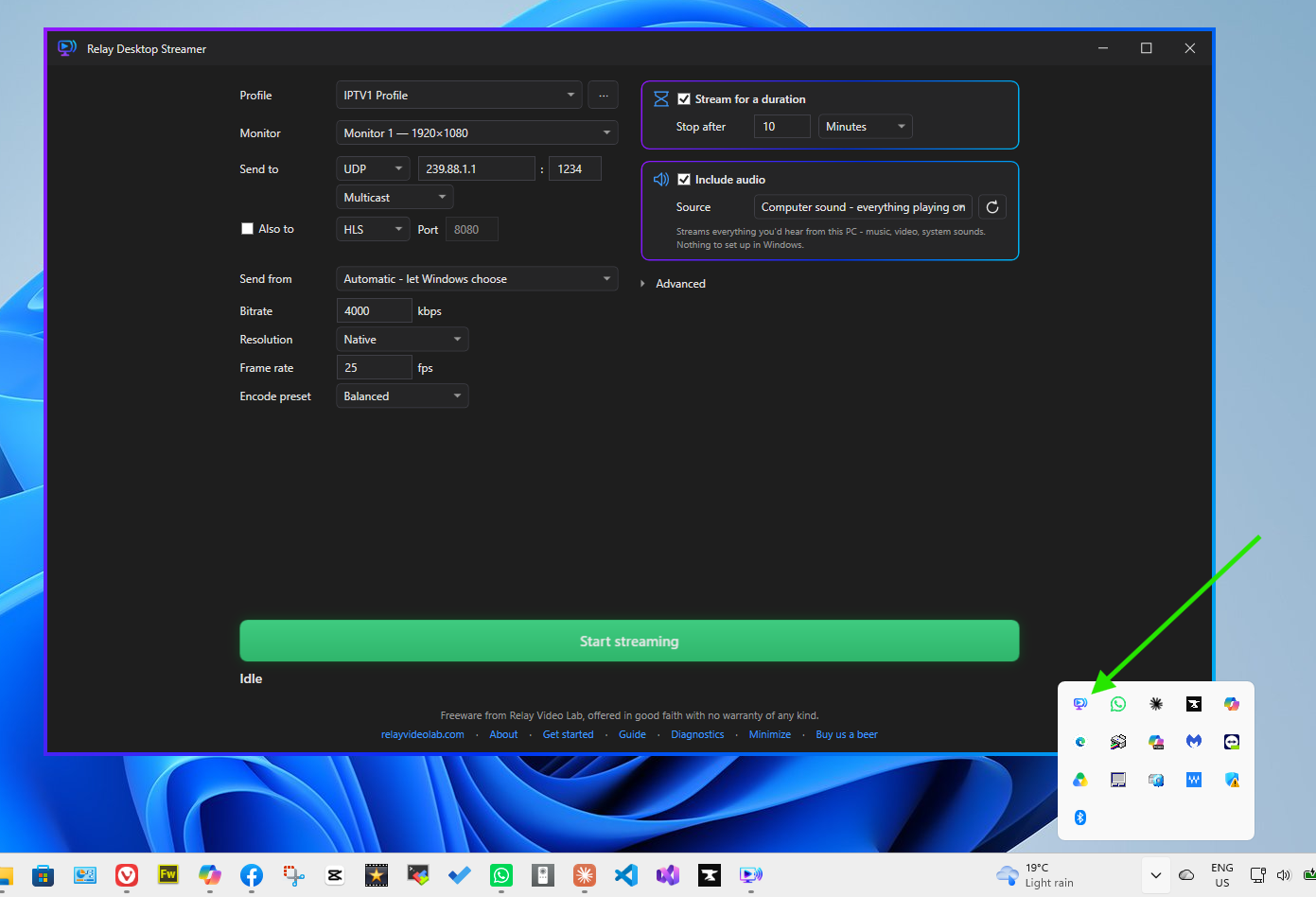
- A green dot on the icon means a stream is running.
- Hovering over it shows the status and where the stream is going.
- Double-clicking it opens the window.
- Right-clicking it gives Open Relay Desktop Streamer, Start streaming or Stop streaming, and Exit.
Minimize to tray, in Advanced, is off by default, so minimising leaves the window on the taskbar like any other application. Tick it to hide the window in the tray instead. The stream keeps running either way. While a stream is running, each time the window goes to the tray a note from the icon says Relay Desktop Streamer is still streaming. If a stream stops with a problem while the window is hidden, the icon says so.
Closing the window, or choosing Exit from the tray icon, exits the application and stops the stream. While a stream is running it asks first: Stop streaming?, with Stop and close or Cancel. It does not ask when Windows is signing out or shutting down.
9. Receiving the stream
| Receiver | How to open the stream |
|---|---|
| Relay Player | Add a channel of type UDP multicast or RTP with the same address and port. For HLS, add an HLS channel with the address ending in /stream.m3u8. |
| VLC | Media, Open Network Stream, then udp://@239.1.1.1:1234 for UDP or rtp://@239.1.1.1:1234 for RTP, with the address and port in use. |
| IPTV set-top boxes and signage players | Add the address and port as a channel, in whatever way that system adds a multicast channel. Choose RTP in Relay Desktop Streamer if the device requires it. |
| Web browser, phone or tablet | Use an HLS destination and open the address shown in its caption. See 5. HLS. |
The stream is H.264 video with AAC stereo sound at 48 kHz, in an MPEG transport stream.
A UDP or RTP stream arrives with a short delay, most of it the receiver's own buffering. HLS runs several seconds behind.
10. Settings reference
Every setting on the main window, with its default.
| Setting | Default | Notes |
|---|---|---|
| Profile | Default | The saved set of settings in use. 3 |
| Monitor | Monitor 1 | The screen streamed. Saved with the profile. |
| Send to type | UDP | UDP, RTP or HLS. 4.1 |
| Send to address and port | 239.1.1.1 : 1234 | For UDP and RTP. 4.2 |
| Multicast / Unicast | Multicast | For UDP and RTP. |
| Port (HLS) | 8080 | The port viewers connect to. 5 |
| Also to | Off | The optional second destination, with the same fields. |
| Send from | Automatic - let Windows choose | The network adapter for UDP and RTP. 4.3 |
| Bitrate | 4000 kbps | 6 |
| Resolution | Native | Native, 1080p (Full HD) or 720p (HD). |
| Frame rate | 25 fps | |
| Encode preset | Balanced | Efficient, Balanced or Quality. |
| Stream for a duration | Off | Stop after 30 Minutes when on. 8.1 |
| Include audio | Off | 7 |
| Source | Computer sound - everything playing on this PC | |
| TTL | 1 | Advanced. Multicast only. 4.2 |
| Keyframe interval | 2 sec | Advanced. |
| Audio delay | 0 ms | Advanced. From -2000 to 2000. |
| Show cursor | On | Advanced. |
| Auto-restart periodically | Off | Advanced. Every 6 hours when on. 8.3 |
| Minimize to tray | Off | Advanced. Applies to the whole application. 8.4 |
| Start with Windows | Off | Advanced. Applies to the whole application. 8.2 |
| Resume streaming on launch | Off | Advanced. Applies to the whole application. |
11. When something does not work
| Symptom | Likely cause | What to check |
|---|---|---|
| The status line says Streaming but receivers show nothing | The stream is leaving on the wrong network, is not allowed past the local network, or the network is not passing multicast | On a PC with more than one network, choose the adapter in Send from (4.3). If receivers are beyond a router, raise TTL. Confirm the switches pass multicast for that group: IGMP snooping with no querier on the network is a common cause. Confirm the receiver's own firewall allows the stream. |
| A phone or browser cannot open the HLS address | Windows Firewall is blocking it, or the device is on a different network | Open the address on the streaming PC itself: if it plays there, the stream is fine and the block is between the two devices. Allow Relay Desktop Streamer in Windows Security, Firewall & network protection, Allow an app through firewall. Confirm the device is on the same network and not an isolated guest Wi-Fi. |
| The viewer page stays on Waiting for the stream… | The stream is not running, or has only just started | Start the stream. The page begins playing by itself within a few seconds. |
| The viewer page plays with no sound | Web browsers start pages muted | Press Turn sound on. If there is still none, confirm Include audio is ticked on the streaming PC. |
| HLS port 8080 is already being used by another program on this PC. | Another program has that port | Change the HLS Port, for example to 8081. Viewers then use the new address shown in the caption. |
| The status line shows no audio | The chosen sound device could not be used | The audio panel gives the reason. Choose Computer sound - everything playing on this PC, or press the refresh button and pick the device again. |
| Sound is present but quiet | The source is Stereo Mix | Choose Computer sound - everything playing on this PC instead (7). |
| Sound and picture are out of step | The receiver is delaying one more than the other | Adjust Audio delay in Advanced. |
| The picture stutters, or Encoder speed in Diagnostics is below 1.00x | The PC cannot compress the picture fast enough | Set Encode preset to Efficient, set Resolution to 1080p (Full HD) or 720p (HD), or lower the Frame rate (6). |
| The picture breaks into blocks when things move | The bitrate is too low for the picture size | Raise Bitrate, or lower the Resolution. |
| Part of the screen is black on the receiver | Windows does not allow protected video, such as some subscription streaming services, to be captured | This is a Windows restriction and cannot be changed in Relay Desktop Streamer. |
| The status line shows one destination stopped | One of two destinations could not be sent to | The caption under that destination says which. For a unicast destination, confirm the address or computer name is right and that device is on. |
| "…" isn't connected or has no IPv4 address. | The adapter chosen in Send from is not connected | Connect it, or set Send from to Automatic - let Windows choose. |
| The stream did not come back after a restart | Resume is off, the stream had been stopped on purpose, or the profile's monitor is missing | Confirm Start with Windows and Resume streaming on launch are both ticked (8.2). Check the status line for the reason. |
| The window vanished when minimised | Minimize to tray is ticked | Double-click the icon beside the clock, which may be behind the ^ arrow. Untick Minimize to tray in Advanced to keep the window on the taskbar. |
| The Diagnostics window does not appear in a screenshot | By design: it hides itself from the stream, and that also hides it from screenshots | Tick Show this window in screenshots (it will also appear in the stream) on the Diagnostics window. |
| Part of Relay Desktop Streamer is missing (its streaming engine, ffmpeg.exe). | A file was removed from the installation folder | Reinstall Relay Desktop Streamer. |
For anything else, Copy diagnostics on the Diagnostics window collects the details worth including in a support message.
12. Diagnostics
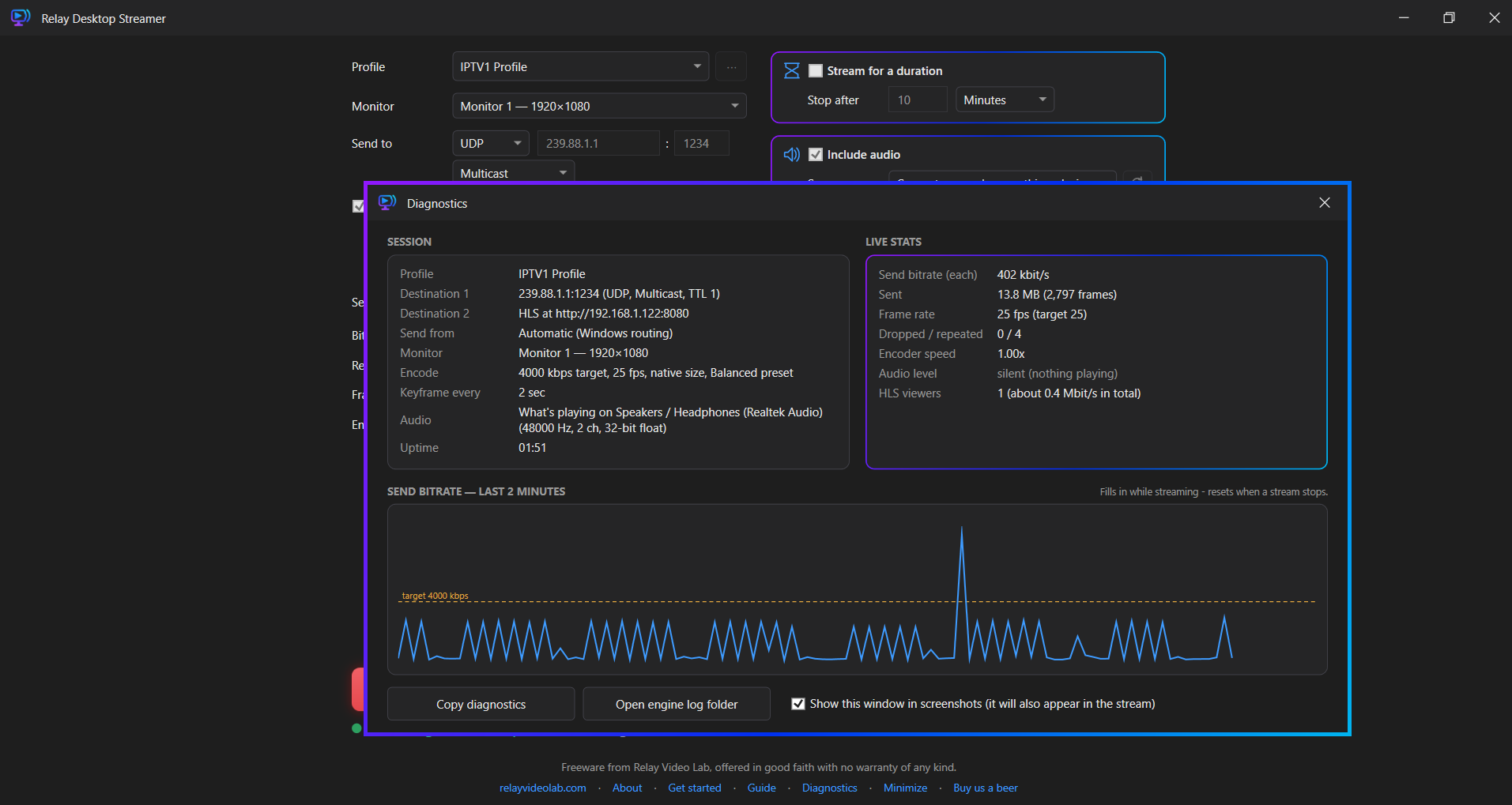
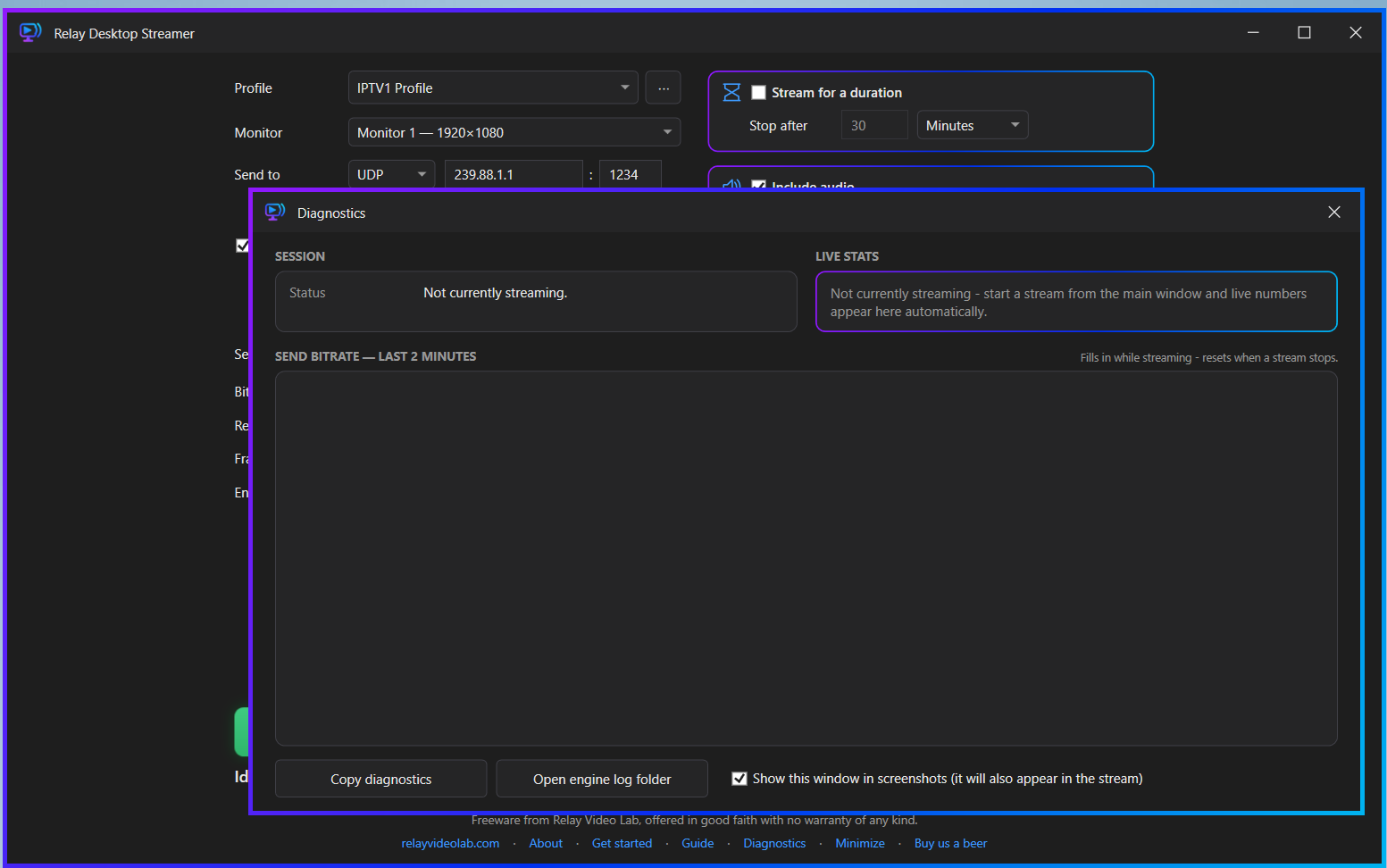
Diagnostics, at the bottom of the main window, opens a separate window that can stay open beside it. It shows what the running stream was started with and how it is doing.
Session
The settings the stream was started with: Profile, each Destination, Send from, Monitor, Encode, Keyframe every, Audio and Uptime. A timed stream also shows Stops at, and one with auto-restart shows Next restart.
Live stats
| Row | Meaning |
|---|---|
| Send bitrate | The measured size of the stream. It rises towards the Bitrate setting when the picture is moving and falls well below it when the screen is still. With two destinations it is labelled Send bitrate (each): the size of one copy. |
| Sent | The total sent so far and the number of frames. |
| Frame rate | Frames per second being produced, beside the target. |
| Dropped / repeated | Dropped frames are shown in a warning colour: the PC missed them. Repeated frames are normal. The capture repeats the last frame when nothing on screen has changed. |
| Encoder speed | 1.00x means the PC is keeping up. Below 0.97x it is shown in a warning colour: the PC is falling behind, and the picture quality settings should be lowered. |
| Audio level | A level meter for the sound being sent, or silent (nothing playing). |
| HLS viewers | How many devices are watching the HLS destination, and the total bitrate that adds up to. |
The graph, SEND BITRATE — LAST 2 MINUTES, plots the send bitrate with the target marked as a dashed line.
Buttons
| Control | What it does |
|---|---|
| Copy diagnostics | Puts everything on the window on the clipboard as text, ready to paste into a support message. It includes the stream's addresses and this PC's network address, so check it before posting it anywhere public. |
| Open engine log folder | Opens the folder holding the streaming engine's own log of the most recent run. |
| Show this window in screenshots (it will also appear in the stream) | Normally the Diagnostics window hides itself from the stream, so it can sit on the screen being streamed without being seen by viewers. Windows uses one setting for both, so it is hidden from screenshots too. Tick this to capture it. It resets each time the window is opened. |
13. Where things are kept
| Path | Contents |
|---|---|
%AppData%\RelayDesktopStreamer\profiles.json | Every profile. This is the file worth backing up or copying to another PC. |
%AppData%\RelayDesktopStreamer\settings.json | Preferences for this PC: the last profile used, window position, Minimize to tray, Resume streaming on launch. Not generally worth copying between machines. |
%LocalAppData%\RelayDesktopStreamer\logs\stream-engine.log | The streaming engine's log of the most recent run. Replaced each time a stream starts. |
%LocalAppData%\RelayDesktopStreamer\hls | Temporary video files for an HLS destination. Cleared each time a stream starts. |
Moving to another PC. Copy profiles.json into the same folder there. Each profile's monitor and Send from adapter belong to the original PC, so choose them again on the new one.
Start with Windows is kept by Windows itself, not in these files, and is removed when the application is uninstalled.
14. Licensing and credits
Relay Desktop Streamer is freeware, published by Relay Video Lab and provided free of charge, with no warranty of any kind, express or implied. It is offered in good faith as a tool built to be useful, for use at the operator's own discretion. It never contacts the internet on its own initiative: there is no automatic update check, no telemetry and no licence check.
Engine attribution
Relay Desktop Streamer uses FFmpeg for screen capture, encoding and streaming. FFmpeg runs as a separate program, ffmpeg.exe, in the ffmpeg folder beside the application, and is not built into it. The build supplied includes components licensed under the GNU General Public License version 3. Its licence text is supplied in that folder as LICENSE, and its source code is available from ffmpeg.org. Relay Desktop Streamer is not affiliated with or endorsed by the FFmpeg project.
The HLS viewer page uses hls.js to play the stream in browsers that do not play HLS themselves.
| Component | Used for | Licence |
|---|---|---|
| FFmpeg | Screen capture, H.264 and AAC encoding, stream output | GPL v3 |
| hls.js 1.7.3 | The HLS viewer page | Apache License 2.0 |
| .NET 8.0 runtime and WPF | The application itself | MIT |
Full attribution for every component is in THIRD-PARTY-NOTICES.md, distributed alongside the application.
Support
Relay Desktop Streamer is offered without charge and without any obligation to pay for it. A voluntary donation link, Buy us a beer, is on the main window and in the About dialog for anyone who wishes to support continued development. Nothing about the application's functionality depends on it.