Relay Player — User Guide
1. Getting started
Relay Player is a Windows desktop viewer for UDP multicast, RTP and HLS network video streams, published by Relay Video Lab. It is built for an environment that already has an IPTV or broadcast video distribution in place — a multicast headend, an SAP-announced network, a hosted HLS feed — and is intended as a direct, better-behaved alternative to pointing a general-purpose media player at the same streams.
Relay Player is freeware, provided as-is and without warranty. Installation is a standard Windows installer; no account, licence key or internet connection is required to run it.
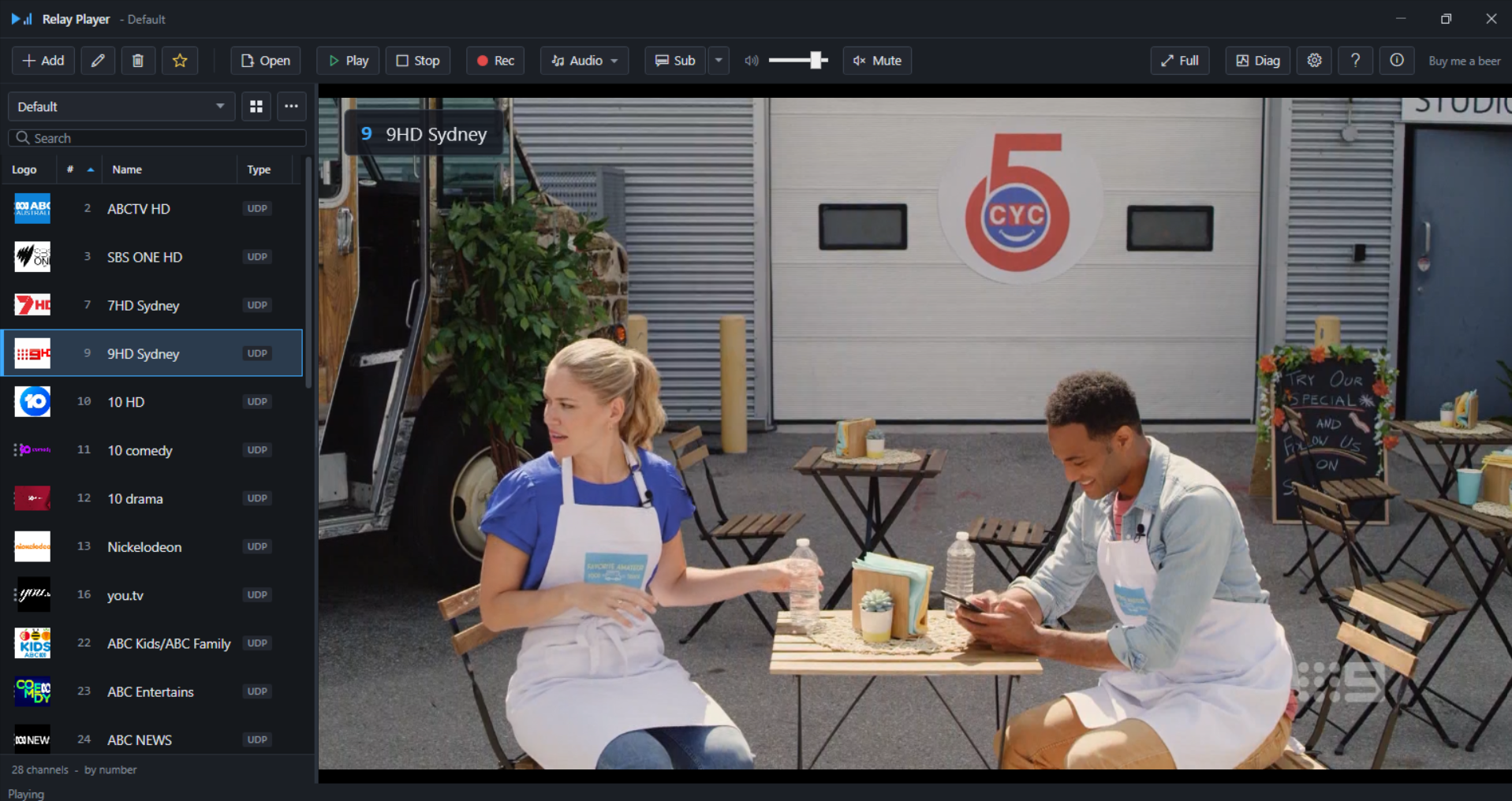
The main window
The main window is divided into four regions.
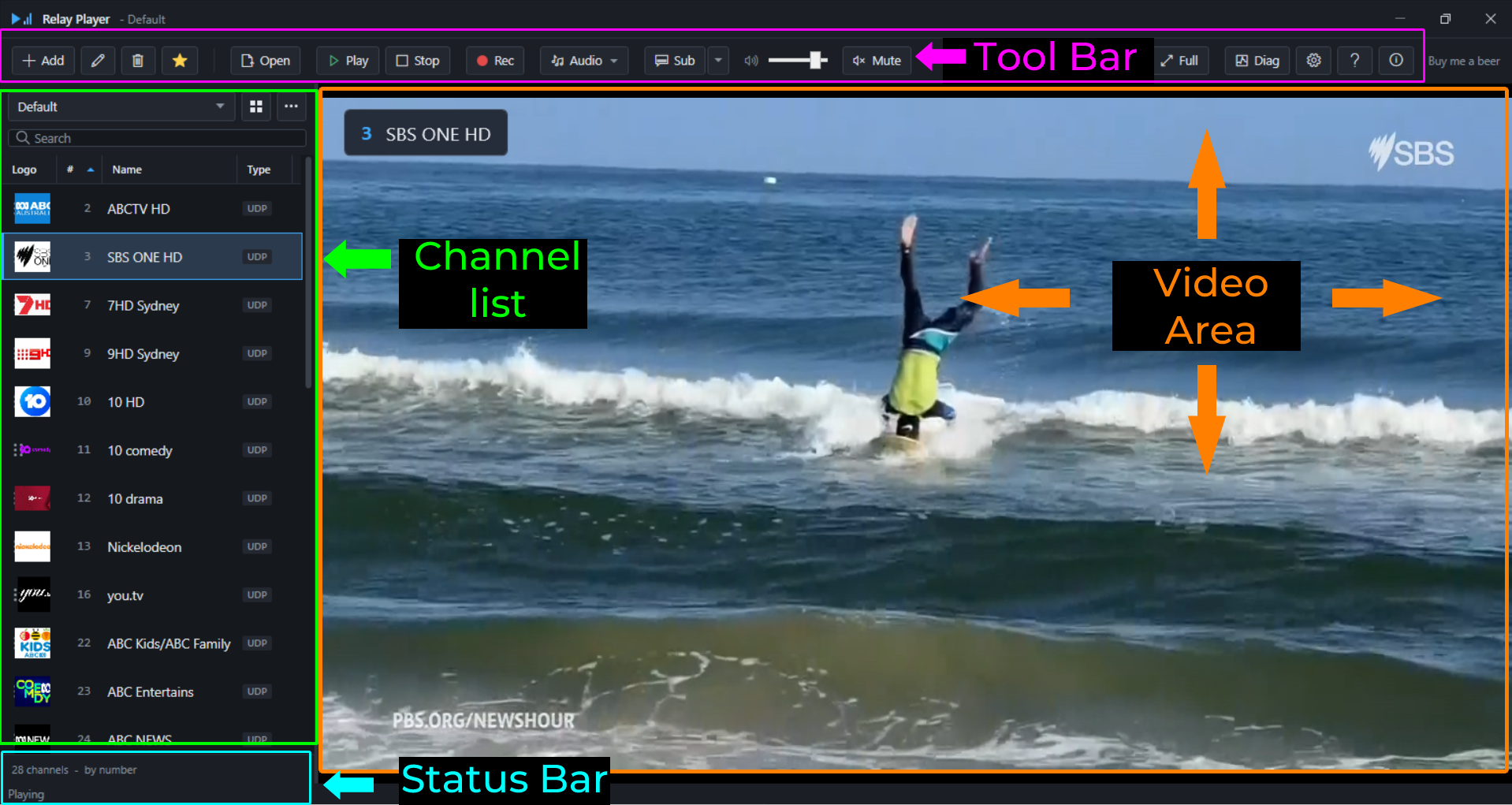
| Region | Purpose |
|---|---|
| Channel panel | The sidebar on the left. Lists the channels in the currently selected list, with a search box, a sort control and a view switch (list or tiles) above it. The list currently selected is chosen from a dropdown at the top of the panel. |
| Toolbar | Runs along the top of the window. Add, edit and remove channels; open a local file; play, stop and record; switch audio track and subtitle track; adjust volume; enter fullscreen; open Diagnostics and Settings. The toolbar is responsive: on a narrower window, button labels collapse to icons first, in a fixed order, so the controls that fit least often are the first to lose their text. |
| Video area | Occupies the centre of the window. Shows the decoded picture, or channel artwork for an audio-only or radio channel. Right-clicking it opens the deinterlace menu. |
| Status bar | Runs along the bottom. Shows the currently playing channel and brief status messages — a connection failure, a reconnect attempt, a recording notice. |
First launch
The first time Relay Player runs, it opens a Get Started window automatically: three short steps covering the tasks below. A Don't show this again checkbox is available on that window, and it can be reopened later from Settings, Startup, Show it now if it was dismissed.
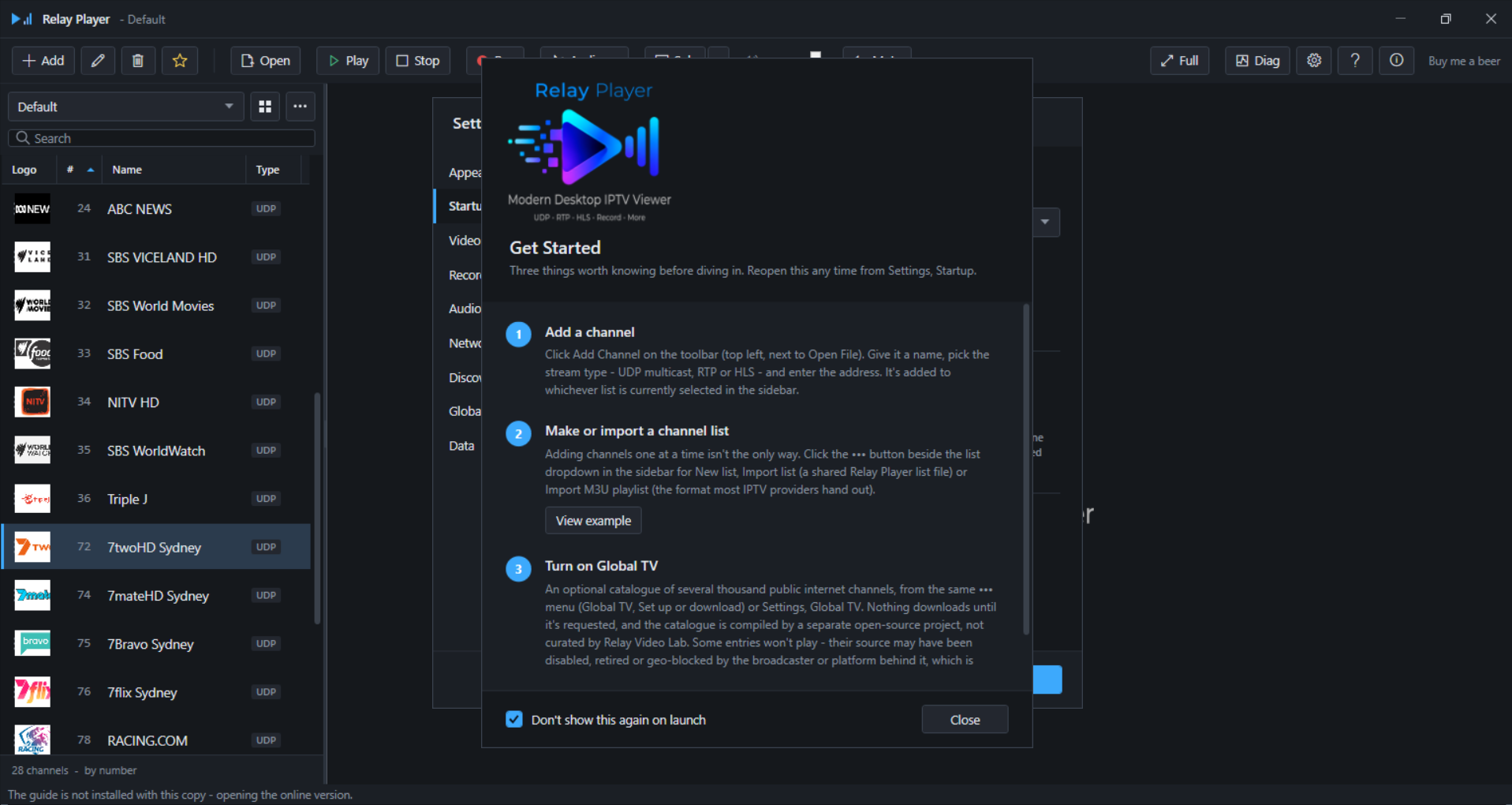
- Add a channel. Click Add Channel on the toolbar, next to Open File. Give it a name, choose a stream type — UDP multicast, RTP or HLS — and enter the address. It is added to whichever list is currently selected in the sidebar. Covered in detail in 3.1 Adding a channel by hand.
- Make or import a channel list. Adding channels one at a time is not the only way to build a list. The ••• button beside the list dropdown in the sidebar opens New list, Import list (a shared Relay Player list file) and Import M3U playlist (the format most IPTV providers hand out). Covered in 3. Your own channels.
- Turn on Global TV. An optional catalogue of several thousand public internet channels, reached from the same ••• menu or from Settings, Global TV. Nothing downloads until it is requested. Covered in 2. Watching something in two minutes.
2. Watching something in two minutes
The fastest path from a fresh install to a picture on screen does not require entering a single multicast address. It uses Global TV, a catalogue of public internet television and radio channels compiled by a separate open-source project.
- Open Settings, then the Global TV tab. Tick Offer the Global TV list in the channel selector.
- Click Download or update.... This is the first outbound network request Relay Player makes on its own initiative — enabling the tab does not fetch anything by itself.
- Close Settings. Select Global TV from the list dropdown in the channel panel.
- Type into the search box to narrow several thousand entries down to a handful — a country, a broadcaster or a genre is usually enough.
- Double-click a channel, or select it and click Play.
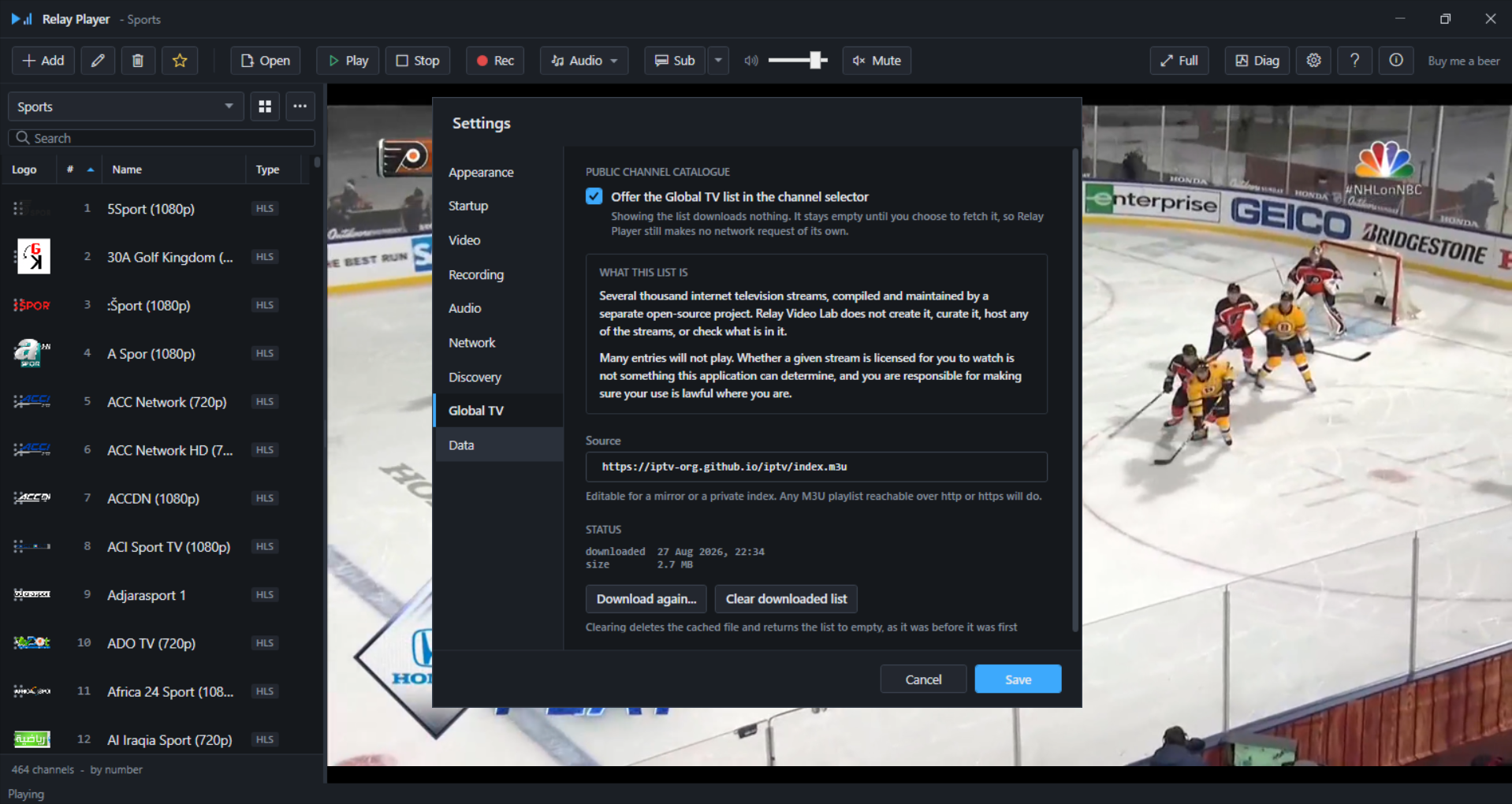
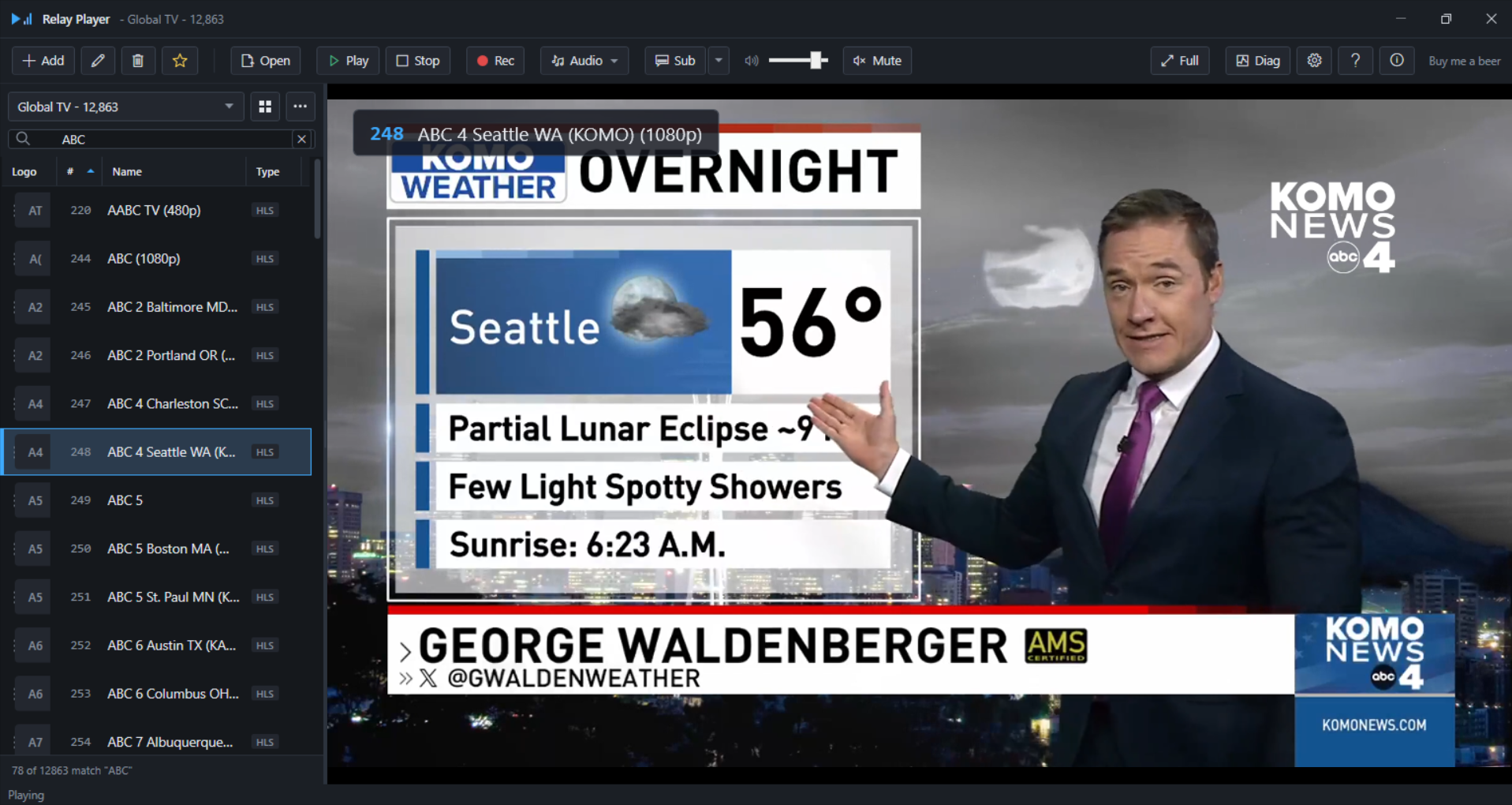
What this list is. Several thousand internet television streams, compiled and maintained by a separate open-source project. Relay Video Lab does not create it, curate it, host any of the streams, or check what is in it.
Many entries will not play. The underlying source for a given entry may have been disabled, retired or geo-blocked by the broadcaster or platform behind it, which is outside Relay Player's control — this is a technical limitation, distinct from the separate question below.
Whether a given stream is licensed for you to watch is not something this application can determine, and you are responsible for making sure your use is lawful where you are.
The list, once downloaded, is cached locally and does not need to be fetched again until it is cleared or refreshed from Settings, Global TV. Channel icons are not downloaded for Global TV entries; the catalogue is large enough that fetching thousands of icons automatically would be an unreasonable amount of unrequested network traffic, so entries in this list are shown without artwork.
3. Your own channels
Most deployments settle on one or more hand-built or imported channel lists rather than relying on Global TV — a workstation pointed at a specific multicast headend, a kiosk with a fixed set of feeds, or a curated set of HLS streams. This section covers adding channels directly, importing a playlist, and the channel list file itself.
3.1 Adding a channel by hand
Click Add Channel on the toolbar to open the channel editor. The fields are the same whether adding a new channel or editing an existing one via the pencil (Edit) button.
| Field | Meaning |
|---|---|
| Number | The number the channel is recognised by. |
| Name | The name shown in the channel panel and in the on-screen banner. |
| Kind | The stream type: UDP multicast, UDP unicast, RTP, HLS, or Custom URL. |
| Address | IP address (multicast group or unicast source), used for UDP and RTP kinds. |
| Port | Used together with Address for UDP and RTP kinds. |
| Custom URL | Used only when Kind is HLS or Custom URL — an http://, https://, rtsp:// address, or a hand-written udp://... MRL. |
| Icon | A local file path (relative to the channel list) or a web address pointing at an icon image. |
| Audio only | Marks a service that carries no video, such as a broadcast radio station. See 5.4 Radio channels. |
Relay Player resolves these fields into the actual address handed to the playback engine:
| Kind | Resulting address |
|---|---|
| UDP multicast | udp://@<address>:<port> |
| UDP unicast | udp://@:<port> — listens on the local port for incoming unicast |
| RTP | rtp://@<address>:<port> |
| HLS / Custom URL | Whatever was typed into Custom URL, unchanged |
A pasted address is cleaned automatically: a scheme (udp://), a leading @, a trailing path or an embedded port are all stripped from the Address field before it is combined with Port, so pasting a full URL into the Address field does not produce a doubled or malformed result.
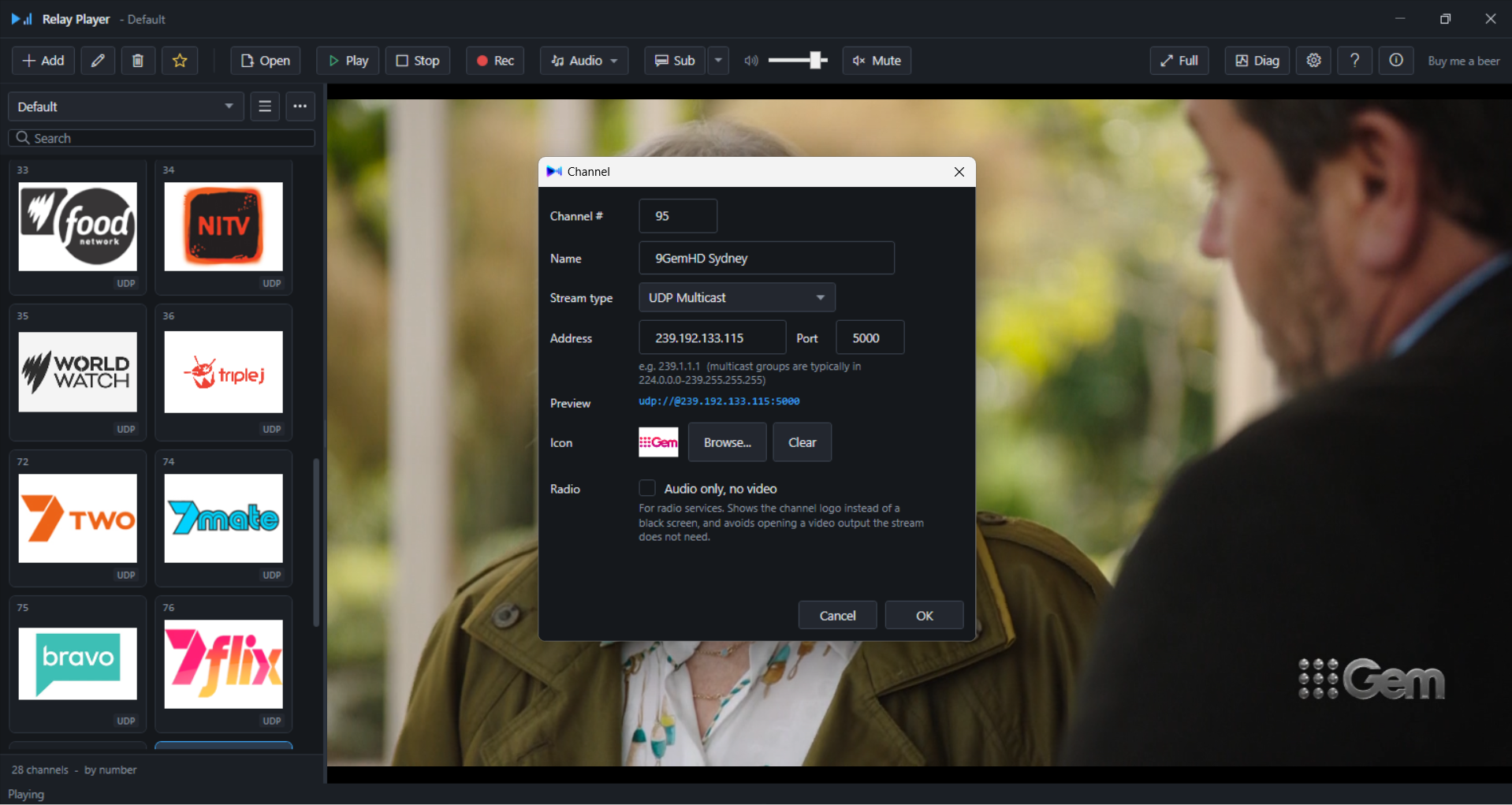
Worked example — multicast Kind: UDP multicast. Address: 239.1.1.10. Port: 5000. Resulting address: udp://@239.1.1.10:5000.
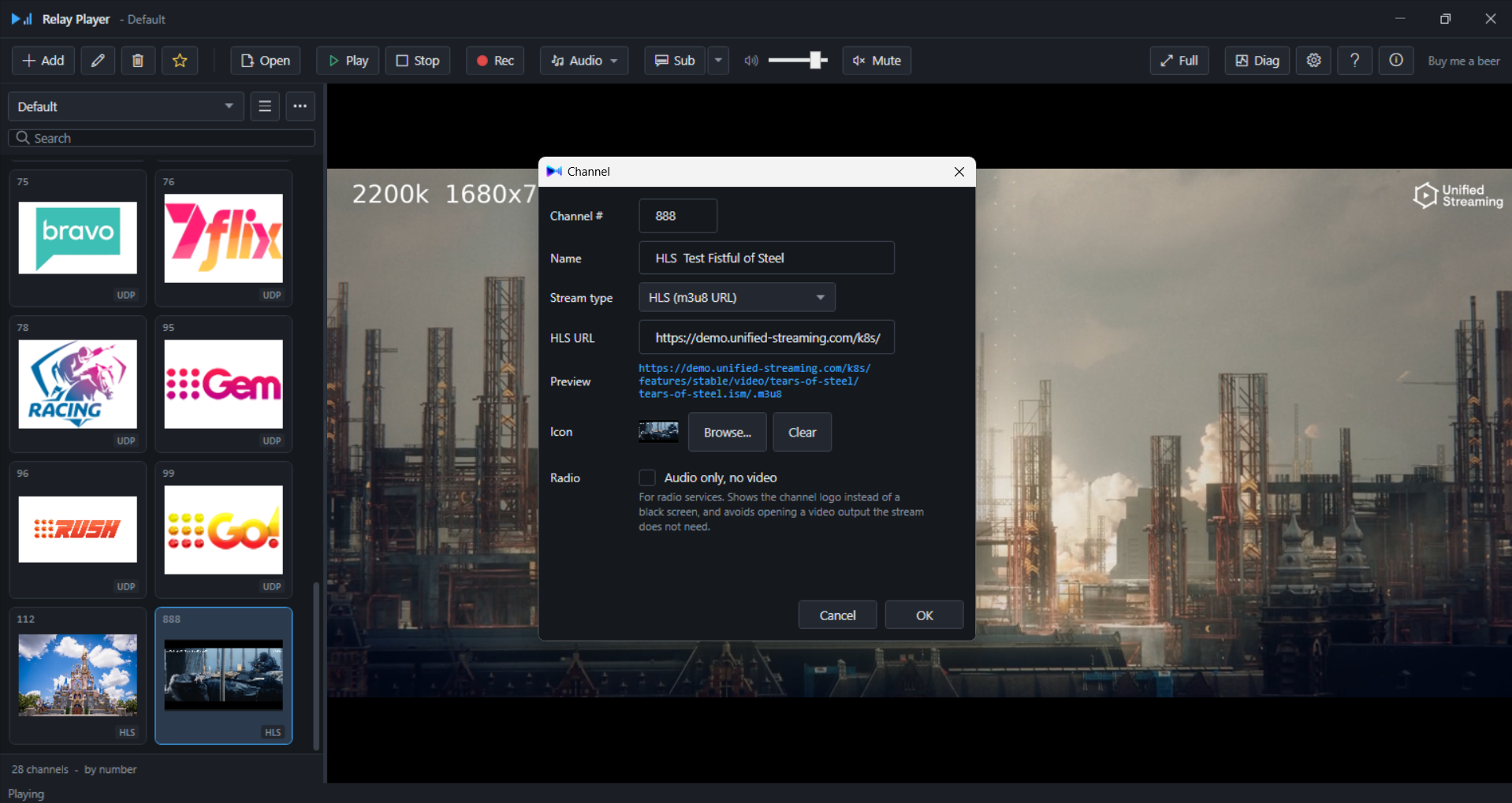
Worked example — HLS Kind: HLS. Custom URL: the full https:// address of the stream's .m3u8 playlist.
3.2 Importing an M3U playlist
From the ••• menu beside the list dropdown, choose Import M3U playlist. Relay Player reads #EXTINF entries, including the tvg-logo, group-title, tvg-chno and tvg-name attributes where present, and falls back to a bare URL when a line carries no #EXTINF tag at all. The stream type for each entry is inferred from its address: udp:// and rtp:// addresses map to multicast and RTP respectively, an address ending in .m3u8 maps to HLS, and anything else is kept as a Custom URL.
Before the import is committed, a preview is shown.
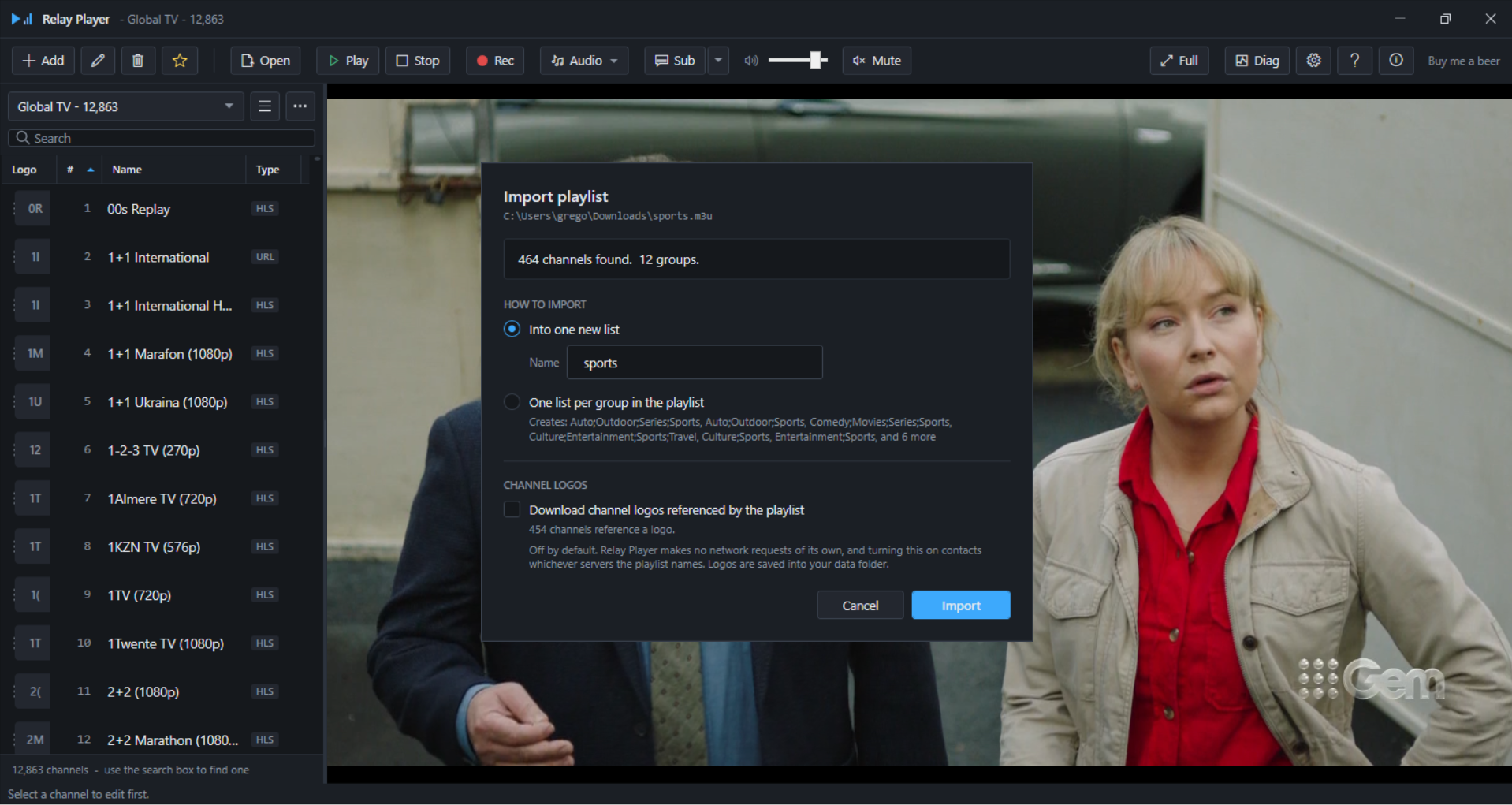
The preview reports how many channels and how many groups were found. Groups come from the playlist's own group-title attributes or #EXTGRP directives — a playlist that carries neither is imported as a single list. When more than one group is present, a choice appears between importing everything into a single list or splitting the import into one list per group. A Download logos checkbox is available, off by default: turning it on fetches each entry's tvg-logo image and stores a local copy in the icons folder rather than loading it from the network every time the channel is displayed.
3.3 Channel lists
A workstation can hold more than one channel list — separate lists for separate purposes are common: one per site, one per department, one that mirrors an admin-distributed set of channels alongside a personal one. The list currently shown in the channel panel is chosen from the dropdown at the top of the sidebar; the ••• button beside it opens New list, Import list, Import M3U playlist, and Channel list format.
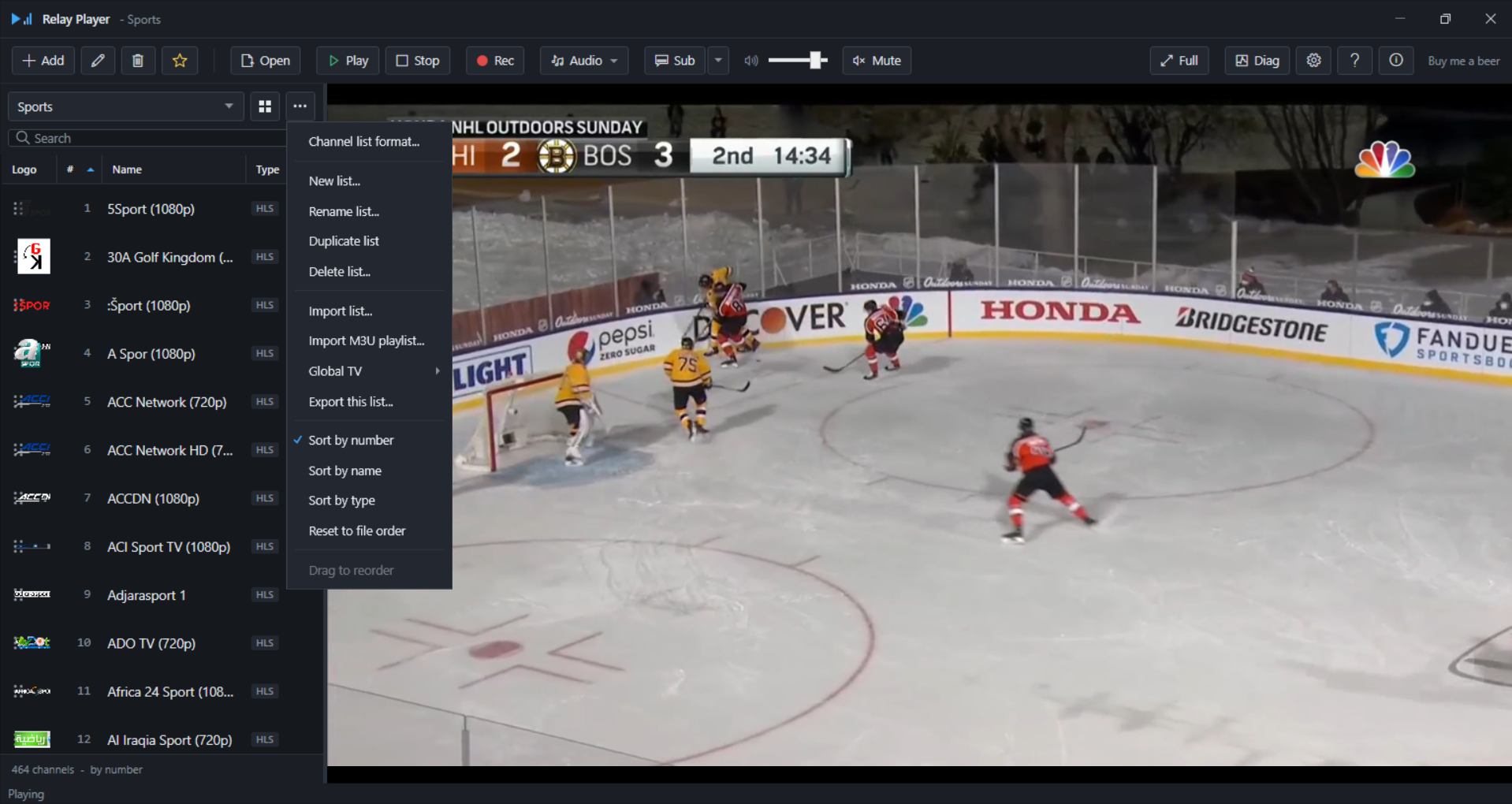
Import list reads a Relay Player list file directly — the format described in 3.4 The channel list format — which is how a list built or curated on one workstation is distributed to others, including by an administrator hosting the file centrally.
3.4 The channel list format
Channel list format..., the first item in the ••• menu, opens a reference dialog showing the field-by-field format of a Relay Player list file together with the actual contents of the sample list shipped with the application. A Save a copy... button in that dialog saves the sample as a starting point to edit and import.
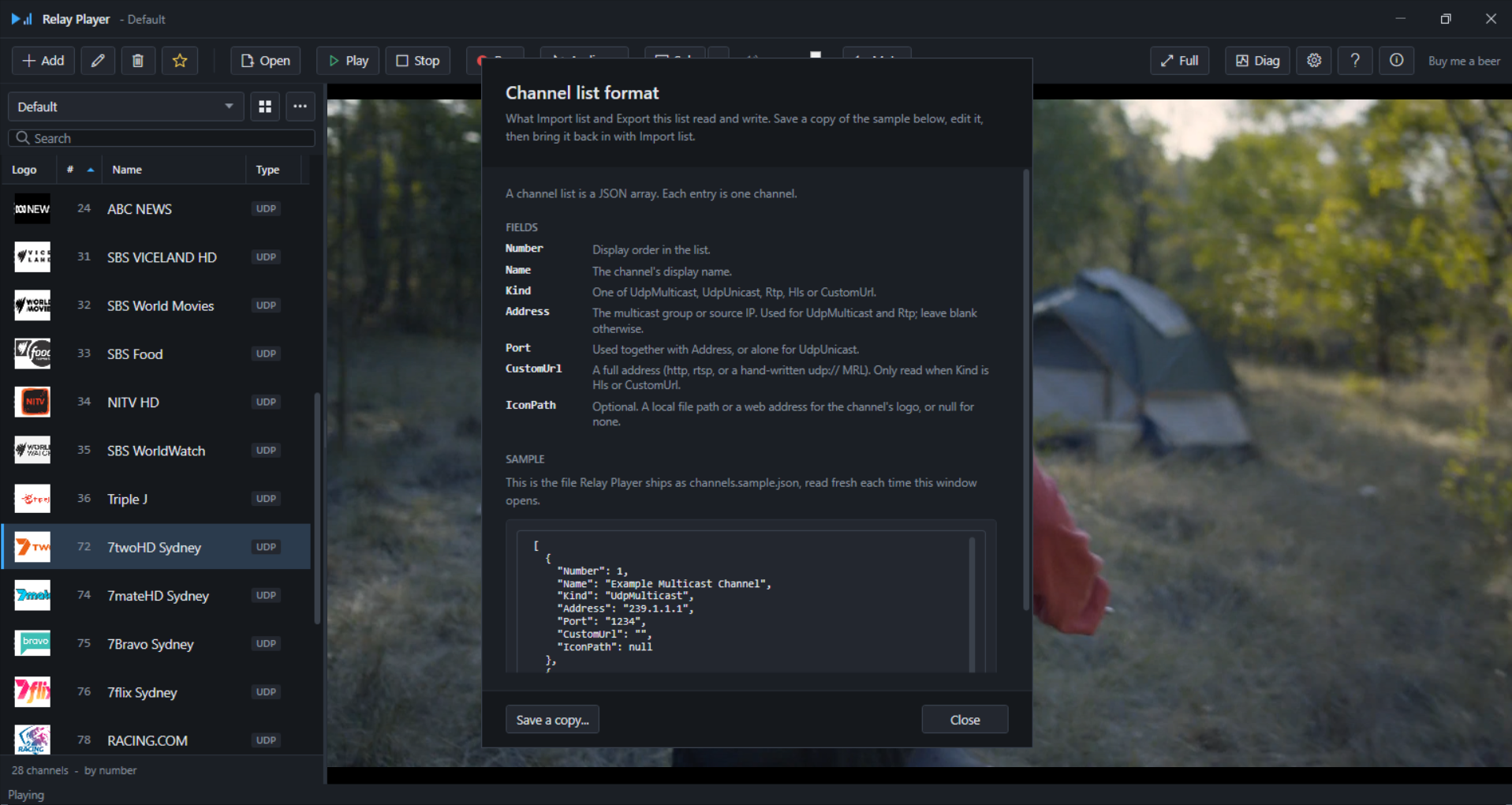
A list file is plain JSON, written and read with UTF-8 encoding and no byte-order mark, which keeps it usable when distributed over HTTP or edited by hand. The field meanings shown in that dialog and in 3.1 above come from the same source: the field documentation is attached to the underlying data model, so the reference dialog and this guide describe the same fields the same way.
4. Finding channels on your network
Many broadcast and headend environments announce what they are streaming using SAP — the Session Announcement Protocol, RFC 2974. An encoder or headend repeats a small announcement packet periodically to a multicast group; Relay Player can listen for these and turn them into a browsable list of channels without any address being typed in by hand.
Discovery is configured from Settings, Discovery. Two addresses are listened on by default: 224.2.127.254, the global SAP group defined by the RFC, and 239.255.255.255, the administratively scoped equivalent that most enterprise and broadcast headends actually use in practice. Additional addresses can be added, one per line, for an environment that announces on a private group instead. The listening port defaults to 9875, the IANA-assigned SAP port.
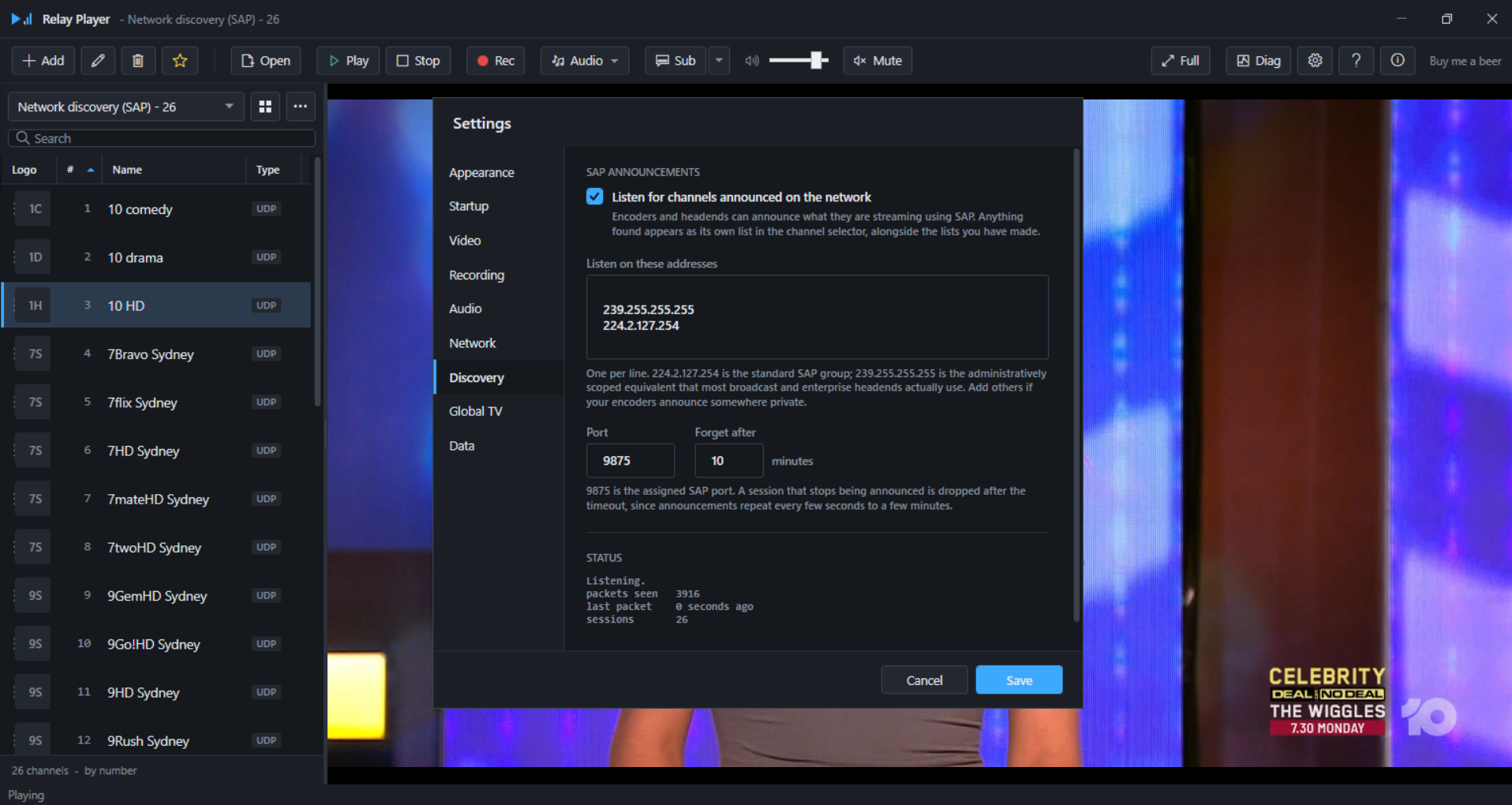
A session that stops being announced is removed from the discovered list after a configurable timeout, since SAP announcements are expected to repeat every few seconds to a few minutes rather than being sent once. Discovery uses the multicast adapter chosen on the Network tab; on a machine with more than one network connection, that is the first setting to check if nothing appears.
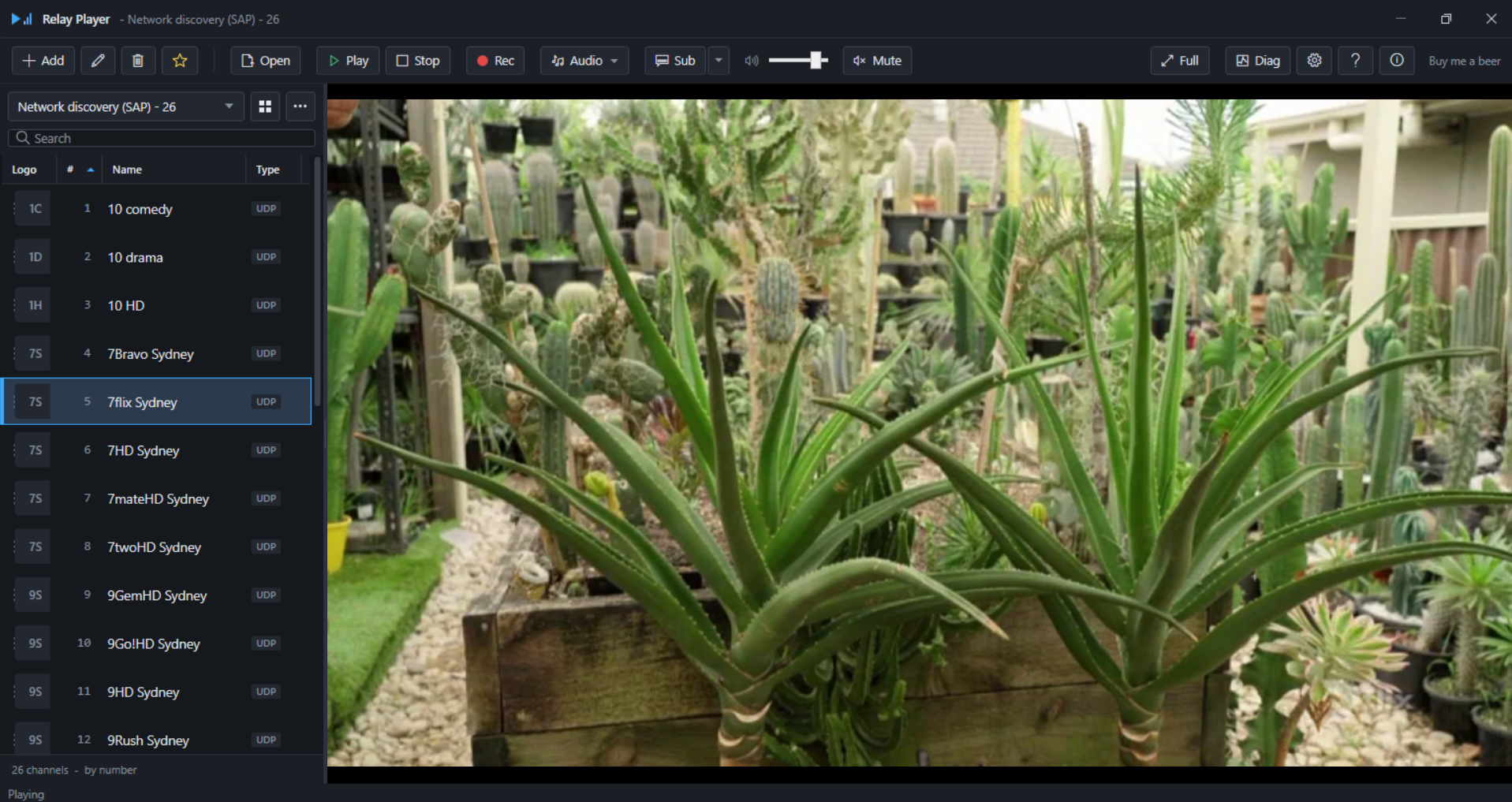
Discovered sessions appear as their own list in the channel selector, alongside any lists already built. To keep a discovered channel permanently — rather than re-discovering it every session — select the discovered channels of interest and save them into a new named list, which copies them into an ordinary, editable channel list.
5. Watching
5.1 Views, search and sorting
The channel panel offers two views: a list, and a tile grid showing channel artwork. The switch between them, a search box and a sort control sit above the channel panel. Search filters the currently selected list as text is typed; pressing Escape while the search box has focus clears it.
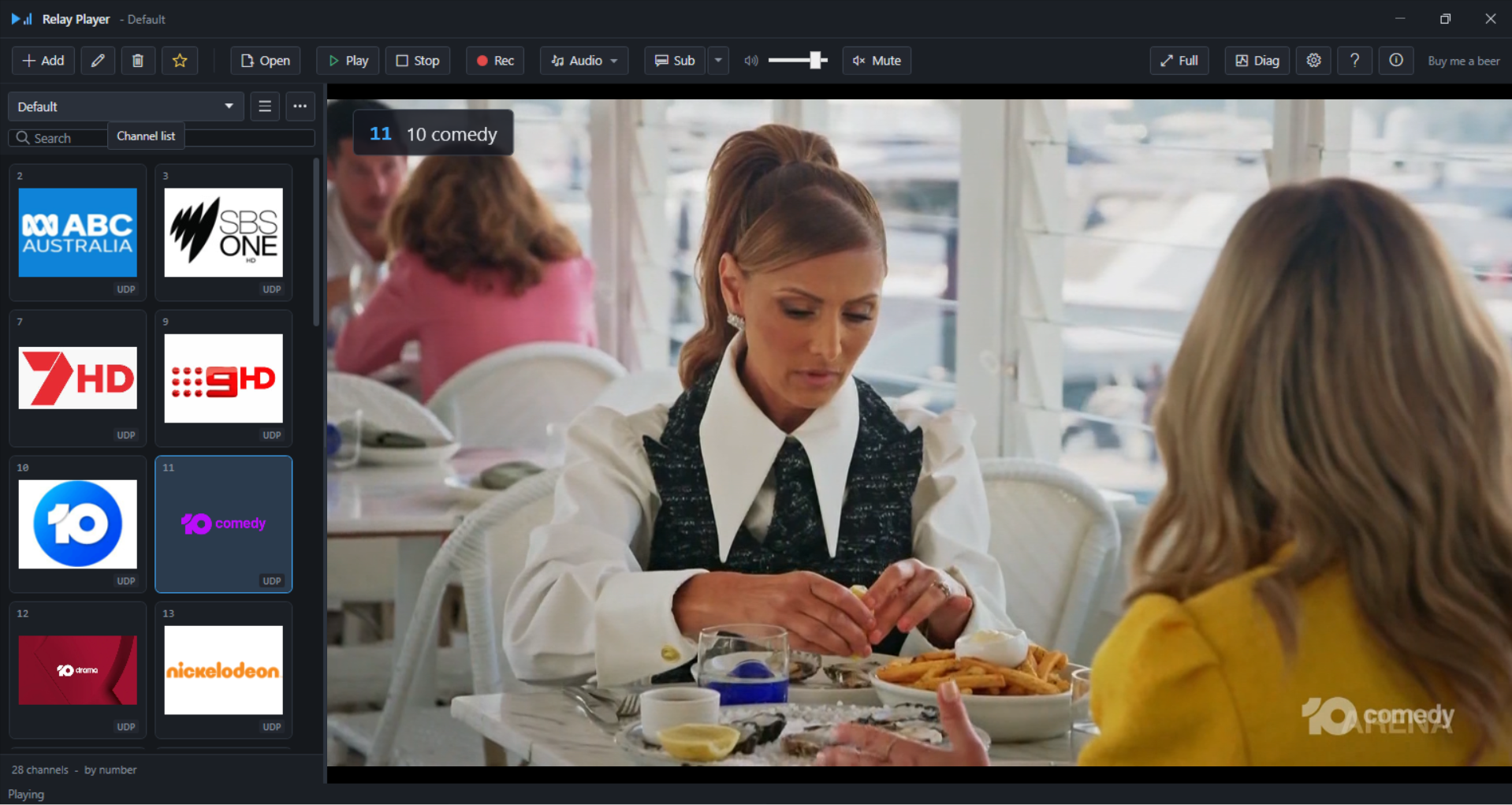
By default, a single click on a channel plays it, matching the behaviour of a remote control rather than a file browser; this can be changed in Settings, Appearance to select on a single click and play on a double click. Enter and the Play button both play the selected channel regardless of that setting.
5.2 Fullscreen and the keyboard
| Key | Action |
|---|---|
| F11 | Toggle fullscreen |
| Esc | Leave fullscreen |
| Page Up / Page Down | Step to the previous or next channel — the way to change channel while the sidebar is hidden in fullscreen |
| Ctrl + F | Focus the channel search box |
| Ctrl + A | Cycle to the next audio track |
| Space (in fullscreen) | Show the channel name banner briefly |
Keyboard shortcuts are not captured while a text field — the search box, a settings field — has focus, so typing into those fields is never intercepted as a shortcut.

5.3 Subtitles and captions
The Subtitles button on the toolbar toggles captions on and off; a separate menu button beside it lists the subtitle tracks a channel is carrying, when more than one is available.
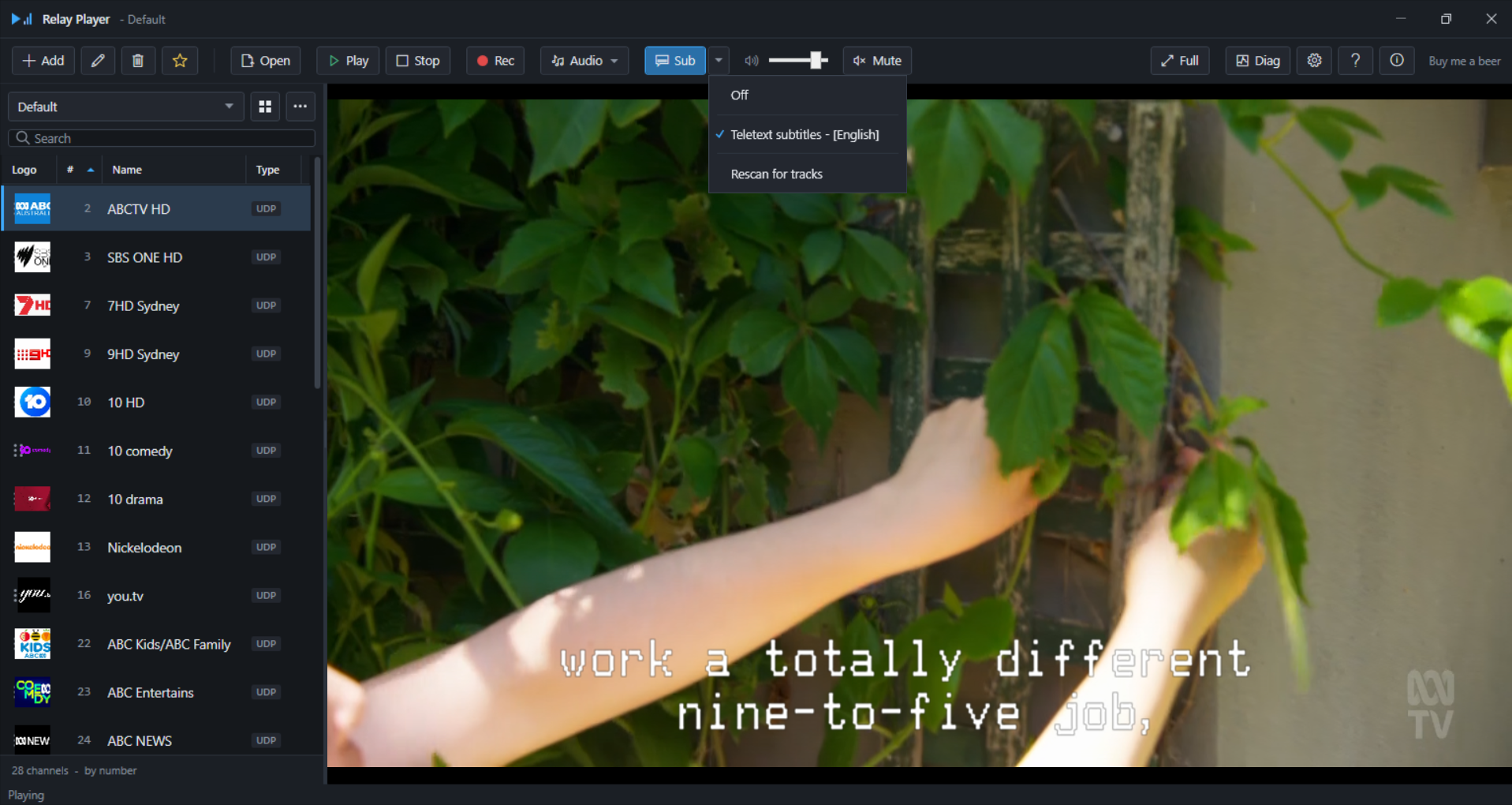
Two subtitle formats are handled, both surfaced as ordinary subtitle tracks with no difference in how they are selected: EBU Teletext (common in Australia and the United Kingdom) and DVB bitmap subtitles (the more common format elsewhere). A stream is given up to thirty seconds after tuning for its subtitle tracks to be discovered before Relay Player concludes none are present. A preferred language and a teletext page override are both available in Settings, Audio — the page override should be left blank unless captions are missing, since both formats are ordinarily detected automatically; 801 is the Australian teletext caption page, 888 the UK one.
Teletext in particular transmits only while there is dialogue to caption — a channel that appears to carry no captions may simply have had none to send during the period it was checked.
5.4 Radio channels
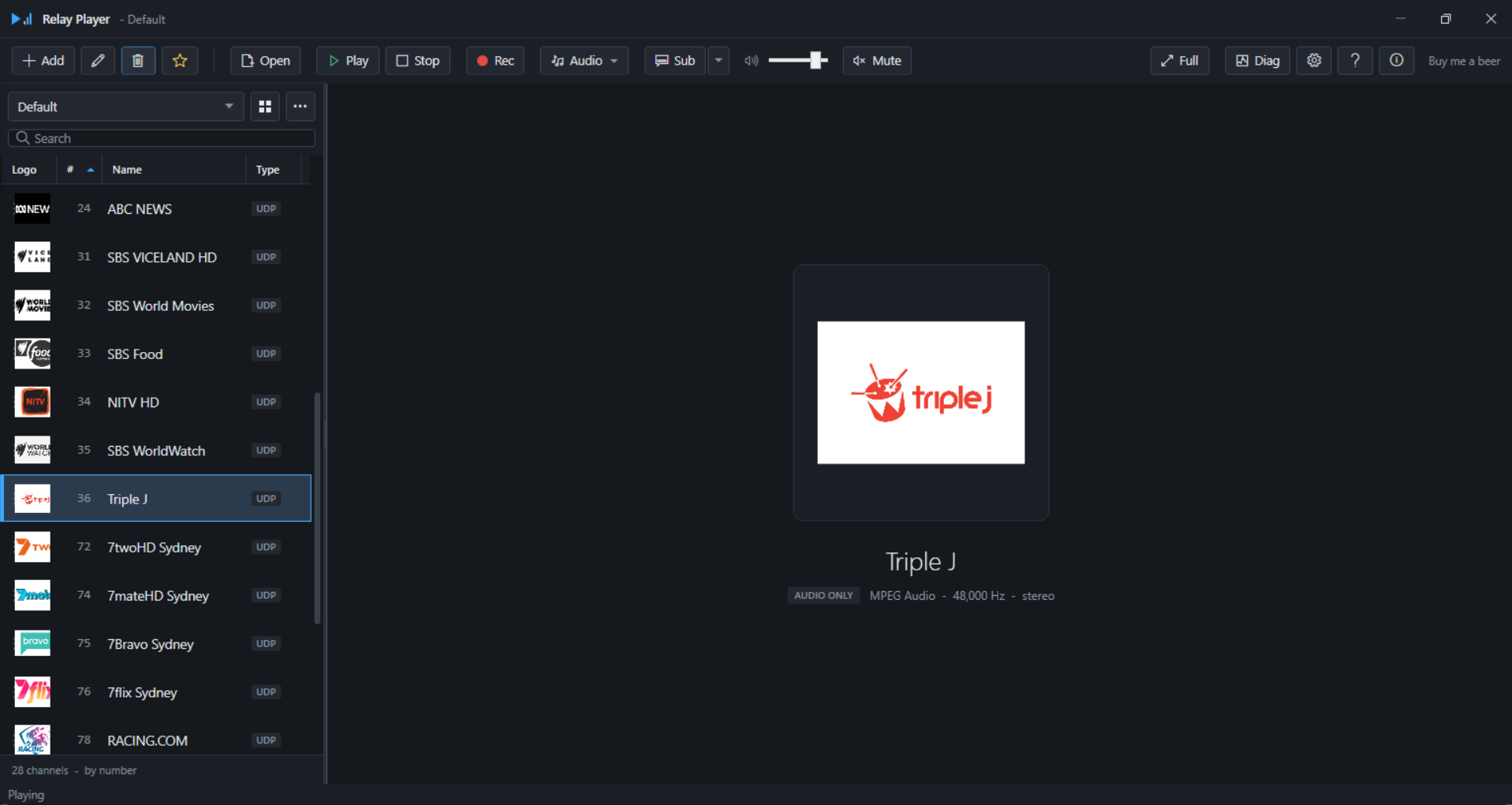
A channel marked Audio only in the channel editor is treated as carrying no video: channel artwork is shown immediately rather than waiting for a video stream that will never arrive, and the engine is told not to open a video output for it at all. Audio-only detection can also happen automatically once a stream's contents are parsed, but marking a known radio channel explicitly is more reliable, since automatic detection can only run after the demuxer has had a chance to inspect the stream.
5.5 Deinterlacing
Right-clicking the video area opens a deinterlace menu, offering the same mode and filter choices available in Settings, Video, applied immediately to the channel currently playing.
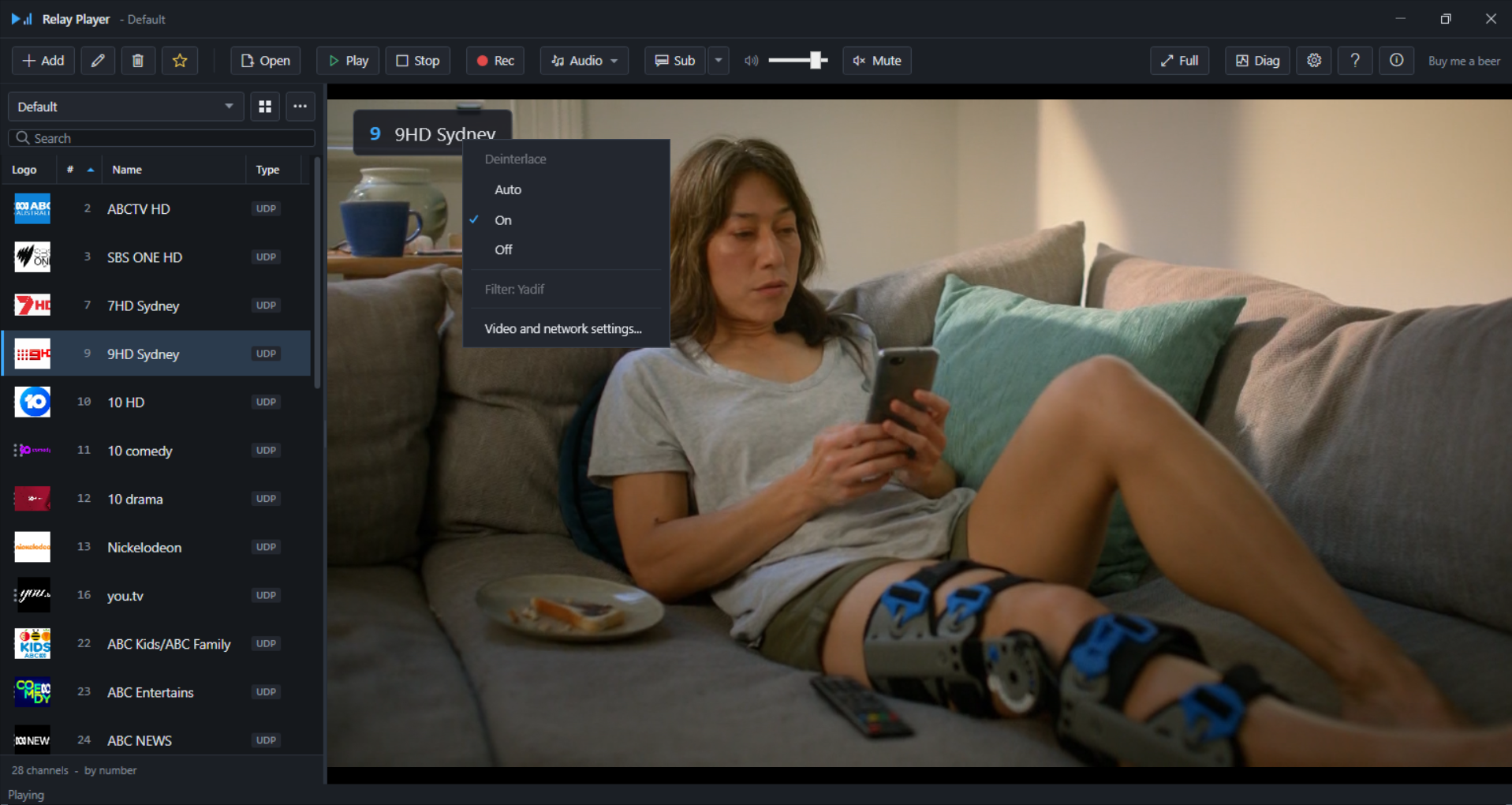
See 9.3 Settings — Video for what deinterlacing does and which filter to choose.
6. Unattended and kiosk playback
Three settings on the Startup tab, used together, take a machine from power-on to a fullscreen picture with captions showing, with no one present to operate it. This is the combination behind a waiting-room display, a reception screen, or any workstation meant to simply show a channel from boot without further interaction.
| Setting | Effect |
|---|---|
| Channel to play | Selects the channel Relay Player opens automatically on launch. |
| Start in fullscreen | Opens directly into fullscreen rather than the windowed view. |
| Turn captions on automatically when available | Enables captions without a Subtitles button click — the same setting as the one on the Audio tab, kept in sync between the two locations because it is relevant to both audiences. |
Combined with Relay Player itself being placed in the Windows Startup folder or an equivalent auto-launch mechanism, these three settings are what make a genuinely unattended kiosk possible: the operating system starts, Relay Player launches, the configured channel begins playing fullscreen, and captions appear on their own if the stream carries any.
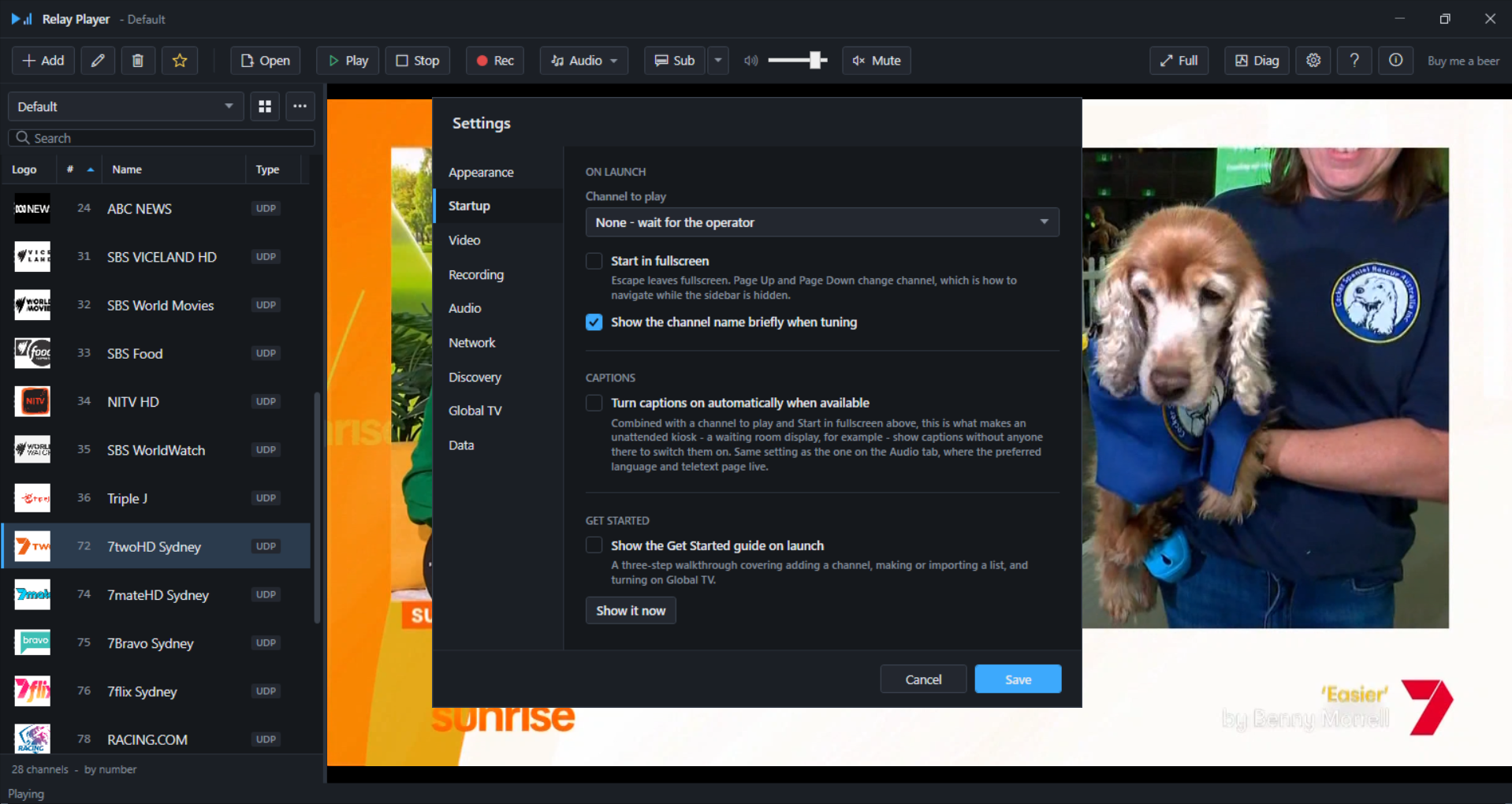
See 9.2 Settings — Startup for the complete set of options on this tab, including the channel banner and the Get Started window's own on/off switch.
7. Recording
Before recording
Before the first recording of a session, a notice is shown and must be accepted.
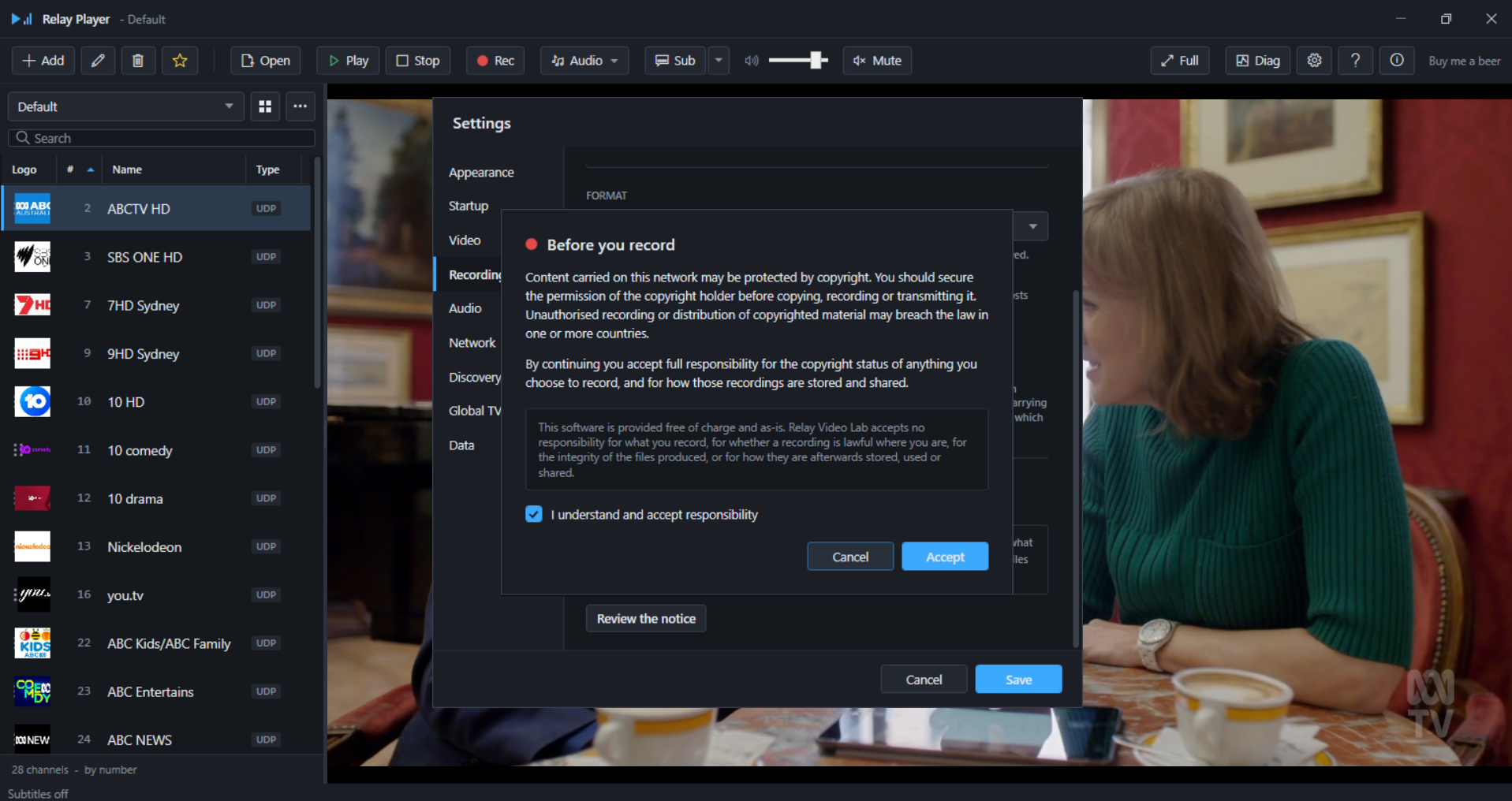
Content carried on this network may be protected by copyright. Secure the permission of the copyright holder before copying, recording or transmitting it. Unauthorised recording or distribution of copyrighted material may breach the law in one or more countries.
Continuing accepts full responsibility for the copyright status of anything recorded, and for how those recordings are stored and shared. Relay Video Lab accepts no responsibility for what is recorded, for whether a recording is lawful in the operator's jurisdiction, for the integrity of the files produced, or for how they are afterwards stored, used or shared. Recording is entirely at the operator's own risk.
Starting a recording
Click Record on the toolbar. A duration dialog offers a choice between recording until Stop is pressed, or for a set number of minutes.
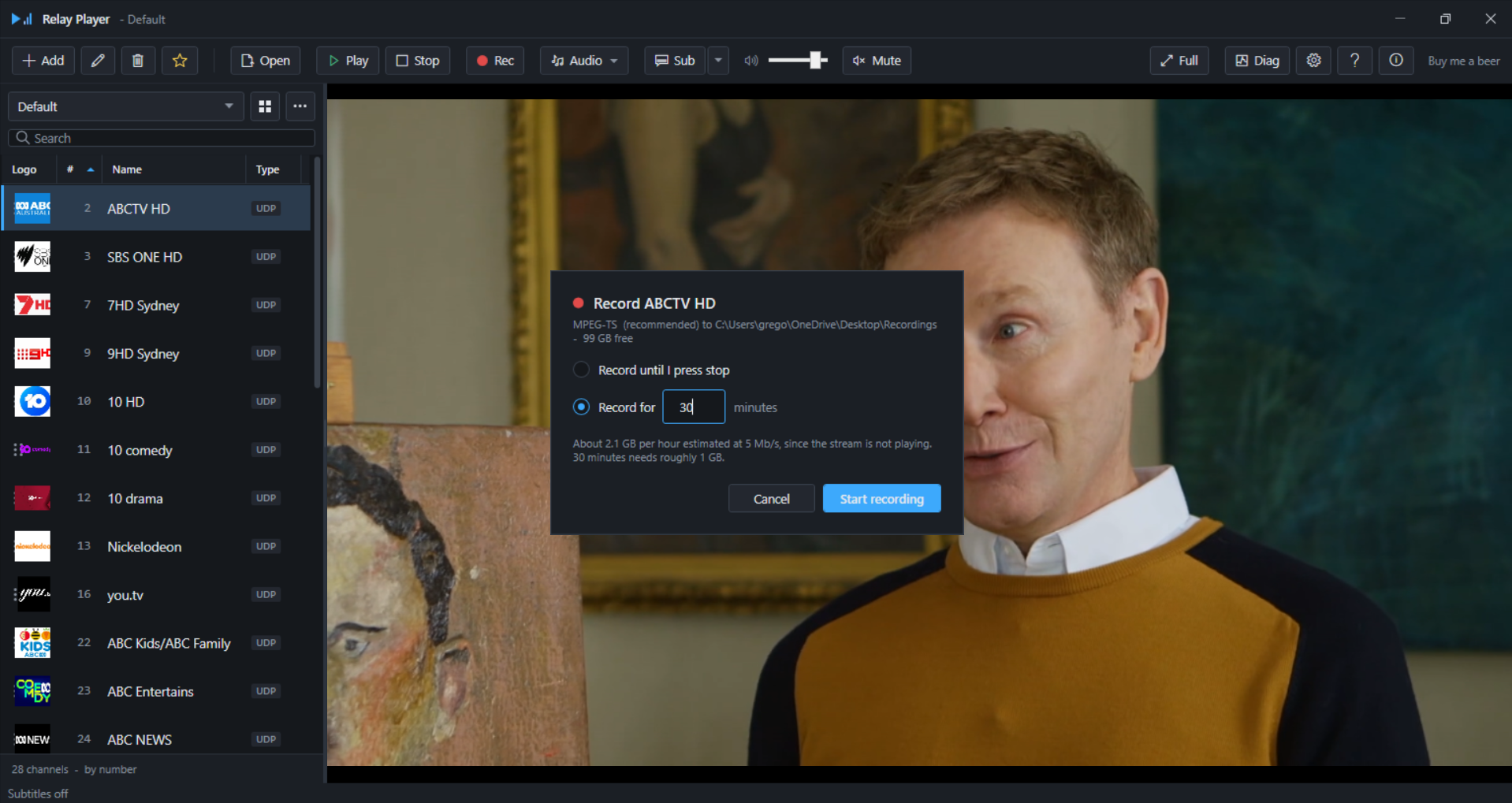
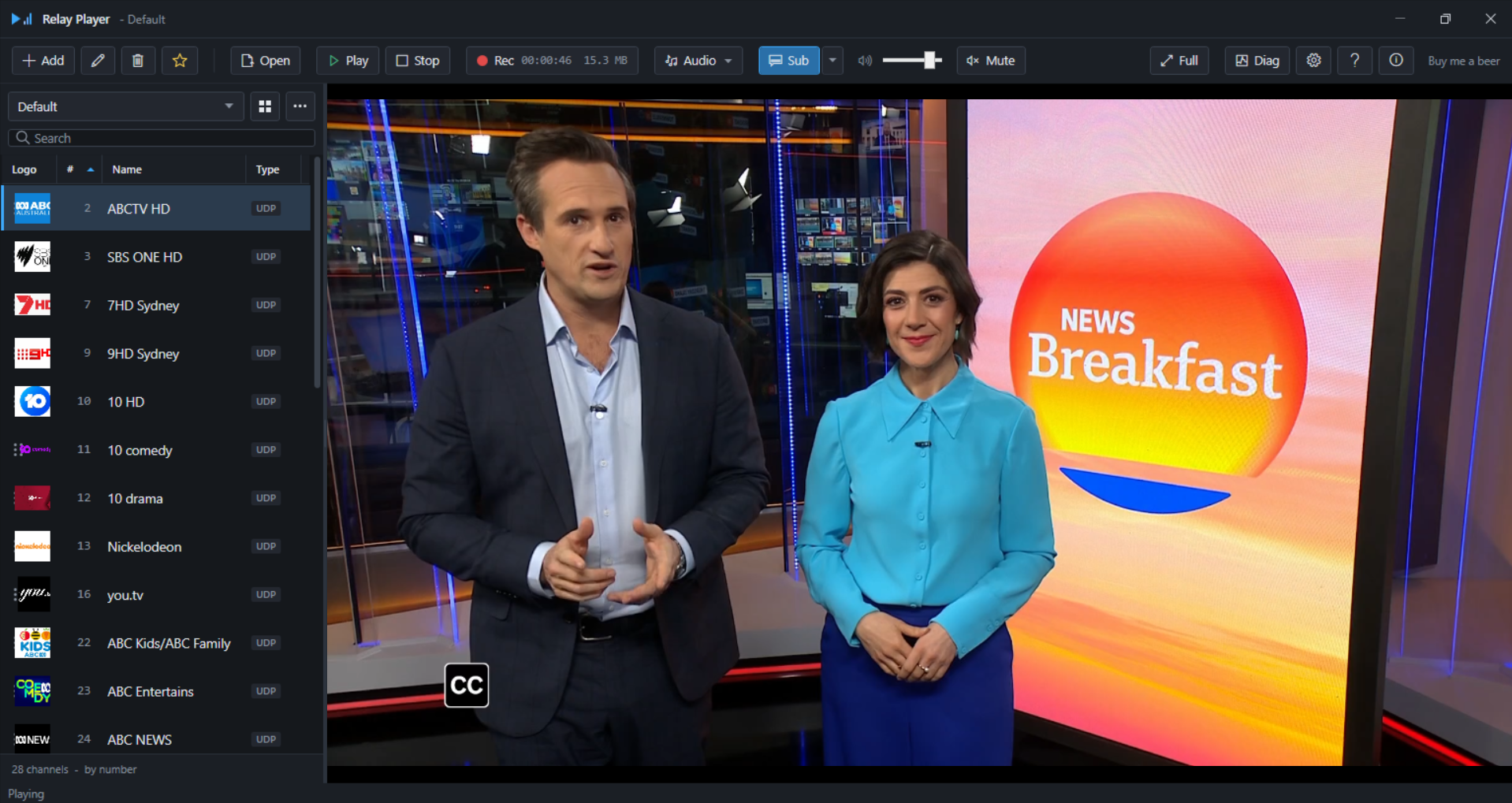
Once recording, the Record button shows the elapsed time and, where space allows, the current file size. Starting or stopping a recording briefly restarts playback — around a second's interruption — because the recording path is set up by reopening the stream with an additional output attached, rather than by capturing continuously in the background and discarding what is unwanted. The latter would mean Relay Player writing to disk constantly whether a recording was asked for or not, which is the worse trade-off.
Destination and format
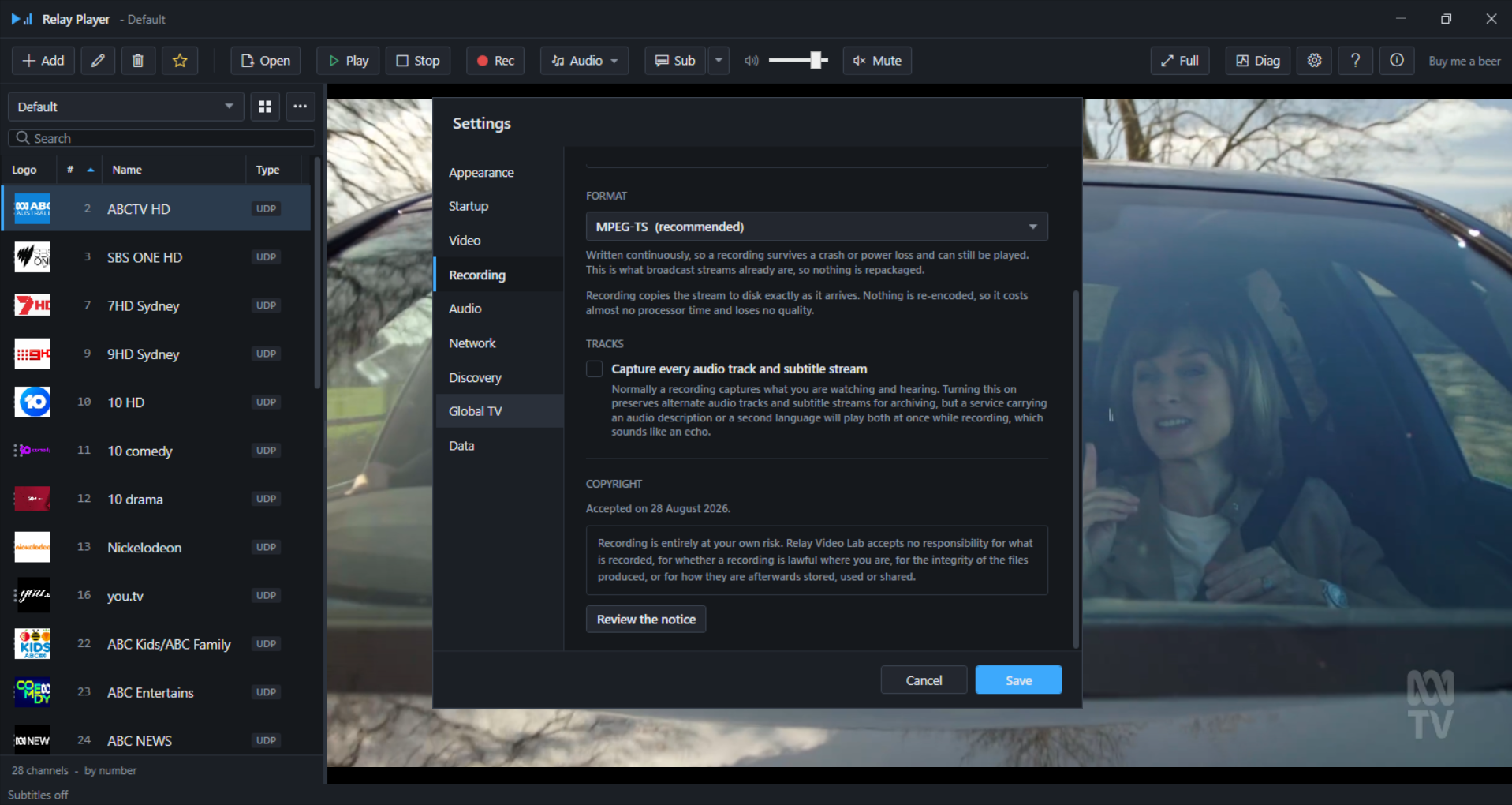
The destination folder and container format are set in Settings, Recording (see 9.4). Every format available copies the stream to disk exactly as it arrives — nothing is re-encoded, so recording costs almost no processor time and loses no quality. The formats differ in resilience and compatibility, not in picture quality:
| Format | Notes |
|---|---|
| MPEG-TS (recommended) | Written continuously, so a recording survives a crash or power loss and can still be played. This is the format broadcast streams already arrive in, so nothing is repackaged. |
| MP4 | Widest compatibility with editors and players. The index is written when recording stops, so a file cut short by a crash may not open. |
| MPEG Program Stream | Older MPEG container, useful for legacy playout equipment that does not read TS. |
| QuickTime MOV | For editing suites that prefer MOV. Same caveat as MP4 about needing to be closed cleanly. |
A recording's filename is built from the channel name and the start time, so consecutive recordings sort chronologically and never collide.
What is not captured
By default, a recording captures only the audio and subtitle track currently selected, not every track a service carries. This matters for two reasons: a service carrying an audio description or a second language track would otherwise play both simultaneously during recording, audible as an echo; and subtitles are not embedded into the recorded picture at all, since they are carried as a separate stream and rendered over the picture live rather than being part of the image itself, so a remuxed recording does not contain them regardless of this setting. Capture every audio track and subtitle stream, in Settings, Recording, preserves every alternate track for archiving at the cost of that echo while recording is in progress.
8. Playing files
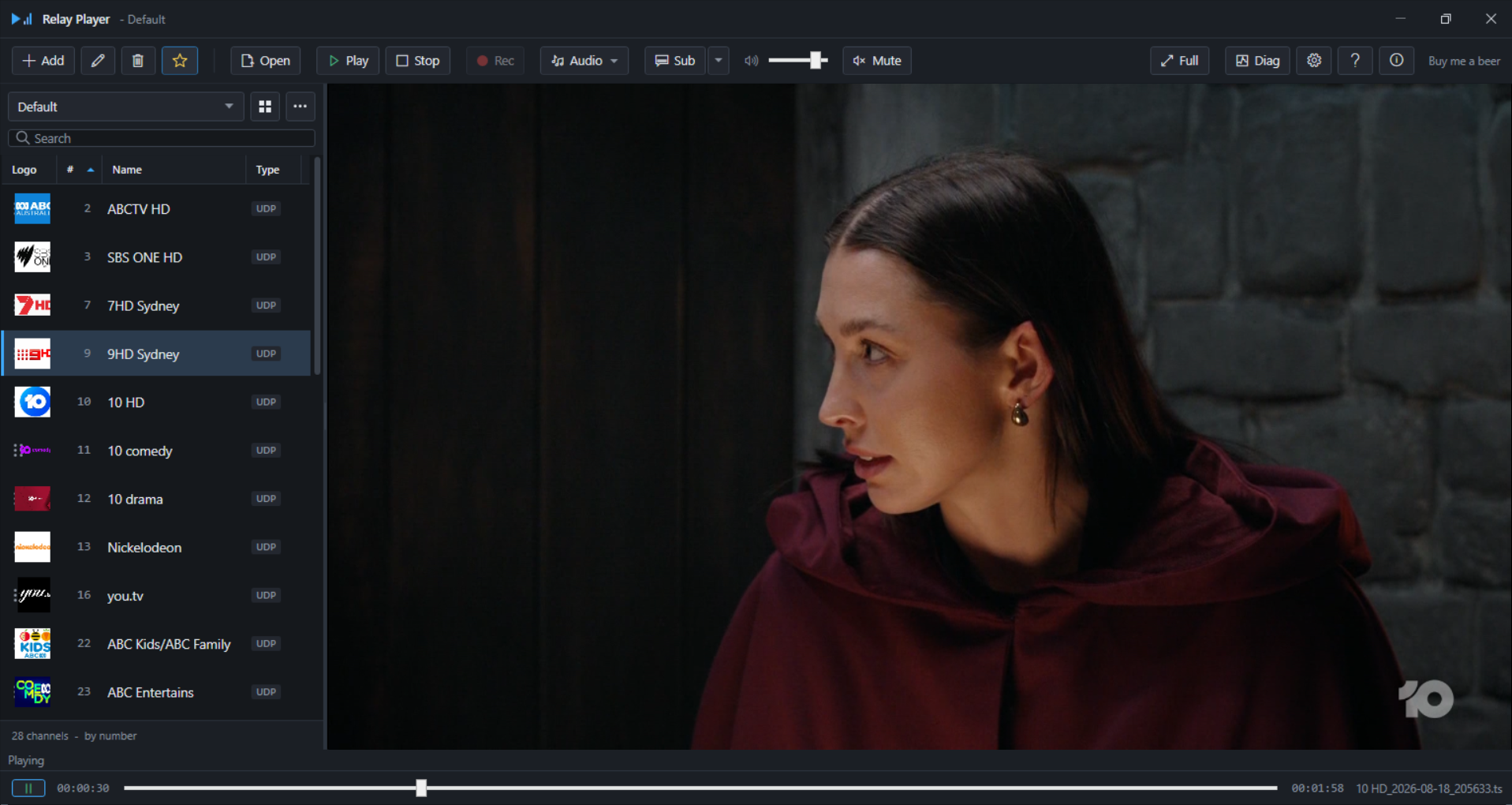
A previously recorded file, or any local media file, can be opened from the toolbar's Open File button. Local playback behaves like any conventional media player rather than a live channel: a transport bar with seek, play/pause and a time position replaces the channel-oriented status shown during live playback.
9. Settings reference
This section documents every tab of the Settings dialog, in the order the tabs appear.
9.1 Appearance
Channel view. View on startup chooses between remembering the last view used, always opening in list view, or always opening in tile view. Tile size applies to the icon grid only; the list view is unaffected.
Channel selection. Play a channel on a single click is on by default. Turning it off makes a single click select a channel and a double click play it; Enter and the Play button work either way regardless of this setting.
Toolbar. Show the Diagnostics button hides that toolbar button only — Diagnostics keeps working if reopened later some other way.
9.2 Startup
On launch. Channel to play selects the channel opened automatically. Start in fullscreen opens directly into fullscreen; Escape leaves fullscreen, and Page Up / Page Down change channel, which is the way to navigate while the sidebar is hidden. Show the channel name briefly when tuning controls the on-screen banner.
Captions. Turn captions on automatically when available — combined with a channel to play and Start in fullscreen above, this is what makes an unattended kiosk show captions with nobody present to switch them on. This is the same setting as the one on the Audio tab, kept in sync between the two, where the preferred caption language and teletext page override also live.
Get Started. Show the Get Started guide on launch is the on/off switch for the first-run window described in 1. Getting started; a Show it now button reopens it on demand regardless of this setting — a three-step walkthrough covering adding a channel, making or importing a list, and turning on Global TV.
9.3 Video
Deinterlacing. Broadcast television is very often interlaced — 1080i25 across Australia and Europe, 1080i30 in North America — while computer monitors are progressive. Without deinterlacing, horizontal motion shows comb-tooth artifacts along moving edges: a camera pan across a sports field, a scrolling news ticker. Auto relies on flags the stream itself sets, which broadcasters set inconsistently, so it does not always engage when it should; Always on is the more reliable choice for live television.
| Filter | Notes |
|---|---|
| Yadif | Good quality and modest CPU. The sensible default for live television. |
| Yadif 2x | Yadif at double frame rate — smoothest motion, roughly twice the CPU cost. |
| Blend | Merges both fields. Very cheap, slightly soft. Good on weak hardware. |
| X | Adaptive. Higher quality than blend, heavier than Yadif. |
| Linear | Interpolates between lines. Cheap, softer than Yadif. |
| Bob | Shows each field in turn at double rate. Smooth motion, visible line flicker. |
| Mean | Averages the two fields into half height. Fast, loses vertical detail. |
| Discard | Throws away one field. Fastest, halves vertical resolution. |
| Phosphor | Simulates a CRT. A stylistic choice rather than a practical one. |
Channel change. Hold the picture back — joining a live stream lands part way through a group of pictures, so the first frames refer to data that was never received and the decoder fills the gaps with grey blocks until the next full frame arrives. Holding the picture back briefly hides that; sound is unaffected and starts immediately regardless of this setting. Setting it to 0 shows the picture as soon as decoding begins, grey blocks included.
When a stream drops. Reconnect automatically — a multicast feed dropping out briefly is routine: a switch reconverging, a querier election, an encoder restarting — and it is usually back within seconds. Retries begin after two seconds and back off from there, so a stream that is genuinely gone is not hammered. Give up after (attempts) — 0 keeps trying indefinitely, which suits an unattended display that should recover whenever the feed does. Treat as lost after (seconds without data) — a dead multicast group reports no error at all: the socket opens, the group join succeeds, and nothing arrives, so silence has to be measured directly or a stopped source would freeze on the last frame forever; long enough to ride out a brief outage, 0 switches detection off.
9.4 Recording
Destination. A local folder or a network share such as \\server\share\folder. A share must be reachable by the account running Relay Player — a drive letter mapped in Explorer may not be visible here. Subtitles and closed captions are not included in recordings regardless of the destination, for the reason given in 7. Recording.
Format. See the format table in 7. Recording. Recording copies the stream to disk exactly as it arrives — nothing is re-encoded.
Tracks. Capture every audio track and subtitle stream — normally a recording captures what is being watched and heard. Turning this on preserves alternate audio tracks and subtitle streams for archiving, at the cost that a service carrying an audio description or a second language plays both simultaneously while recording, audible as an echo.
Copyright. Review the notice reopens the recording notice described in 7. Recording at any time.
9.5 Audio
Audio tracks. Preferred language — used when a service carries more than one audio track; accepts a language code or name as the stream itself reports it, for example eng; left blank, whichever track the stream offers first is used. Avoid audio description tracks — some services default to the described soundtrack; when this is on and another track is available, the main programme audio is chosen instead. Either track can still be picked by hand from the Audio button on the toolbar regardless of this setting.
Volume normalisation. Evens out the difference in level between programmes and advertisement breaks; takes effect on the next channel change. This works on signal level, not on measured loudness — it is not an implementation of EBU R 128 or ATSC A/85 and does not measure LUFS. It makes listening more comfortable; it does not indicate whether a service complies with a loudness standard.
Subtitles and captions. Turn captions on automatically when available, preferred language, and teletext page override — documented together with the underlying formats in 5.3 Subtitles and captions.
9.6 Network
Multicast. Interface — on a machine with more than one network adapter, Windows chooses which one joins a multicast group using its routing table, and that is often not the adapter actually carrying the video. Select the adapter carrying the streams explicitly. An Advanced section allows the interface identifier to be overridden by hand, for the case where multicast still binds to the wrong adapter — this can happen because the identifier form Windows accepts for this purpose varies between Windows versions; leave it blank to use the value derived from the adapter selected above.
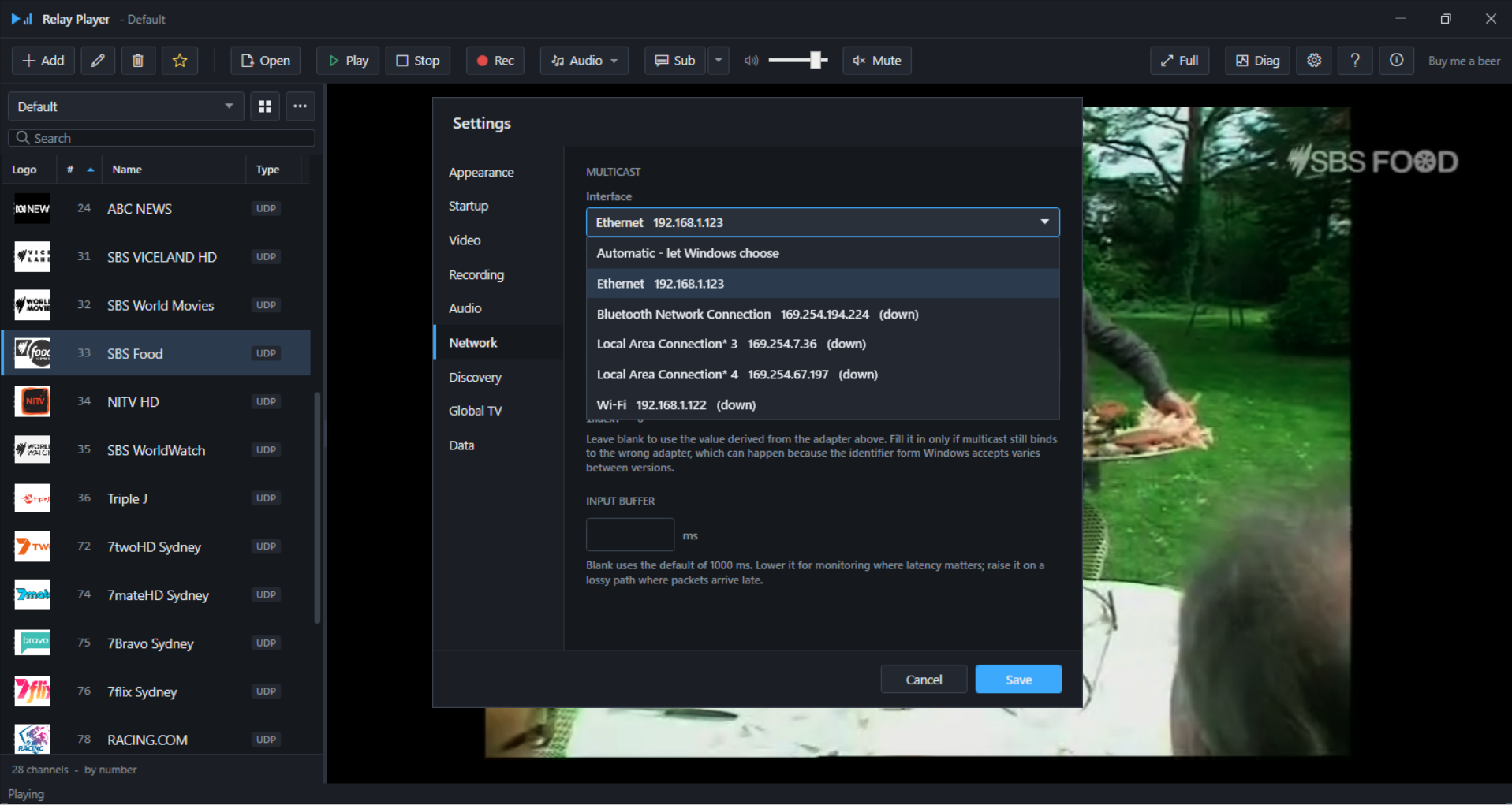
Input buffer. Blank uses the default of 1000 ms. Lower it for monitoring applications where latency matters; raise it on a lossy network path where packets tend to arrive late.
9.7 Discovery
Documented in full in 4. Finding channels on your network. Listen for channels announced on the network is the master switch; the address list, port and session timeout are all configured on this tab, along with a live status readout of packets seen and sessions currently held.
9.8 Global TV
Offer the Global TV list in the channel selector. Showing the list downloads nothing — it stays empty until explicitly fetched, so enabling this checkbox alone still makes no network request of its own.
What this list is. Several thousand internet television streams, compiled and maintained by a separate open-source project. Relay Video Lab does not create it, curate it, host any of the streams, or check what is in it.
Many entries will not play. Whether a given stream is licensed for you to watch is not something this application can determine, and you are responsible for making sure your use is lawful where you are.
Source. Editable for a mirror or a private index — any M3U playlist reachable over http or https is accepted. Download or update... fetches or refreshes the cached copy; Clear downloaded list deletes the cached file and returns the list to empty, as it was before it was first downloaded, without affecting any other channel list. The list can be fetched again at any time after clearing.
9.9 Data
Update reminder. Works out from the build date recorded in this installation — never remind, or a reminder after three, six or twelve months. Nothing is contacted to check for a newer version; following the reminder opens the download page in the default browser, and comparing the version there against the installed one is left to the operator, since the application itself never checks on its own.
Data folder. Shows the folder holding library.json (channels) and settings.json (these preferences), with a button to open it directly. See 12. Where things are kept.
Logging. Write a diagnostic log to disk records playback, reconnect and recording activity to a local file, to help establish what happened after the fact. Nothing is sent anywhere; the log is kept to a few megabytes with the oldest entries rolled off first.
10. When something does not work
| Symptom | Likely cause | What to check |
|---|---|---|
| Nothing plays; no data is arriving | Wrong multicast interface, a firewall blocking the stream, or IGMP not passing through the network path | Confirm the correct adapter is selected on the Network tab (9.6); confirm Windows Firewall allows the connection on a private network; confirm the switches and routers between the source and this workstation support and pass IGMP for the group in question. |
| Grey blocks for a second or two after changing channel | Normal behaviour — the channel-change settle delay | Expected while joining a live stream mid-group-of-pictures. See 9.3 Settings — Video, Channel change; lower the delay to 0 only to confirm this is the cause, not as a fix. |
| Combing or tearing on motion | Deinterlacing is set to Auto and the stream's own flags are not reliable | Set Deinterlacing mode to Always on in Settings, Video, or from the right-click menu over the video area (5.5). |
| An echo is audible while recording | The service carries two audio tracks and both are being captured | Turn off Capture every audio track and subtitle stream in Settings, Recording (9.4) unless archiving every track is the intent. |
| Subtitles never appear on a channel expected to carry them | Teletext transmits only while there is dialogue to caption | Wait for a moment with dialogue before concluding captions are absent; confirm the preferred language and teletext page override in Settings, Audio (9.5) are correct or blank. |
| Recording produces nothing, or an empty file | The destination folder cannot actually be written to | Check the folder permissions and, for a network share, that the account running Relay Player can reach it; the size readout while recording is in progress is the most direct sign a recording is actually being written. |
| Global TV entries do not play | Not a defect in Relay Player — the catalogue is not maintained by Relay Video Lab | The underlying source for that entry may have been disabled, retired or geo-blocked by the broadcaster or platform behind it. This is separate from the question of whether the stream is lawful to watch, which Relay Player has no way to determine either way. |
| A multi-homed machine sees nothing at all | Windows is routing multicast joins to the wrong network adapter | The Network tab (9.6) is the first thing to check on any machine with more than one network connection. |
| A kiosk boots to a picture, but no captions appear | Either the stream carries none this session, or the auto-enable switch is off | Check both before assuming something is broken: confirm Turn captions on automatically when available is checked on the Startup or Audio tab, and confirm the channel is actually carrying a subtitle track at that moment. |
11. Diagnostics
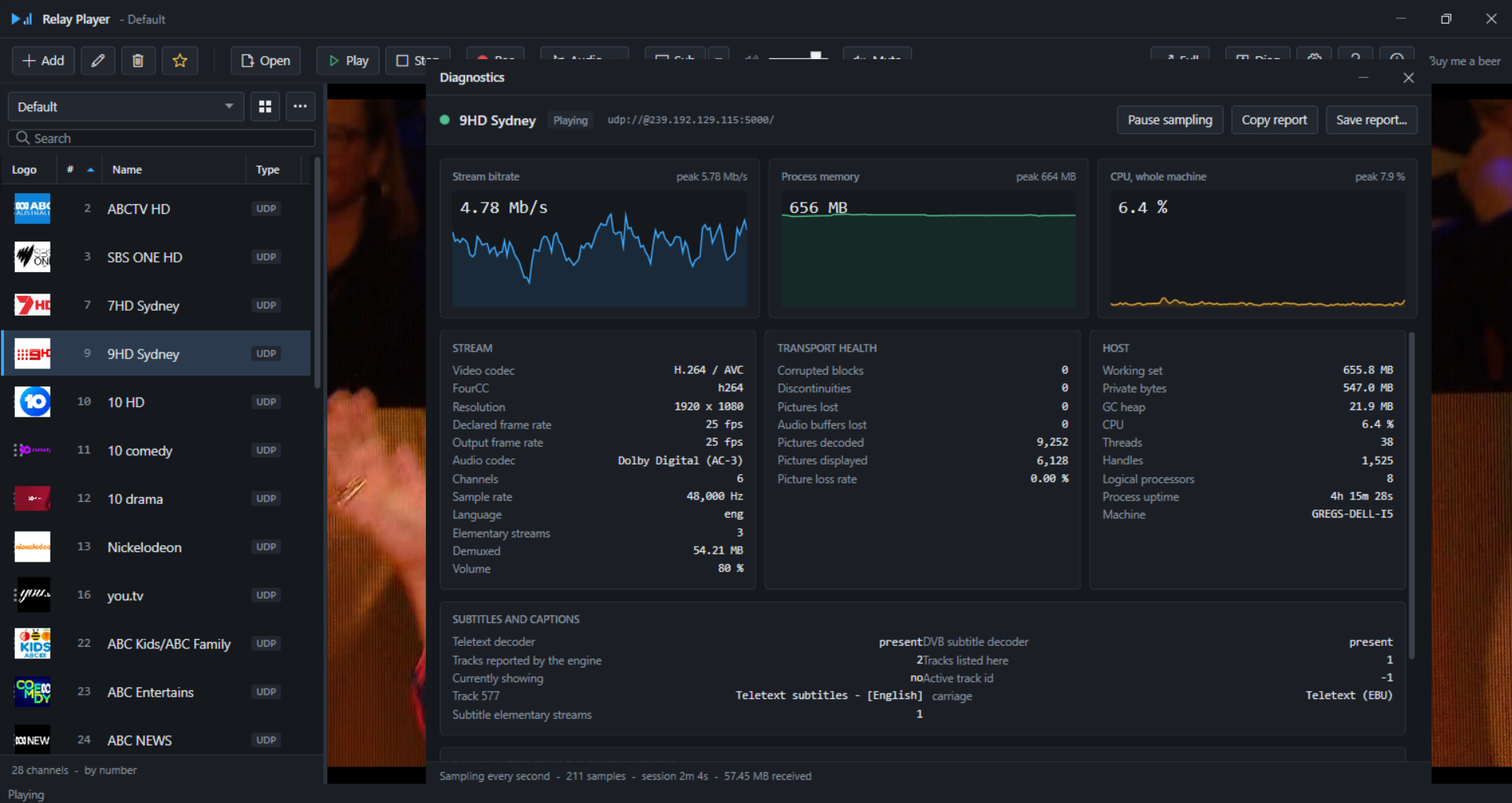
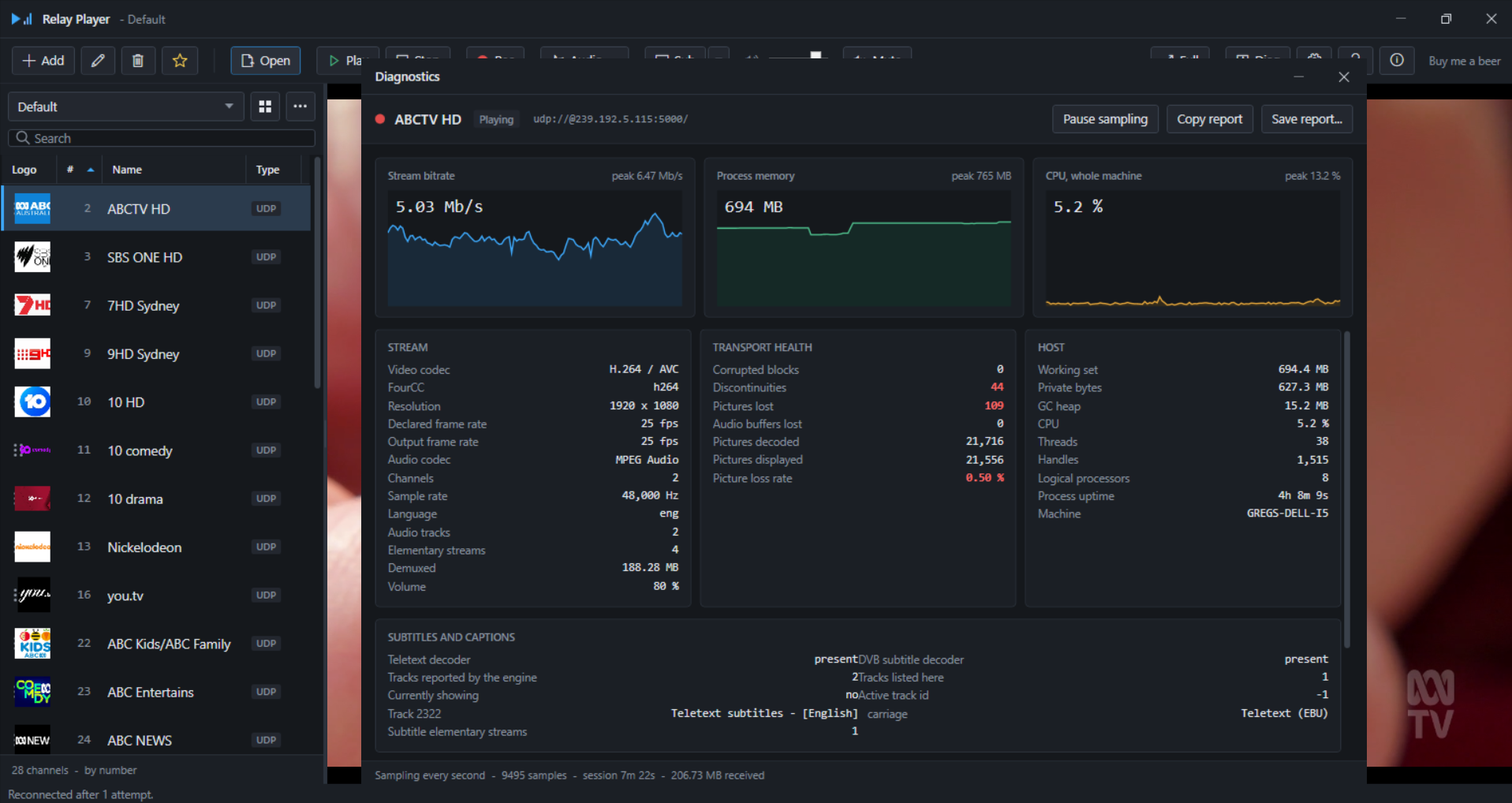
The Diagnostics window, opened from the toolbar, shows live figures for whatever is currently playing: three graphs — stream bitrate, process memory and whole-machine CPU — and four detail panels. A session bar offers Pause sampling, Copy report and Save report, useful for capturing the current state to attach to a support request.
Stream
| Figure | Meaning |
|---|---|
| Video codec, Resolution | The decoded video format and frame size. |
| Audio codec, Audio tracks | The decoded audio format, and how many audio tracks the service carries — shown only when more than one is present, since that is the usual cause of doubled sound while recording and of an unexpected soundtrack. |
| Elementary streams | The total count of distinct streams (video, audio, subtitle) the service carries. |
| Demuxed | Total data the demuxer has read from the source since tuning. |
| Volume | Current playback volume and mute state. |
Transport health
| Figure | Meaning |
|---|---|
| Corrupted blocks | Data the demuxer flagged as damaged. |
| Discontinuities | Gaps in the expected continuity of the stream — usually packet loss on the network path. |
| Pictures lost | Video frames that could not be decoded or displayed. |
| Audio buffers lost | Audio data that could not be decoded or played. |
| Pictures decoded / Pictures displayed | Running totals since tuning, for comparing against pictures lost. |
| Picture loss rate | Lost pictures as a percentage of decoded plus lost — flagged when above 0.5%. |
Any of these figures rising steadily while a stream is playing normally is the clearest sign of a network problem upstream of Relay Player rather than a problem with the application itself.
Host
| Figure | Meaning |
|---|---|
| Working set, Private bytes, GC heap | Memory used by the Relay Player process, from three different measurements. |
| CPU | Processor time used by the Relay Player process. |
| Threads, Handles | Operating-system resource counts for the process. |
| Logical processors | Processor count on this machine, for context when reading CPU usage. |
| Process uptime | How long this run of Relay Player has been open. |
| Machine | The workstation's computer name. |
Subtitles and captions
Reports whether the teletext and DVB subtitle decoders are present in this installation, and how many subtitle tracks the engine has reported for the current stream — useful for distinguishing a missing decoder from a stream that genuinely carries no captions, which otherwise look identical from the track list alone.
Raw counters
The underlying engine statistics the figures above are derived from, shown as reported, for anyone comparing behaviour directly against the playback engine's own diagnostics.
12. Where things are kept
Relay Player stores its data under %AppData%\RelayPlayer.
| Path | Contents |
|---|---|
%AppData%\RelayPlayer\library.json | Channel data — every channel list. Distributable; an administrator can host and share this file directly. |
%AppData%\RelayPlayer\settings.json | Per-workstation preferences. Not intended for distribution between machines. |
%AppData%\RelayPlayer\Icons | Channel icon images, whether picked by hand or downloaded during an M3U import. |
%AppData%\RelayPlayer\global-tv.m3u | The cached Global TV catalogue, present only once it has been downloaded from Settings, Global TV. |
Both library.json and settings.json are written to a temporary file first and then swapped into place, so a crash or power loss partway through a write cannot leave a half-written file behind. A library file that fails to parse is moved aside with a .corrupt-<timestamp>.json suffix rather than causing Relay Player to refuse to start, and playback resumes with an empty list rather than a fatal error.
Backup and moving to another machine. Copying library.json to another installation carries channel lists across; icons referenced by local file paths should be copied alongside it from the Icons folder for those icons to still resolve on the destination machine. settings.json is workstation-specific and is not generally worth copying between machines.
13. Licensing and credits
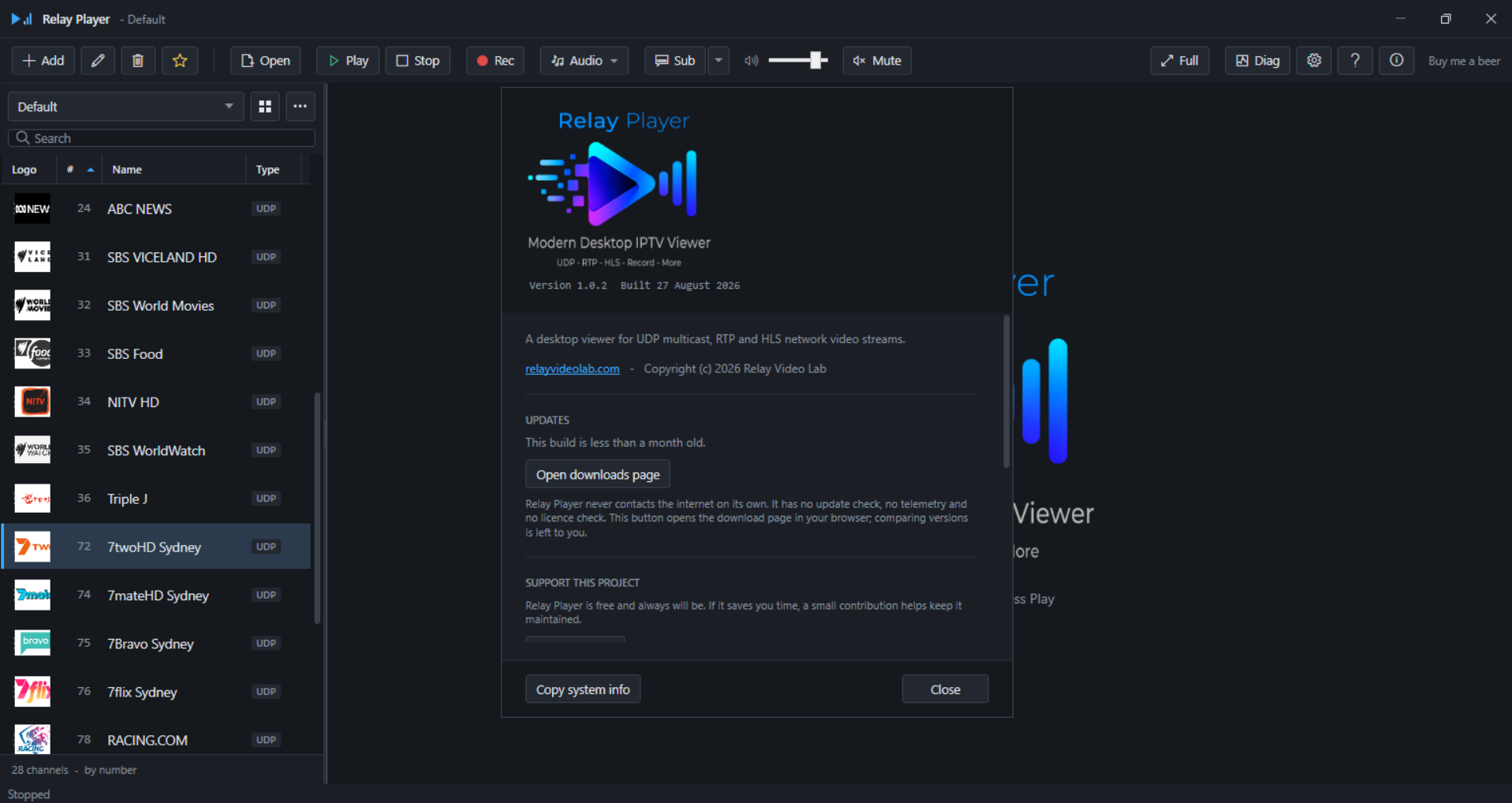
Relay Player is freeware, published by Relay Video Lab, provided free of charge and as-is, without warranty of any kind, express or implied. Use of this software is entirely at the operator's own risk. Relay Player never contacts the internet on its own initiative — there is no automatic update check, no telemetry, and no licence check; the About dialog's Open downloads page button opens the download page in the default browser, and comparing versions from there is left to the operator.
Engine attribution
Relay Player uses LibVLC, the media engine of the VideoLAN project, to receive and decode network video streams, licensed under the GNU Lesser General Public License version 2.1 or later. LibVLC is distributed as separate, unmodified library files rather than being statically linked, which means an operator is free to replace them with their own compatible build of LibVLC. Relay Player is not affiliated with, endorsed by, or sponsored by VideoLAN; "VLC", "VideoLAN" and the VLC traffic cone logo are trademarks of the VideoLAN organisation and are not used by Relay Player.
| Component | Version | Licence |
|---|---|---|
| LibVLC | 3.0.20 | LGPL v2.1 or later |
| LibVLCSharp / LibVLCSharp.WPF | 3.8.5 | LGPL v2.1 or later |
| VideoLAN.LibVLC.Windows | 3.0.20 | LGPL v2.1 or later |
| .NET 8.0 runtime and WPF | 8.0 | MIT |
The full licence text for the LGPL is included alongside the application as COPYING.LGPL.txt, as the licence requires; naming and linking to the licence, as this section does, is not on its own sufficient. Full attribution for every component is in THIRD-PARTY-NOTICES.md, distributed alongside the application.
Support
Relay Player is offered without charge and without any obligation to pay for it. A voluntary donation link is available from the About dialog for anyone who wishes to support continued development; nothing about the application's functionality depends on it, and no verification of any donation takes place.