
Relay Desktop Streamer
Stream any Windows screen, with sound, to your network: multicast, unicast or straight to phones and browsers. Built to run on modest hardware, so a NUC or an ordinary laptop is enough.
One screen in. As many as you need out.
Relay Desktop Streamer captures a monitor of the PC, with its sound, and sends it over your network in a standard form that players, set-top boxes and signage can already open.
Pick the screen and the sound
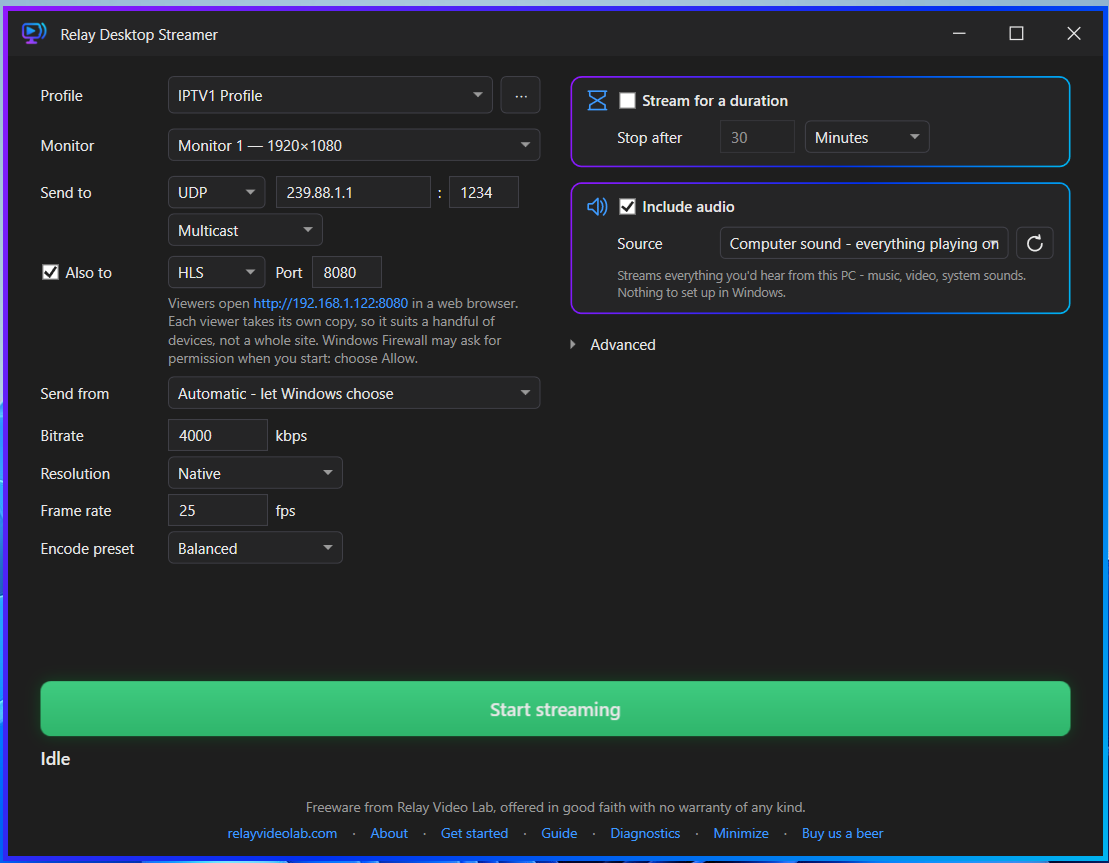
Choose a monitor at its true resolution, and tick Include audio to send the computer's sound with it.
Choose where it goes
Multicast or unicast over UDP or RTP for players and signage, HLS for phones and browsers, or two of them at once.
Press Start
Receivers tune in with the address and port you set. Diagnostics shows what's being sent and how many are watching.
Your screen, on every screen that needs it.
Relay Desktop Streamer captures one monitor of a Windows PC, with its sound, and sends it over the network as a live stream. Set it up once, press Start, and it's on the signage players, the set-top boxes and the phones.
Any monitor, true resolution
Pick any connected monitor, listed with its size, such as Monitor 2 — 1920×1080. A screen set to 125% or 150% in Windows is captured at its real pixel size, not the scaled-down figure.
UDP and RTP, multicast or unicast
Standard MPEG-TS over UDP to a multicast group or a single address, or wrapped in RTP for receivers that need it. Relay Player, VLC, set-top boxes and signage players can all open it.
HLS for phones and browsers
Phones, tablets and any web browser watch by opening an address on the PC. Nothing to install on the viewing device, and no separate web server to set up.
Two destinations at once
Multicast for the screens and HLS for phones, from one Start button. The picture is encoded once and copied, so the second destination costs almost no extra processor time.
Sound, no Stereo Mix needed
Computer sound streams everything playing on the PC with nothing to set up in Windows, and no virtual audio cable. Or choose one output device, or a microphone.
Profiles
Keep a named profile per screen you feed or per event. Each remembers its own monitor, destinations, quality, sound and timers. Duplicate one for a quick variation.
Runs unattended
Stream for a set time, restart every few hours as a safeguard, start with Windows, and resume after a restart or a power cut. No administrator rights needed.
Send from: pick the adapter
On a PC with Wi-Fi, Ethernet, a separate AV network or a VPN, choose the network adapter the stream leaves through instead of leaving it to Windows.
Built-in diagnostics
Live bitrate, frame rate, encoder speed, audio level and HLS viewers, with a two-minute bitrate graph and one-click Copy diagnostics for a support message.
Tray icon
Sits beside the clock with a green dot while a stream is running. Right-click to start or stop, and it asks before closing a running stream.
Pairs with Relay Player
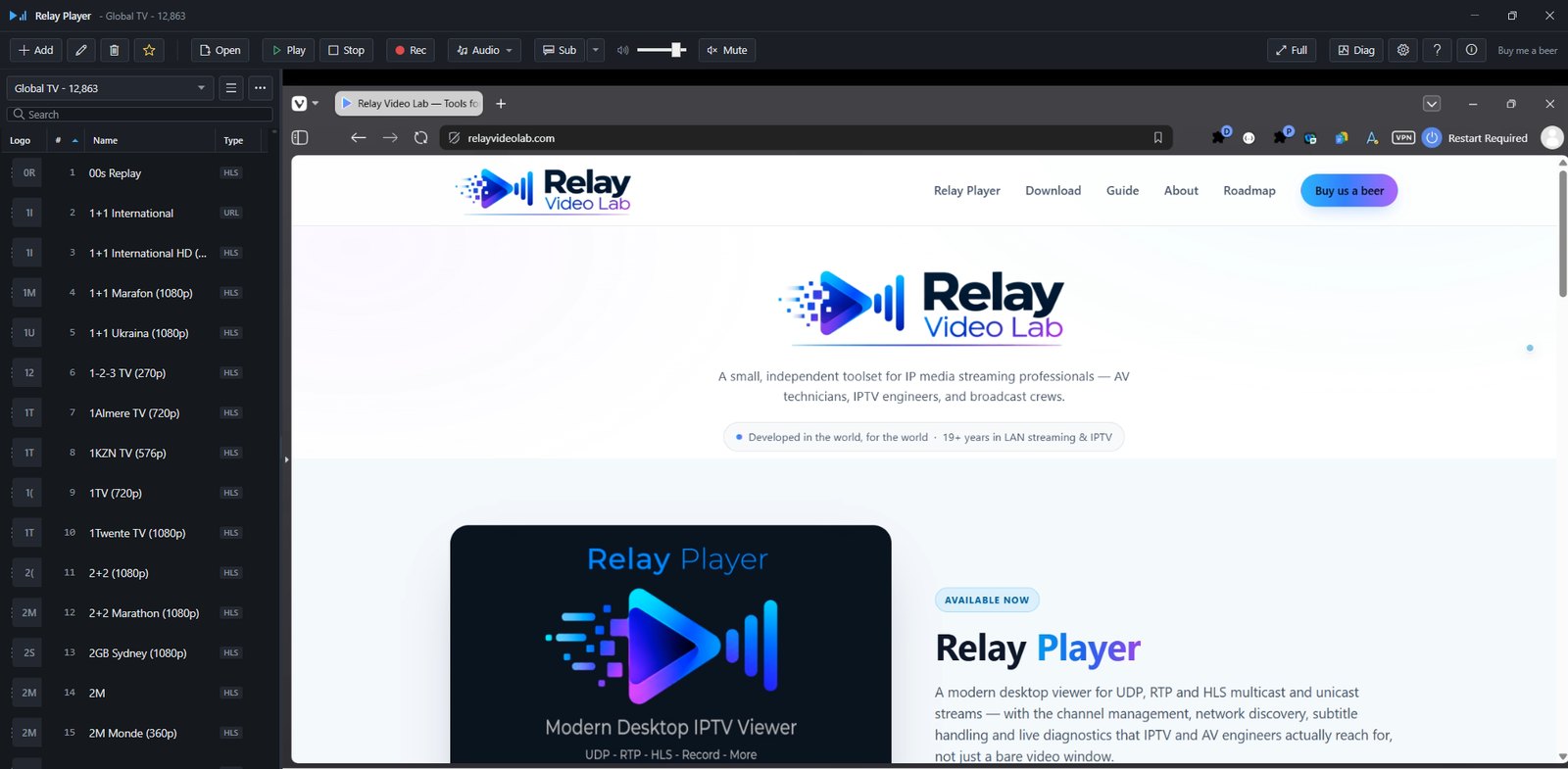
Add a UDP or HLS channel in Relay Player with the same address and port and watch the stream on another PC, with its own diagnostics at the receiving end.
Picture quality you control
Set the bitrate, resolution (Native, 1080p or 720p), frame rate and an encode preset from Efficient to Quality, to suit the PC and the network.
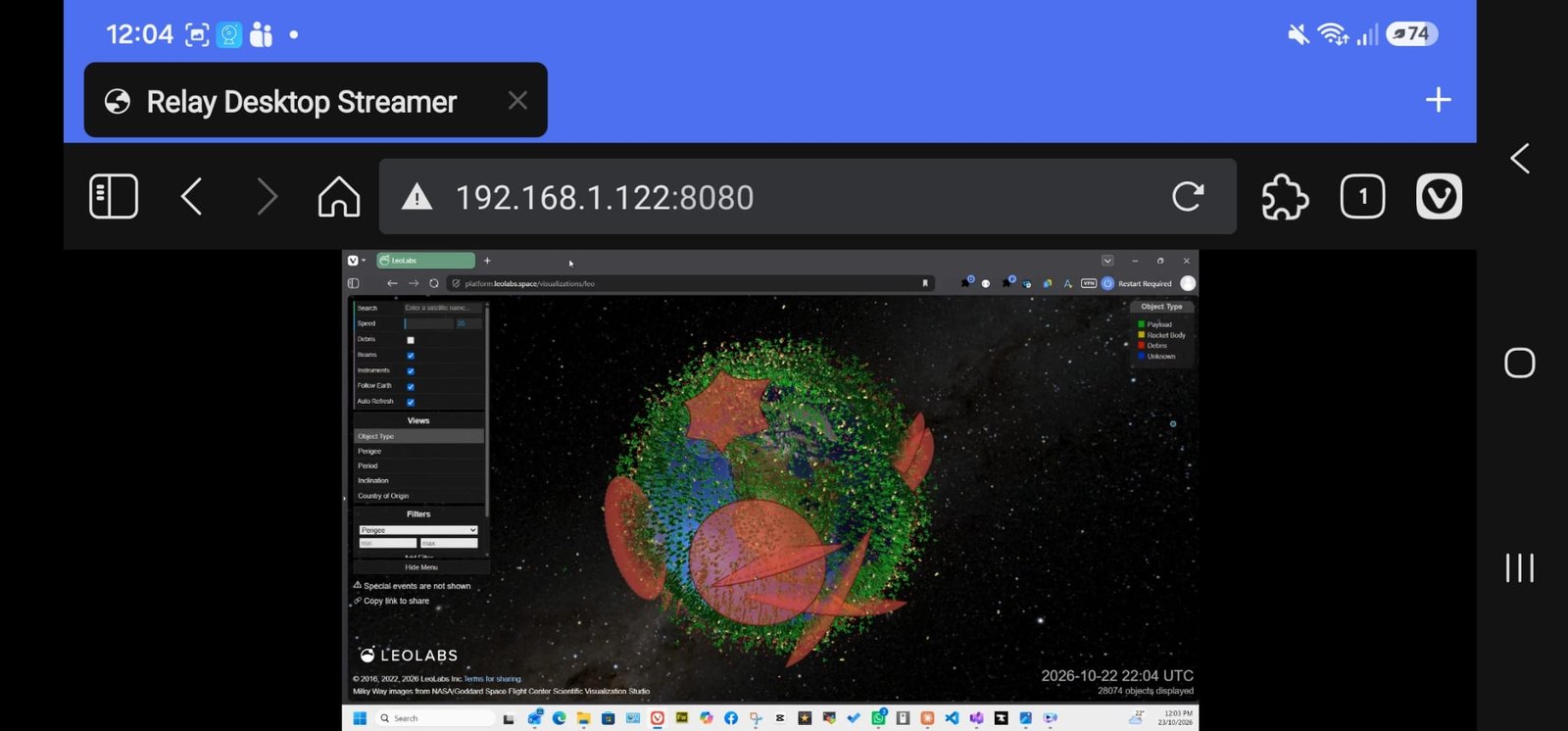
Watch on a phone, with nothing to install.
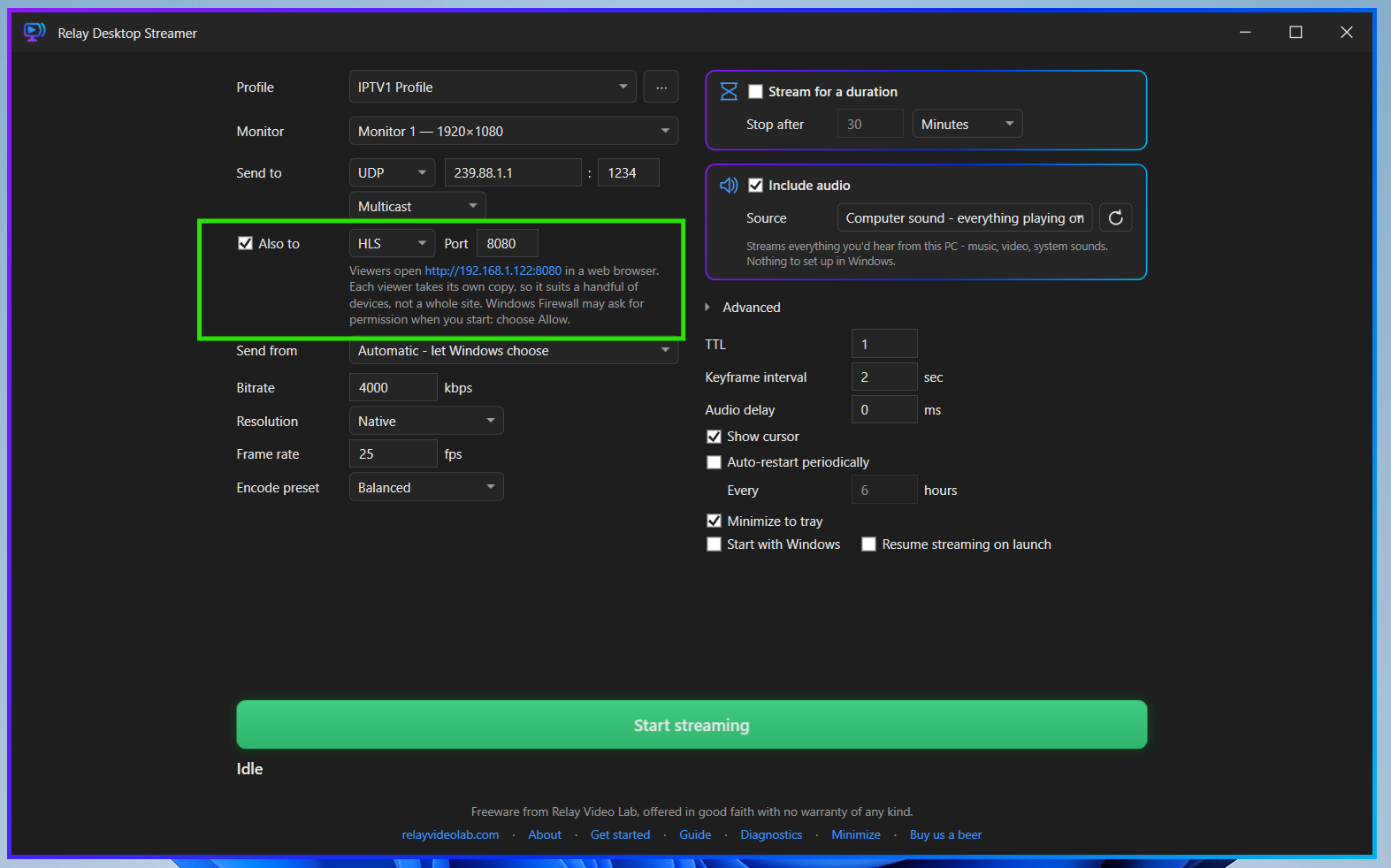
Choose HLS as a destination and the app serves the stream itself. Viewers type the address shown under the destination into a web browser, and that's it.
- Plays in Chrome, Edge, Firefox and Safari, on computers, phones and tablets. The page can be opened before the stream starts and picks it up by itself, even after a restart.
- Starts muted, as browsers require. A Turn sound on button, or a click on the picture, brings the sound in.
- A direct address for players. Add
/stream.m3u8to the address and Relay Player, VLC and other HLS players can open it too. - Know who's watching. The status line shows how many devices are watching via HLS, and Diagnostics adds up the bitrate they use.
- Honest about its limits. HLS suits a handful of viewers, because each one pulls its own copy from the PC. It runs several seconds behind live, and there is no password. For a whole site, use multicast.
The whole PC's sound, with nothing to set up.
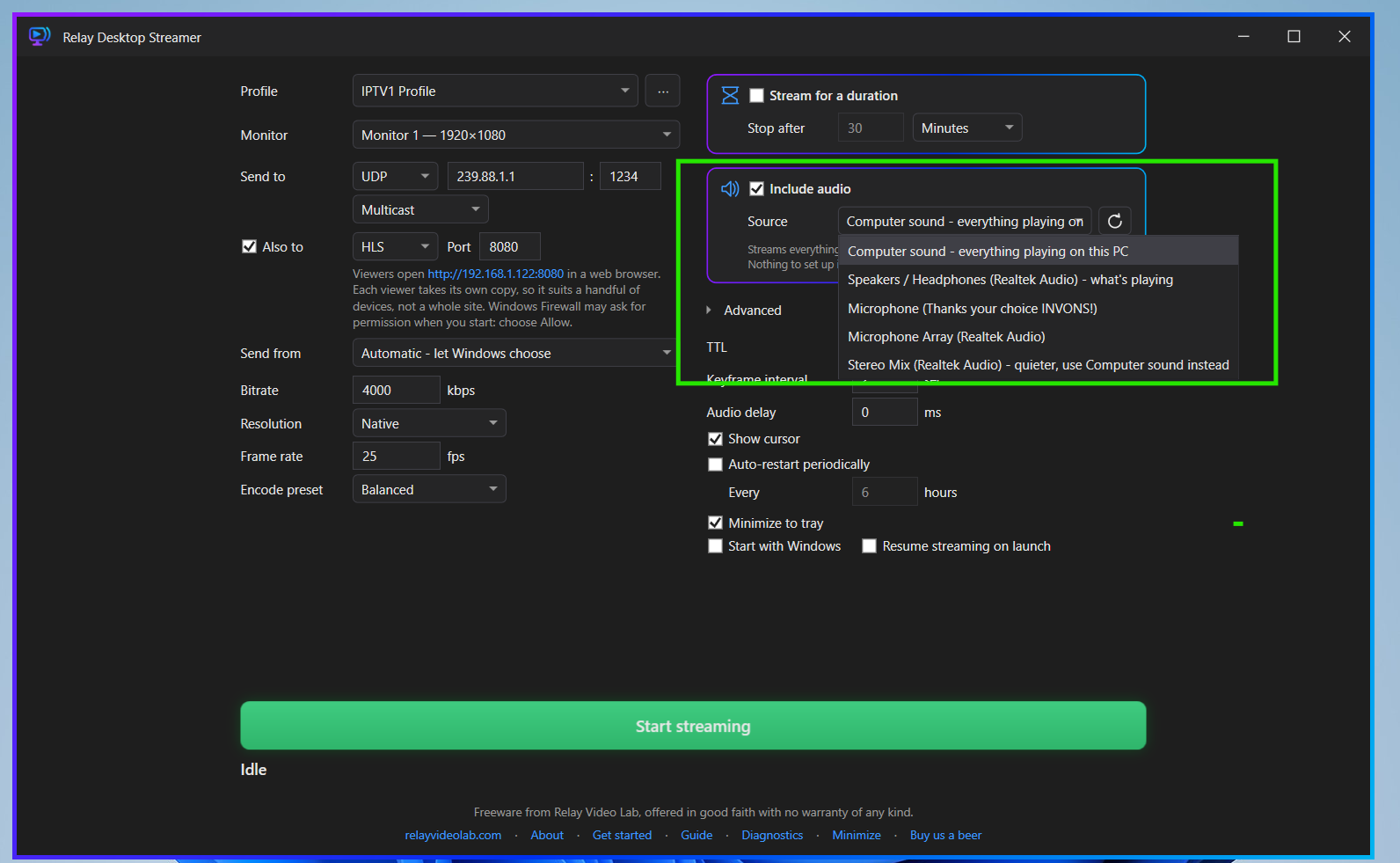
Tick Include audio and pick a source. The usual choice is Computer sound - everything playing on this PC: no Stereo Mix, no virtual audio cable, nothing to change in Windows.
- Computer sound. Everything playing on the PC (music, video, system sounds), using whichever output device Windows has as its default when the stream starts.
- One output, or a microphone. Stream what's playing on one set of speakers, headphones or an HDMI output, or take any recording device. If Windows is blocking microphones for desktop apps, the app says so.
- Stereo Mix, handled honestly. It's listed last and labelled as quieter, with a pointer to Computer sound, which gives the same thing at full level.
- Silence is filled. When nothing is playing, the stream still carries a continuous sound track, so receivers don't stall or lose sync. If the device fails, the stream carries on silent and says no audio.
See what the stream is actually doing.
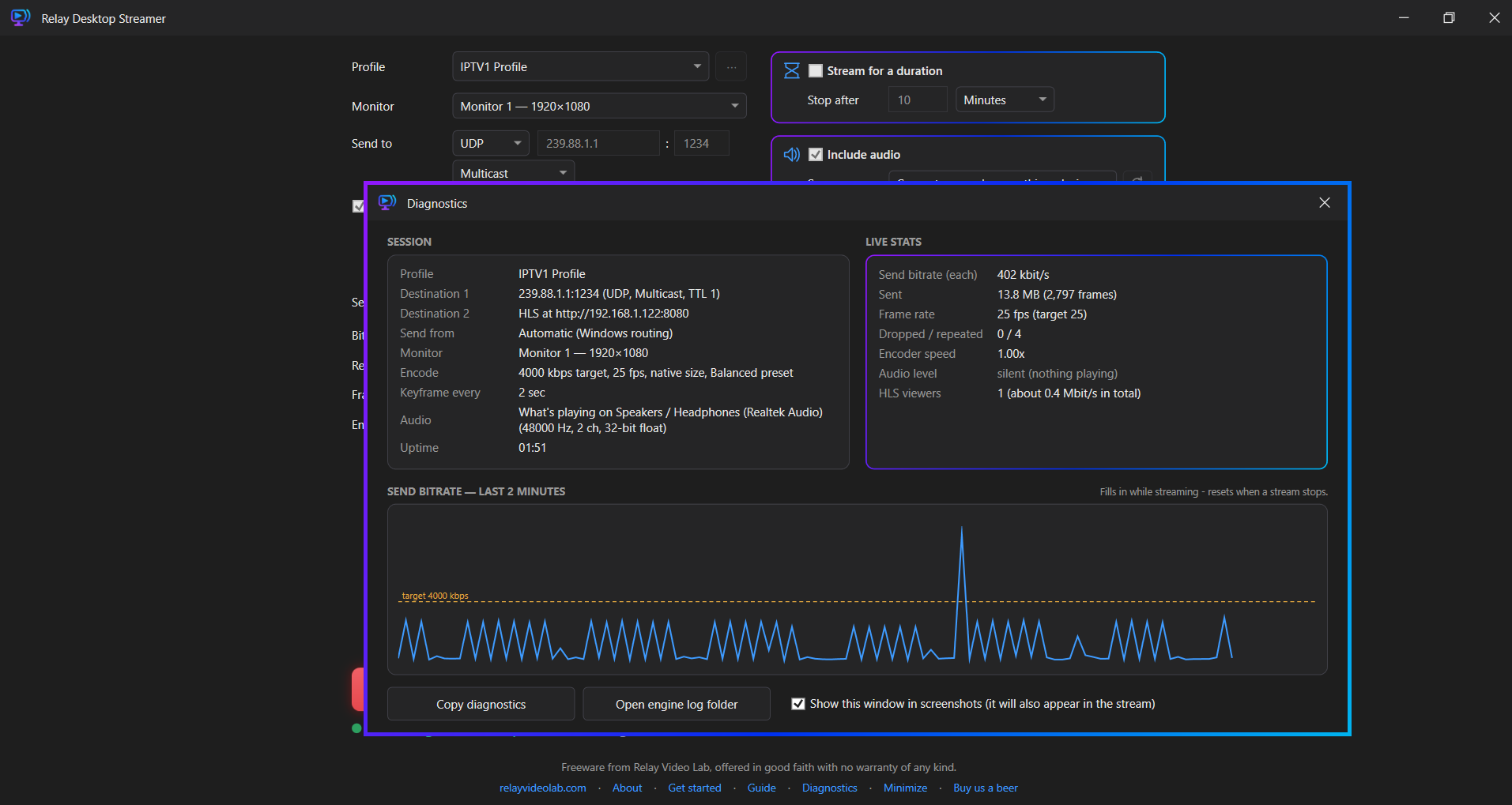
The Diagnostics window opens from the footer and can stay open beside the main window. The screenshot is a real capture with two destinations running and one device watching over HLS.
- The session at a glance. Profile, each destination, Send from, monitor, encode settings, sound source and uptime, plus when a timed stream stops or the next restart is due.
- Live stats. Send bitrate, data sent, frame rate, dropped and repeated frames, encoder speed, audio level and HLS viewers, with a graph of the last two minutes and the target marked.
- Warns when the PC can't keep up. Encoder speed turns to a warning colour below 0.97×, which is the cue to lower the resolution or pick the Efficient preset.
- Built for a support message. Copy diagnostics puts everything on the clipboard, and Open engine log folder opens the log of the last run.
Works with what you already have.
The stream is standard, so anything that can open it can show it. No special receiver, no licence, no account on the other end.
- Relay Player. Add a channel of type UDP multicast or RTP with the same address and port, or an HLS channel ending in
/stream.m3u8. - VLC. Open a network stream at
udp://@239.1.1.1:1234, using the address and port you set. - IPTV set-top boxes and signage players. Add the address and port as a channel. Choose RTP if the device requires it.
- Any web browser. Use an HLS destination and open the address shown in its caption.
- Standard under the hood. H.264 video and AAC stereo sound at 48 kHz in an MPEG transport stream, sent in 1316-byte packets that fit a normal network without fragmenting.
The small details that matter on a long job.
The rest of what's in the free build.
- Address checks as you type. Only a value that cannot work at all blocks Start. The rest are warnings, because each is legitimate in some setup.
- Paste a whole address. Paste
udp://@239.1.1.1:1234and it is sorted into address, port and type for you, with a note of what was tidied. - Cursor on or off. Include the mouse pointer in the stream, or leave it out.
- Audio delay. A lip-sync adjustment in milliseconds, up to two seconds either way, for a receiver that delays sound and picture differently.
- Diagnostics stays out of the stream. Its window hides itself from the outgoing picture, so it can sit on the streamed screen. A checkbox turns that off when you want a screenshot.
- Settings lock while streaming. Fields can't be changed mid-stream, so what the window shows is always what is being sent.
- If one destination fails, the other carries on. The status line says which one stopped. If both fail, the stream stops with a reason.
- Plain-English errors. The destination can't be reached, Windows wouldn't allow capture, the chosen adapter isn't connected: each is named for what it is.
- A guide that comes with it. A Get started window on first launch, and the full user guide a click away in the footer.
- Opens where you left it. Window position, size and the last profile used are remembered. A position on a screen that's gone is ignored.
- A locked-down web server. For HLS, the built-in server hands out only the viewer page and the stream, and answers only when opened by the PC's own address. It was security-reviewed before release.
- No network access of its own. No account, licence key, telemetry or automatic updates. It never contacts the internet on its own initiative.
System requirements.
A modern 64-bit Windows PC is all it takes. Full details are on the downloads page.
| Operating system | Windows 10 or 11, 64-bit. The Diagnostics window can only hide itself from the stream on Windows 10 version 2004 or later. |
|---|---|
| Download | About 80 MB as an installer, or about 108 MB as a portable ZIP. Nothing else to install: the runtime is included. |
| Rights | No administrator rights are needed to run it. The installer needs them to install; the portable ZIP doesn't. |
| Hardware | Built to run on modest hardware, such as a NUC or an ordinary laptop. Streaming a 4K or 1440p monitor at its native size is demanding: set Resolution to 1080p and the Encode preset to Efficient to lighten the load. |
| Network | UDP multicast needs a network that passes multicast. HLS needs the viewing device to reach the PC, and Windows Firewall will ask once whether to allow it. No internet access is required to run it. |
Get Relay Desktop Streamer.
Free to download and use. No account, licence key or licence server required.
Neither file is code-signed yet, so Windows may show an "unrecognised app" warning on first run. Click More info, then Run anyway. Full details, checksums and release notes are on the downloads page.